
Connecting an AI app to Argorant has three stages: the app adds the server, you sign in and approve on Argorant's permission screen, and then the app calls Argorant's tools. Each stage has its own messages. Find the message you see below. The fix is usually one step.
First, the quick checks
- Use the exact address
https://mcp.argorant.com/mcp. Not argorant.com, not app.argorant.com, and no extra path. - Make sure your AI app supports remote MCP servers with sign-in (OAuth). A normal chat that can browse the web is not an MCP client, and pasting the address into a chat does nothing.
- Start the connection from the AI app, and finish it in one go. The links it opens are short-lived.
- Ask the AI to check your Argorant account. If it answers with your email and credits, the connection works and the problem is in one action.
Messages on the Argorant sign-in or permission screen
This Argorant MCP connection request has expired. Please try again.
The sign-in link from your AI app is only valid for a limited time, and this one ran out or was changed. It happens when the browser tab sat open for a long time. Close the tab, go back to the AI app and start the connection again.
This connection request has expired. Go back to your AI app and connect Argorant again.
You created an account or confirmed your email in the middle of connecting, and the original request ran out meanwhile. You are signed in now, so the second try is quick. In the AI app, click connect once more.
This connection request has expired or was already used.
You opened the same approval link twice, for example from your browser history. Each link works once. Start again from the AI app.
This Argorant MCP connection request is not from an approved connector.
The request did not come from Argorant's own MCP server. That happens when someone sends you a sign-in link, or when an app points to a different server address. Do not approve links you did not start yourself. Add Argorant in your app with the address above and connect from there.
This approval form has expired. Start the connection again from your app.
Approve the connection on the Argorant page itself.
The approval did not match the page you were on. This happens after signing in as a different user in another tab, or when something other than the Argorant page tried to submit the approval. Start the connection again from the app and click the button on the Argorant page.
Warnings on the permission screen
These are not errors. They tell you how sure Argorant is about the app asking for access.
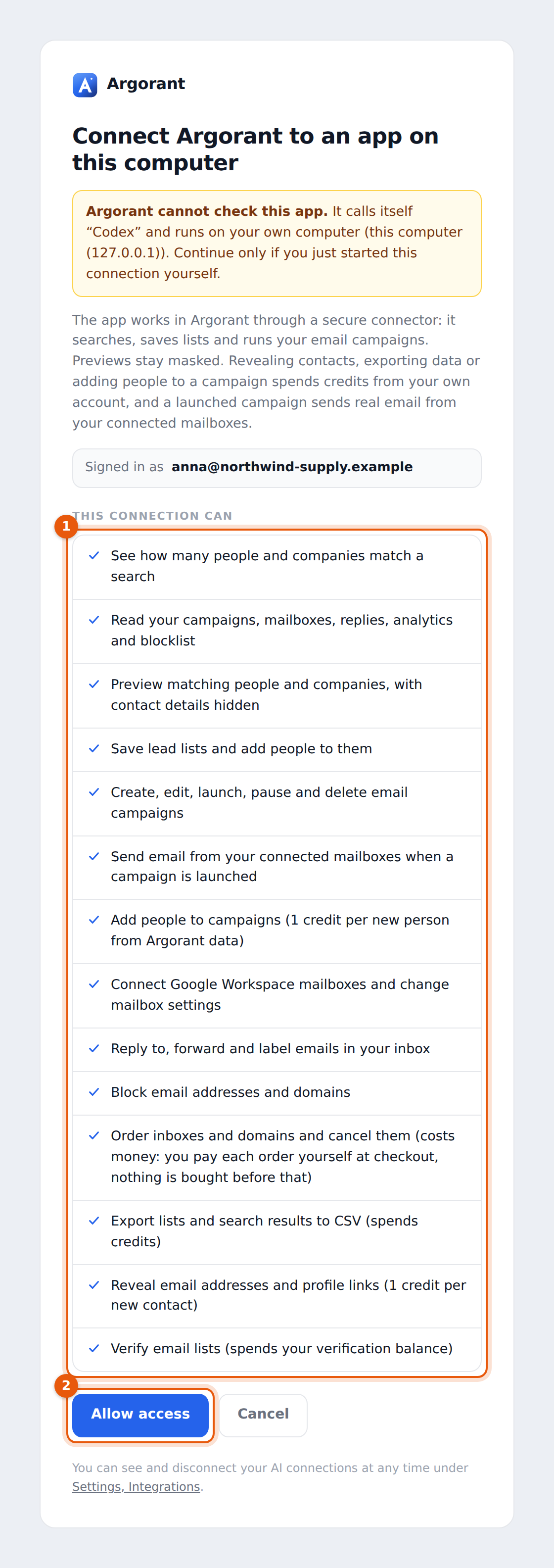
Argorant cannot check this app. It calls itself "Codex" and runs on your own computer (this computer (127.0.0.1)). Continue only if you just started this connection yourself.
You see this for apps that sign in through your own computer, such as Codex, Claude Code, Hermes or OpenClaw. If you just ran the connect command yourself, click Allow access. If you did not, click Cancel.
Argorant has not checked this app. Anyone can give an app any name, including Claude, ChatGPT or Argorant. Continue only if you just started this connection yourself, in an app you trust.
The app sends the sign-in somewhere Argorant does not know. The screen shows that address under Access goes to. Continue only if you started the connection in an app you trust and the address makes sense. When in doubt, cancel.
Messages your AI app shows while connecting
These come back to the AI app, which may show them as they are or in its own words.
| Message | What it means | Fix |
|---|---|---|
access_denied | You clicked Cancel on the permission screen. | Connect again and approve. |
| Authorization code expired. Bridge grant invalid or expired (120s). | Too much time passed between approving and returning to the app. | Connect again and let the browser hand back to the app right away. |
| Authorization code invalid or already used. Grant already redeemed. | The app tried to finish the same sign-in twice. | Connect again. |
| Authorization could not be completed, please connect again | A short failure on our side while setting up the connection. | Connect again. Nothing was spent. |
| Unknown client_id | The app's saved registration with Argorant is gone. | Remove Argorant from the app and add it again. |
| PKCE required: code_challenge with method S256 | The app uses an old sign-in method. | Update the app. Argorant needs the secure sign-in every current MCP client supports. |
| redirect_uri must be valid HTTPS, an exact loopback host, or a native app scheme | The app wants the sign-in sent to an address Argorant does not allow. | Use a supported client, or the REST API with a key for your own scripts. |
| Unsupported scope(s) | The app asked for a permission Argorant does not offer. | Remove any custom scope setting in the app and connect again. |
| Connection revoked. Refresh token invalid or expired. | The connection was ended, for example with Disconnect or Sign out everywhere. | Connect again from the app. |
| Refresh token already used; this connection was ended, please connect again | The same sign-in was used from two places at once, so Argorant ended it to be safe. | Connect again. If you did not use it twice, disconnect unknown apps under Settings, AI connections. |
Messages when a tool runs
Once connected, an action can still fail. The AI usually repeats Argorant's words.
The Argorant connector needs to be reconnected.
No authenticated Argorant connection for this request.
The app's sign-in is no longer valid. You disconnected it, signed out everywhere, or the sign-in expired. Reconnect from the app. In Codex run codex mcp login argorant again; in Cursor click the sign-in button next to Argorant.
This connection does not match the signed-in Argorant account. Reconnect Argorant and try again.
The app mixed up two sign-ins, for example after you switched accounts. Remove Argorant from the app, add it again and sign in with the account you want.
This connection needs permission: argorant:unlock_contacts
This Argorant connector is not allowed to use that action
The connection was approved without the permission this tool needs. The part after the colon names it. Reconnect and approve the full list on the permission screen.
This Argorant MCP action is not enabled for this account.
Your account has no allowance for this action right now, for example reveals on an account without an active trial, plan or credits. Check Settings, Plans and usage. Counts and previews usually still work.
The connected account does not have enough eligible balance for this action.
Not enough credits for a reveal, export or other paid action. Add credits or pick a plan in the app, then ask again. See the 402 article.
Rate limit reached. Retry after about 60 seconds.
The AI asked too fast or used today's limit. The number of seconds is in the message. Daily limits reset at midnight UTC. See The connector daily limit.
One of these filters is not ready yet. Nothing was counted, shown or charged. Search without it for now.
Ask again without that filter.
The quote expired. Request a fresh quote before starting.
Quotes for checking your own list are valid for 15 minutes. Ask the AI for a new quote and approve again.
Argorant could not complete this request. Check the action status before retrying a write.
Something failed on our side. Before you ask again, let the AI check the status (for example the export or campaign) so it does not start a second one.
The tools do not show up at all
- The server is saved but not signed in. In Codex,
/mcpshows it as needing a login. Run the login step again. - Argorant is turned off for this chat or agent. Turn it on in the app's tool or connector menu.
- You use a hosted web task or a temporary chat. Those may not load your connectors. Use a normal session.
- You are in ChatGPT or Codex and look for mailbox orders. Those tools are not offered to OpenAI apps.
Start clean
When nothing else helps, reset both sides.
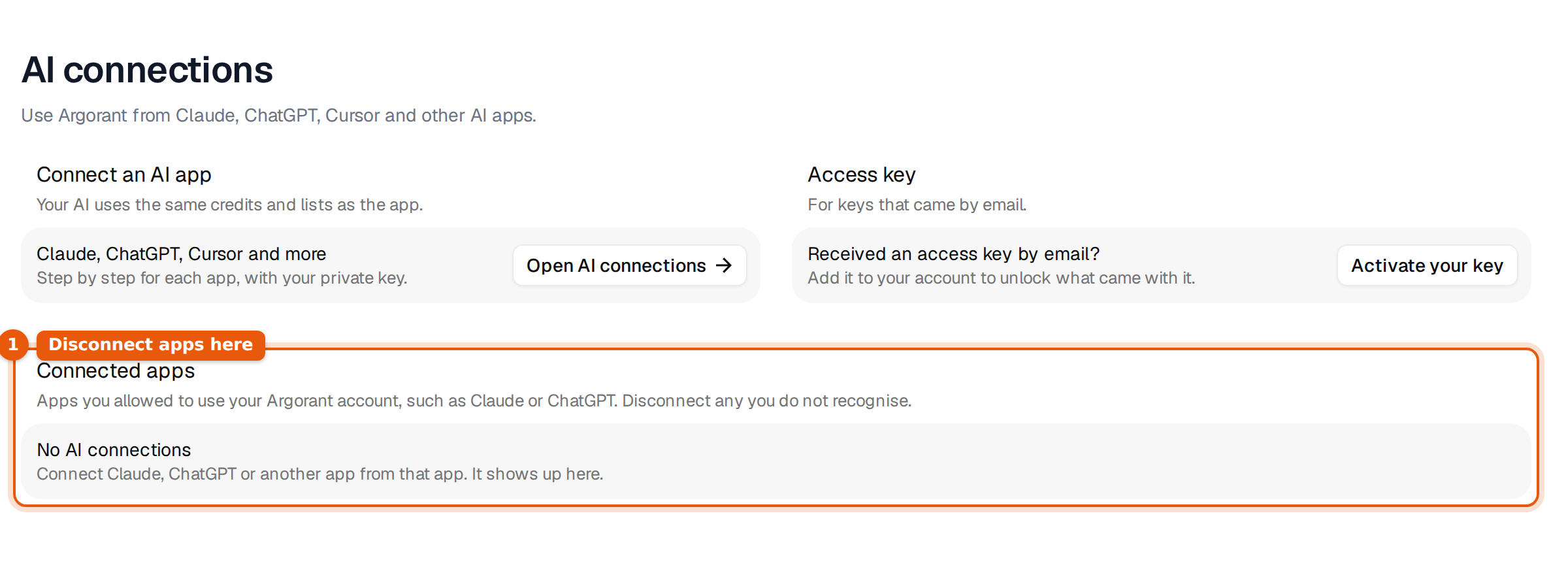
- In Argorant, open Settings, AI connections and click Disconnect next to the app under Connected apps. Remove any entry that says "An app calling itself" with a name you do not recognise.
- In the AI app, remove the Argorant server.
- Add it again with
https://mcp.argorant.com/mcp, sign in and approve. - Send the request
Check my Argorant account.and wait for your email and credits in the answer.
Argorant checks permissions, limits and credits on every call, so a broken or confused connection can never spend more than your balance. If a message here does not match what you see, write to support@argorant.com with the exact text.