
When you add Argorant to an MCP client, the client opens a browser window asking you to sign in to Argorant and approve access. That window is the entire authentication step. There is no key to copy and no secret to store in the client.
What actually happens
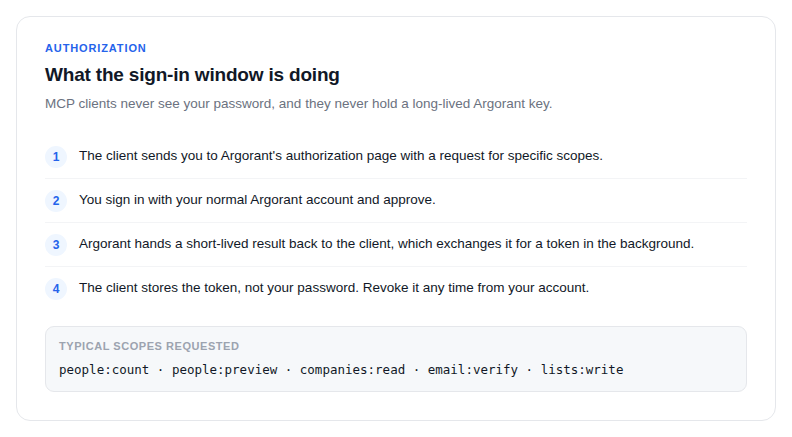
- The client sends you to Argorant's authorization page with a request for specific scopes.
- You sign in with your normal Argorant account and approve.
- Argorant hands a short-lived authorization result back to the client, which exchanges it for a token in the background.
- The client stores that token, not your password, and refreshes it as needed.
The exchange uses PKCE, a public-client extension of OAuth. In plain terms: the client proves it is the same application that started the flow, so an intercepted redirect is worthless to anyone else. This matters because desktop apps and editors cannot keep a secret on your machine.
Native application schemes
Desktop clients cannot receive a normal web redirect, so they register their own URL scheme, for example cursor://. Argorant allows those native schemes. Your browser will ask whether to open the application. Approving that prompt is the last step of the sign-in, not a separate action.
If it fails
- Allow pop-ups for the client and retry.
- If the browser never returns to the app, make sure the desktop client is installed and running before you start the flow.
- Signing in with the wrong account is the most common cause of an empty result. Check the email shown on the consent screen.
Revoking access is symmetric: remove the connector in the client, and remove or rotate anything else that account uses under Profile.