
Cursor supports MCP servers natively, which makes Argorant a first-class tool inside your editor.
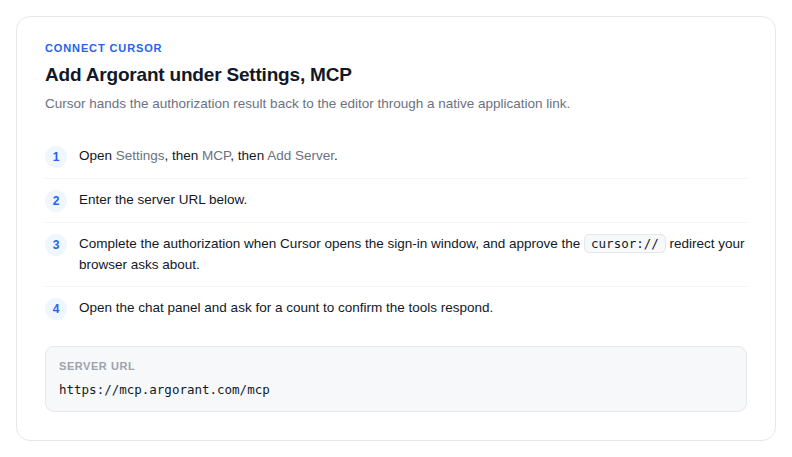
- Open Settings, then MCP, then Add Server.
- Enter
https://mcp.argorant.com/mcp. - Complete the authorization when Cursor opens the sign-in window. Cursor uses a native application scheme (a
cursor://link) to hand the result back to the editor, so approve that redirect when your browser asks. - Open the chat panel and ask for a count to confirm the tools respond.
The faster alternative: copy the setup prompt from argorant.com/ai-agents, paste it into the Cursor chat, and it walks itself through configuration, including the API key fallback if you prefer keys over OAuth.
Working style that pays off
Cursor is at its best when the data work sits next to the code. Ask it to count a segment, iterate on the filters in plain language until the number matches your intent, and only then request an export. It can then write the CSV path straight into the script that consumes it.
Exploration is free on every tier, so iterating on filters ten times costs nothing. Credits are only touched by reveals and exports.