
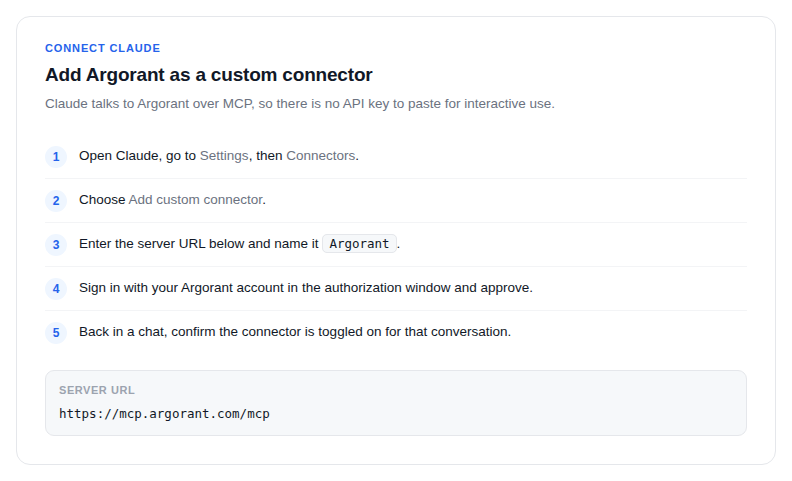
Claude talks to Argorant over MCP, so there is no API key to paste for interactive use. You approve the connection once with your Argorant login and it stays available across chats.
- Open Claude and go to Settings, then Connectors.
- Choose Add custom connector.
- Enter the server URL
https://mcp.argorant.com/mcpand give it a name such asArgorant. - Claude opens an authorization window. Sign in with your Argorant account and approve. Free accounts work here: counts and previews cost nothing.
- Back in a chat, confirm the connector is toggled on for that conversation.
Test it with a question that needs real data, for example: Count matching CFO contact records at manufacturers in Germany. Show a masked preview and ask before spending contact credits. Claude should come back with a population count, not an estimate.
If nothing happens
- The connector list is per client. If you added it on the web, check the desktop app has synced or add it there too.
- If the authorization window closes without a result, allow pop-ups for Claude and retry.
- If Claude answers from general knowledge instead of querying, say use the Argorant connector once. Check the actual tool result; do not accept an invented estimate as a connection test.
Search, counts and masked previews do not deduct contact credits; access and rate limits still apply. Require explicit approval before credit-consuming actions. A tool annotation alone does not guarantee that Claude asks first.