
Connect Claude to Argorant and you can ask for your market in plain words. Claude counts, previews, saves lists and exports with your own Argorant account, the same credits and lists you see in the app. There is no key to copy. You approve the connection once on Argorant's own sign-in screen.
This guide covers Claude on the web and in the desktop app, plus a short section on Claude Code. For more detail see Set up Argorant in Claude (desktop and web) and Set up Argorant in Claude Code.
Before you start
- You need an Argorant account with a confirmed email address. A new account starts with a 7-day trial, and counts and previews cost nothing.
- Claude has to let you add your own connectors. Whether it does depends on your Claude plan and, in a company workspace, on what the owner allows. In a managed workspace an owner may need to add the connector first under Organization settings, then Connectors. After that, each member connects with their own Argorant login.
- Have the server address ready. It is the same for everyone:
https://mcp.argorant.com/mcpIn Argorant, AI connections shows the same address on the Claude tab with a Copy button and an Open Claude Connectors button that takes you straight to the right page in Claude.
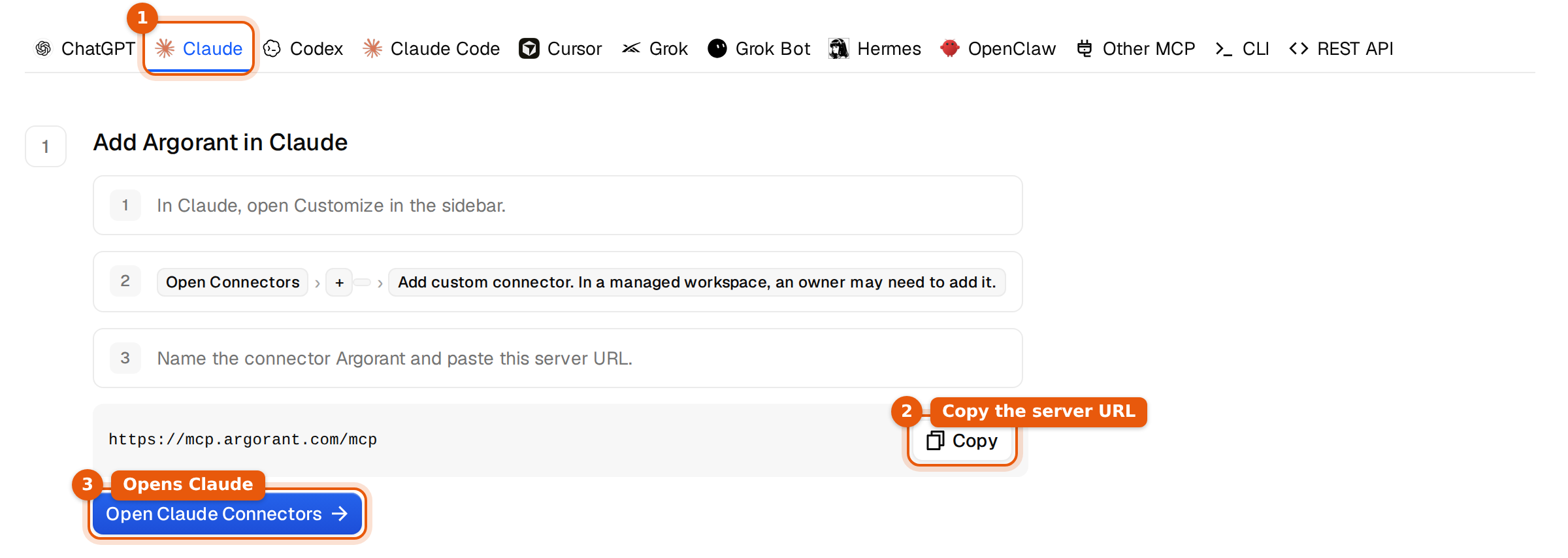
Add the connector, step by step
- In Claude, open Customize in the sidebar.
- Open Connectors, click + and choose Add custom connector.
- Name it
Argorantand pastehttps://mcp.argorant.com/mcpas the server URL. Leave any advanced fields empty. Argorant needs no client ID or secret from you. - Click Connect on the new connector. Argorant's sign-in and permission screen opens in your browser.
- If you are not signed in to Argorant, click Sign in to continue and sign in. Check the Signed in as line shows the account you want Claude to use.
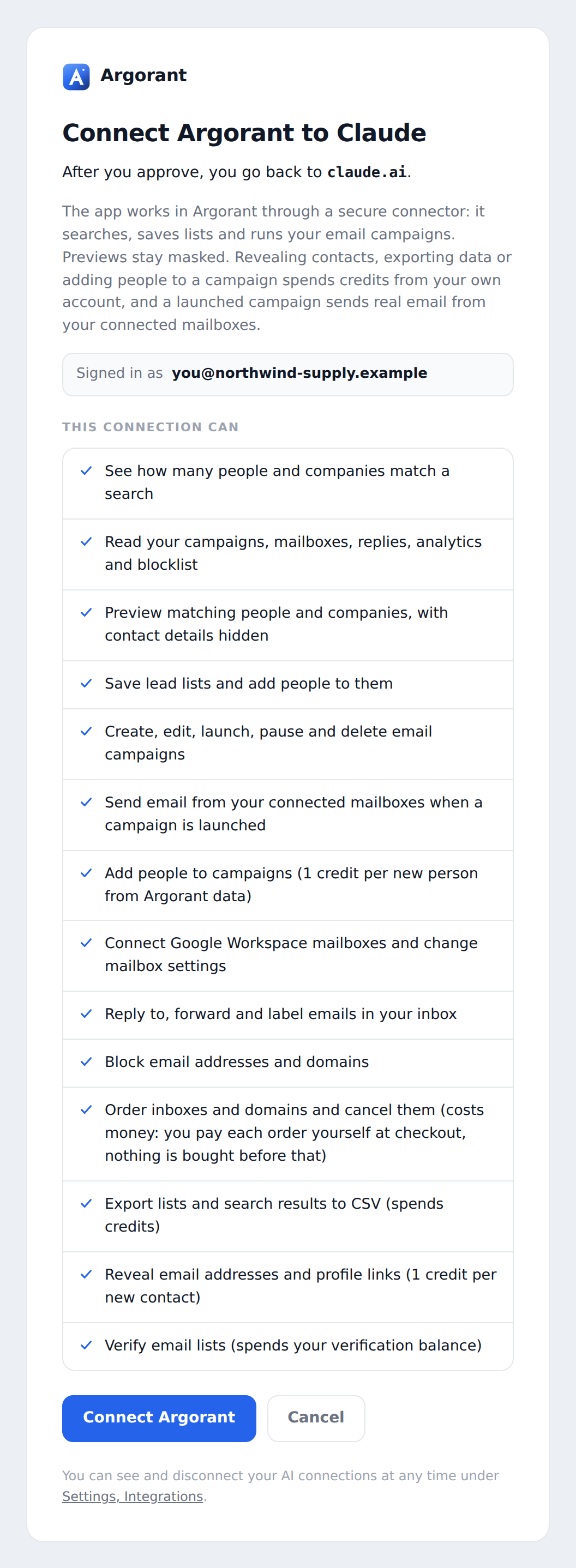
- Read the list under This connection can and click Connect Argorant. You land back in Claude and the connector shows as connected.
What the permission screen asks, and why
The screen is titled Connect Argorant to Claude and says where you go back to after approving (claude.ai). It lists everything the connection can do, in plain words, because a connector works with your real account and real credits:
- See how many people and companies match a search, and read your campaigns, mailboxes, replies, analytics and blocklist.
- Preview matching people and companies with contact details hidden.
- Save lead lists, create and launch campaigns, add people to campaigns (1 credit per new person from Argorant data), connect Google Workspace mailboxes, reply to emails in your inbox, block addresses and order inboxes and domains (you pay each order yourself at checkout).
- Export lists and search results to CSV, which spends credits.
- Reveal email addresses and profile links, 1 credit per new contact.
- Verify email lists from your verification balance.
Nothing on that list happens by itself. It is what Claude may do when you ask. The screen is explained in full in The authorization window, explained.
Turn it on in a chat
Adding the connector does not switch it on everywhere. In each conversation, click + in the message box, open Connectors and make sure Argorant is on. Then ask. The first time Claude uses a tool it may ask you to allow it. Read what it is about to do before you allow it.
Prompts to try, and what Claude does with them
Start with the first one. It proves the connection works without spending anything.
Check my Argorant account.Claude calls the account tool. It shows who is connected, your role, the credits left and how much of today's limits you have used. Free.
How many heads of finance work at logistics companies in DACH?Claude runs a count with a title, an industry and the DACH region. The number counts people, not companies. Free, and you can refine it as often as you like within the daily limits.
Show me five examples so I can check the job titles.Claude runs a preview. You see initials, job, company, place and department. Names are masked and there are no emails, phone numbers or profile links. Free.
Leave out assistants and interns, then save the whole search as a list called "DACH logistics finance".Claude adjusts the search and saves it as a private list. Saving is free, shows no contact details and sends nothing. The list fills in the background and appears under Lists in the app.
Reveal the first 10 people. Tell me the cost before you do it.Reveal shows name, job, company, work email and profile link. Each person whose email is new to your account costs 1 credit. People you already unlocked are free. Claude should state the cost and wait for your yes.
Export that list to CSV, at most 300 people, and email me when it is ready.Claude creates an export of the saved list. Each person with a working email costs 1 credit, and people you exported before are skipped. The file is built in the background and Claude can check its status for you.
Find the work email of Anna Weber at northwind-supply.example.Claude uses the email finder for one named person. It costs 1 credit when an email is found and a quarter credit when nothing is found. A catch-all result is marked unconfirmed. Claude should ask before it runs.
What it costs
Search, counts and masked previews do not deduct credits. Account permissions and rate limits still apply. Revealing, exporting and adding new people to a campaign use the same credits as the app. Connecting Claude does not add credits or change your plan.
Searches and counts have daily safety limits during the trial and without a plan. Through an AI assistant that is 20 a minute, 1,000 counts and 1,000 search rows a day. On a plan there is no daily limit for them, only a speed limit per account.
Claude Code in two commands
In a terminal, in the project where you use Claude Code, run:
claude mcp add --transport http argorant https://mcp.argorant.com/mcpThen type /mcp inside Claude Code, pick argorant and authenticate. Your browser opens Argorant's screen. Because Claude Code runs on your own computer, the screen says Connect Argorant to an app on this computer and the button is Allow access. The full guide is Set up Argorant in Claude Code.
Common mistakes
- The connector is off in this chat. Claude answers from general knowledge and gives you an estimate instead of a count. Open +, then Connectors, and turn Argorant on.
- Wrong address. It must be exactly
https://mcp.argorant.com/mcp. Not the app address, not the docs page, and never with a key added to it. - The sign-in window closed or never opened. Allow pop-ups for Claude and click Connect again.
- Signed in to the wrong Argorant account. Check the Signed in as line before you approve. To switch, disconnect and connect again.
- No option to add a connector. Your plan or your workspace settings do not allow it. Ask your workspace owner, or use Argorant in the app.
- A key pasted into the chat. That does not connect anything and it exposes the key. Revoke it under Settings, then API keys.
Disconnect
In Argorant, open Settings, then AI connections. Under Connected apps, click Disconnect next to Claude and confirm. Claude loses access at once. You can also remove the connector in Claude under Customize, then Connectors.
What happens next
Lists Claude saves show up under Lists, exports under Exports, and every credit it spends shows in your balance, exactly as if you had clicked it yourself. Good next reads are spending guardrails for agents and what the connector's tools do.
 Claude
 Argorant