
A workspace can have several people. Everyone in it shares the plan, the credits, the lists, the mailboxes, the campaigns and the Unibox, so you work on the same leads without sending files around. Settings, then Team is where you invite people, pick what they may do and see how many seats you use.
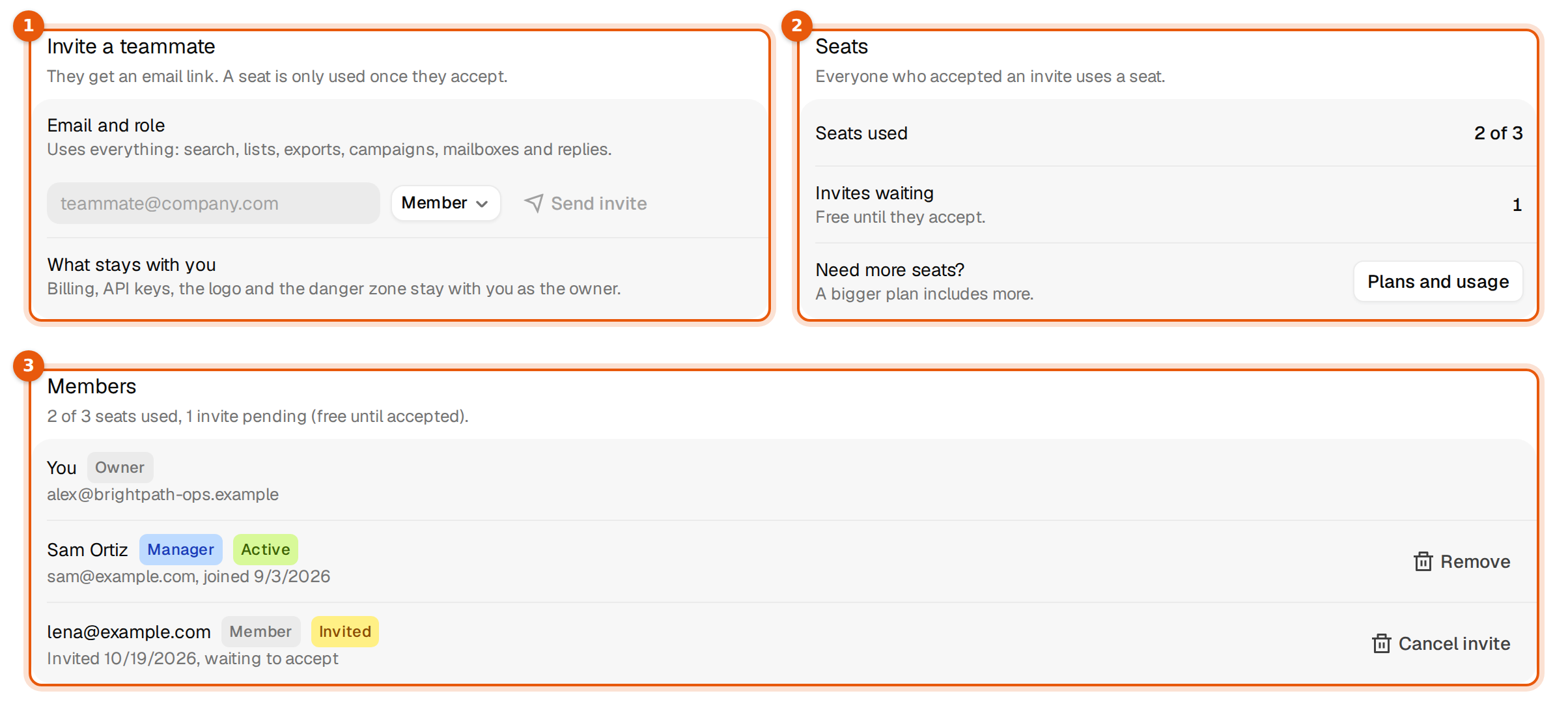
Invite a teammate
- Open Settings, then Team.
- Under Invite a teammate, type their work email in the field.
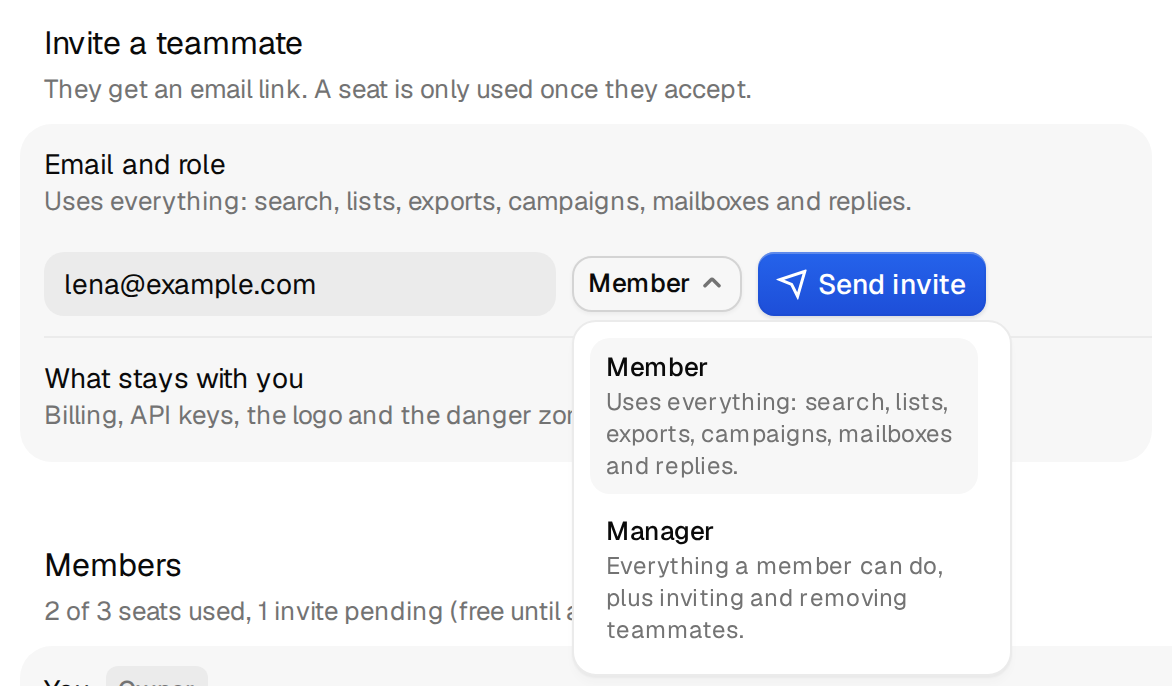
- In the menu next to it, choose Member or Manager. The line above the field explains what the chosen role can do.
- Click Send invite.
A message confirms it, for example Invite sent to sam@example.com. A seat is only used once they accept. The person shows under Members with the status Invited. They get an email with a link and join once they accept. See Invite teammates for what they see.
Roles
| Role | What they can do | Who gives it |
|---|---|---|
| Owner | Everything, plus billing, API keys, the logo, the workspace name and closing the workspace. | The person who created the workspace. There is one owner. |
| Manager | Everything a member can do, plus inviting and removing teammates. | Only the owner can invite a manager. |
| Member | Uses everything: search, lists, exports, campaigns, mailboxes and replies. | The owner or a manager. |
Pick Member for most people. Pick Manager for a team lead who should bring in new people without asking you each time. Billing and keys stay with the owner either way.
Members and managers see a short Roles card instead of the invite form when they cannot invite. Your own role is under Profile, in Role in this workspace.
Seats
Each plan includes a number of seats. Everyone who accepted an invite uses one. The owner counts too.
| Row | What it shows |
|---|---|
| Seats used | Taken seats out of the seats in your plan, for example 2 of 3. |
| Invites waiting | Invites nobody has accepted yet. They are free until someone accepts. |
| Need more seats? | A bigger plan includes more. The owner gets a Plans and usage button here. |
| Plan | Seats |
|---|---|
| Starter | 1 |
| Pro | 3 |
| Scale | 10 |
| Hyperscale | 20 |
When all seats are taken and you send another invite, Argorant shows a window to upgrade instead of sending it. See Seat limit reached.
Remove someone or cancel an invite
- Find the person under Members.
- Click Remove for an active member, or Cancel invite for someone who has not joined yet.
- Confirm.
The seat is free at once. Their lists, campaigns and replies stay in the workspace, so nothing they built is lost. A manager can remove members but not other managers. Only the owner can remove a manager.
Common problems
| Problem | What to do |
|---|---|
| The invite email did not arrive | Ask them to check spam. Cancel the invite and send it again if needed. See Invite link problems. |
| You cannot pick Manager | Only the owner can invite a manager. |
| You do not see the invite form | You are a member. Ask the owner or a manager to invite people. |
| Someone left the company | Remove them, so their seat is free for the next person. |