
The danger zone sits at the bottom of Settings, then Workspace. It holds the actions you need when something went wrong, such as a lost laptop or a leaked key, and the one you need when you want to leave. Each action asks once before it runs. Only closing the workspace can be undone, and only until the day it closes.
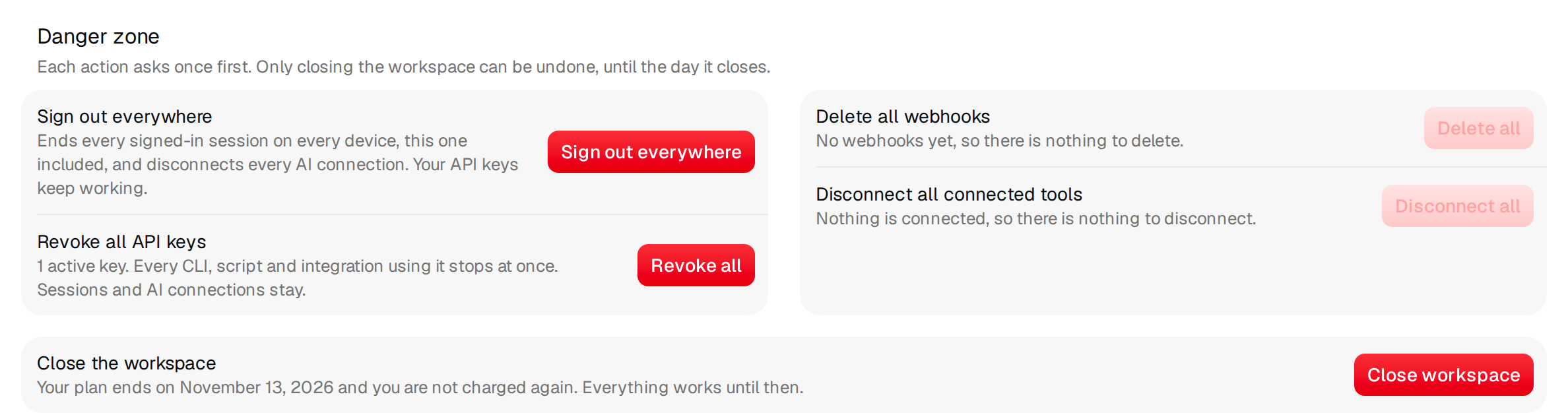
What each action does
| Action | What it does | What keeps working |
|---|---|---|
| Sign out everywhere | Ends every signed-in session of yours on every device, this one included, and disconnects every AI app you connected. You sign in again right after. | API keys, your data, your campaigns. |
| Revoke all API keys | Every key stops working at once. Each CLI, script and integration that uses one gets refused until you give it a new key. The row tells you how many keys are active. | Sessions and AI connections. |
| Delete all webhooks | Removes every webhook endpoint. Argorant stops sending events to them at once. | Everything else. |
| Disconnect all connected tools | Removes every CRM, sheet and sending tool connection. Exports you already pushed stay where they are. | Everything else. You can connect the tools again later. |
| Close the workspace | Ends your plan and closes the workspace for the whole team. See below. | Everything, until the closing date. |
When to use which
| Situation | Do this |
|---|---|
| A laptop or phone with Argorant open was lost or stolen | Sign out everywhere, then change your password under Profile. |
| You see an AI app you do not recognise | Disconnect it under AI connections. Use Sign out everywhere if you are unsure which ones are yours. |
| An API key ended up in a public repository, a chat or a ticket | Revoke all API keys, then create new ones. See What to do if an API key leaks. |
| Someone left and had access to your CRM connection | Disconnect all connected tools, then connect them again with an account you control. |
| You want to stop using Argorant | Close the workspace. |
To remove a single key, webhook or tool instead of all of them, use its own button in API keys or Connected tools.
Close the workspace
Only the owner sees this row. Managers and members do not.
- Click Close workspace.
- Read the window Close this workspace?. It lists the dates that apply to you: when your plan ends, when your mailboxes end, and the day the workspace closes.
- If you like, pick a reason under Why are you closing it?. Your answer goes to our team and changes nothing.
- Click Close workspace to confirm, or Keep workspace to go back.
| Your situation | What happens |
|---|---|
| You pay for a plan | The plan ends at the end of the period you already paid for. You are not charged again. Until then everything keeps working for the whole team. |
| You pay for mailboxes | They end with their paid period and their domains do not renew. This part is final, even if you keep the workspace later. |
| You pay for nothing | The workspace closes right away and everyone on your team is signed out. |
On the closing day nobody on the team can sign in any more, API keys stop working and running campaigns pause. We keep your data for 30 more days and then delete it. Write to support@argorant.com within those 30 days if you want the workspace back. Export what you want to keep before the closing day. See Export your data.
Change your mind
Until the closing day, the row shows Workspace closes on and the date, with a Keep my workspace button. Click it and your workspace stays open and your plan continues as before. Mailboxes you cancelled by closing do not come back.
If you see Ask support to close it
Some workspaces cannot be closed from Settings. Then the row shows Ask support to close it. Click it to write to our team. We close the workspace, its data and its billing within one working day of your request.