
Settings, then Workspace holds what your whole team shares: the workspace name and logo, a quick look at the plan, the tags on your mailboxes, campaigns and domains, and the reply labels. The danger zone sits at the bottom.
| Part of the page | What it is for | Who can change it |
|---|---|---|
| Name and logo | What your team sees in invites and in the sidebar. | The owner |
| Plan | Your plan, when it renews, and the credits left. | Read only here |
| Tags | Every tag in the workspace, with rename, merge and delete. | Everyone |
| Standard labels, More labels, Your labels | The labels replies can get in the Unibox. | Everyone |
| Danger zone | Sign out everywhere, revoke keys, delete webhooks, disconnect tools, close the workspace. | See The danger zone |
Change the name and logo

- Under Name and logo, type the new name in the Name field.
- Click Save, or press Enter. A message confirms Workspace name saved.
- Next to Logo, click Upload and pick an image. It shows in the sidebar at once.
- To change it later, click Replace. To go back to your initials, click Remove.
The logo must be a PNG, JPG or WebP image of up to 300 KB. A square image looks best, because it is shown small and cropped to a square. If the file is too big or the wrong type, a message says Use an image under 300 KB. or Use a PNG, JPG or WebP image.
If you are not the owner, both rows show Set by the workspace owner. Ask the owner to change them.
Plan and credits
The Plan card shows your plan, for example Pro, monthly, the date it renews and your Credits left for contacts and email checks. Click Plans and usage for the details, to change plan or to buy credits. See Plans and usage.
Tidy up tags
Tags help you group mailboxes, campaigns and domains, for example by client or by country. The Tags table lists every tag and how often each one is used on mailboxes, campaigns and domains, and on LinkedIn accounts and campaigns if you use them. Type in Search tags to find one.
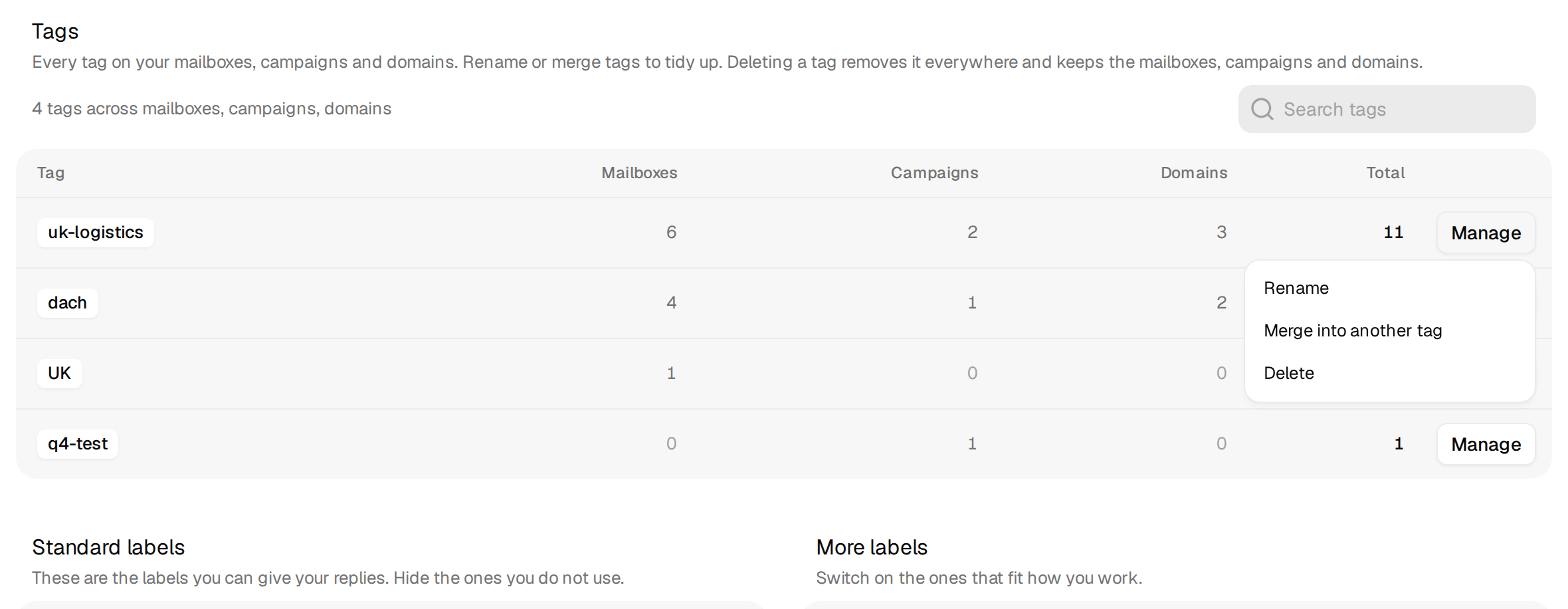
| Action | How | What happens |
|---|---|---|
| Rename | Manage, then Rename. Type a New name. | The tag changes on every mailbox, campaign and domain that has it. |
| Merge | Manage, then Merge into another tag. Pick the tag under Merge into. | Everything with the old tag gets the other tag instead. Use it to clean up spelling variants such as UK and uk-clients. |
| Delete | Manage, then Delete, then Delete tag. | The tag is removed everywhere. The mailboxes, campaigns and domains themselves stay untouched. |
Each window first tells you how many objects carry the tag, so you know what you change before you confirm. When it is done, a message counts the changed objects. New tags are added on a mailbox, campaign or domain, not here. A tag shows in this table as soon as it is used once.
Reply labels
Below the tags you manage the labels replies can get in the Unibox: switch standard labels off, switch extra labels on, and add your own. See Reply labels and Create your own labels.
Danger zone
At the bottom of the page. See The danger zone before you use it.