
Every reply in the Unibox gets a label, for example Interested or Out of office. Argorant reads each new reply and picks the label that fits, so you can see at a glance who wants to talk and who is away. You can change any label by hand.
Labels decide which Unibox folder a reply sits in, they feed the positive reply numbers in Analytics, and you can filter the Unibox by them.
Standard labels
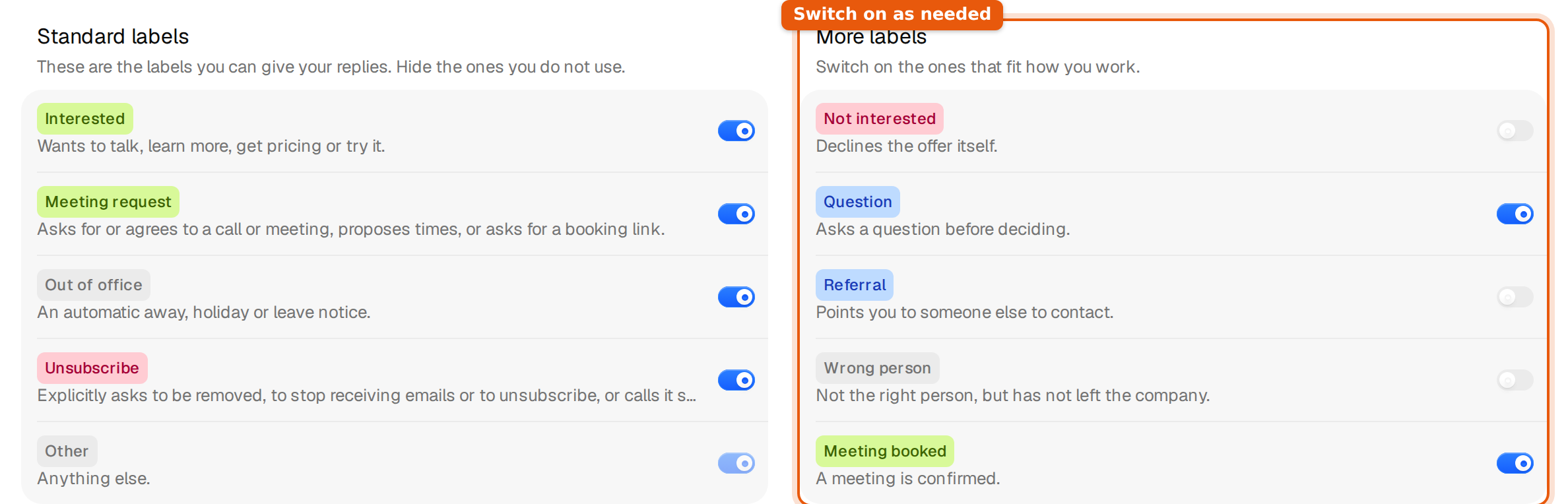
Every workspace starts with these five. They are on by default.
| Label | When it fits |
|---|---|
| Interested | Wants to talk, learn more, get pricing or try it. |
| Meeting request | Asks for or agrees to a call or meeting, proposes times, or asks for a booking link. |
| Out of office | An automatic away, holiday or leave notice. |
| Unsubscribe | Clearly asks to be removed, to stop getting emails, or calls it spam. A plain not interested or no thanks is not an unsubscribe. |
| Other | Anything else. Other catches every reply that fits no other label, so it always stays on. |
More labels you can switch on
Five more labels are off until you need them. Switch them on when your team wants finer sorting, for example to keep polite declines apart from real questions.
| Label | When it fits |
|---|---|
| Not interested | Declines the offer itself. |
| Question | Asks a question before deciding. |
| Referral | Points you to someone else to contact. |
| Wrong person | Not the right person, but has not left the company. |
| Meeting booked | A meeting is confirmed. |
- Open Settings, then Workspace and scroll to More labels.
- Turn on the switch next to each label you want. A short message confirms it, for example Question is on.
New replies can get the label from then on, and it shows in the Unibox label menu straight away. Turning a label off hides it from the menu again.
Change the label of a reply
- Open the conversation in the Unibox.
- Click the label menu at the top right of the conversation. It shows the current label, or Add a label when the reply has none yet.
- Pick the right label.
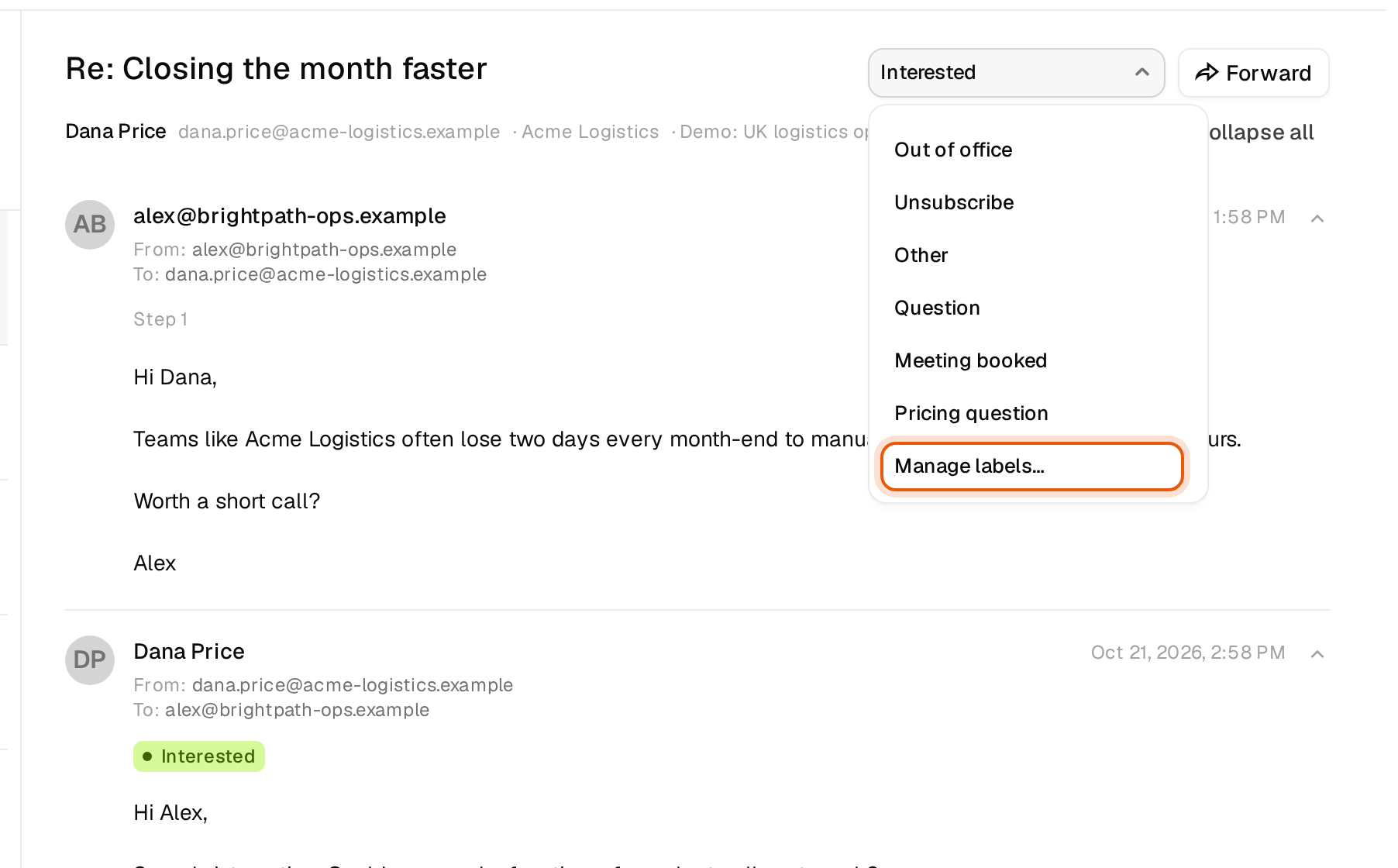
A short message confirms the change, for example Dana Price marked as Interested. It has an Undo button for a few seconds if you clicked the wrong one. The list catches up within a few seconds, so the reply may move to another folder, for example from Triage to Interested.
Under Conversation details the reply then shows Labelled by your team instead of Labelled automatically.
Hide a standard label
If your team never uses a standard label, turn off its switch under Standard labels. It disappears from the label menu for everyone in the workspace. You can hide every standard label except Other. Standard labels cannot be renamed or deleted, only hidden.
Tips and common mistakes
- Work through the Triage folder regularly. It holds replies that have no label yet.
- If many replies get a label you disagree with, change a few by hand and consider an own label with a clear description. See Create your own labels.
- Bounces are not a label. Emails that could not be delivered go to the Bounces folder on their own.
- A reply labelled Unsubscribe lands in the Unsubs folder. To make sure you never write to that person or company again, add them to your block list.