
The standard labels cover the common answers. Your own labels add the stages your team actually works with, for example Pricing question, Partner lead or Send case study. They show in the Unibox label menu, as colored chips on replies, in the label filter and in the API.
Create a label in Settings
- Open Settings, then Workspace and scroll to Your labels.
- In the New label row, type the name in the first field, for example Pricing question.
- In When a reply fits, describe in one plain sentence which replies should get it, for example Asks what it costs or for a quote.
- Pick one of the six colors in the menu next to it.
- Click Add label.

A message confirms it, for example Pricing question added. The label is on at once and shows in the Unibox straight away.
Create a label from the Unibox
When you are reading a reply and notice a label is missing, you can add it without leaving the Unibox.
- Open a conversation and click Conversation details at the bottom of the thread.
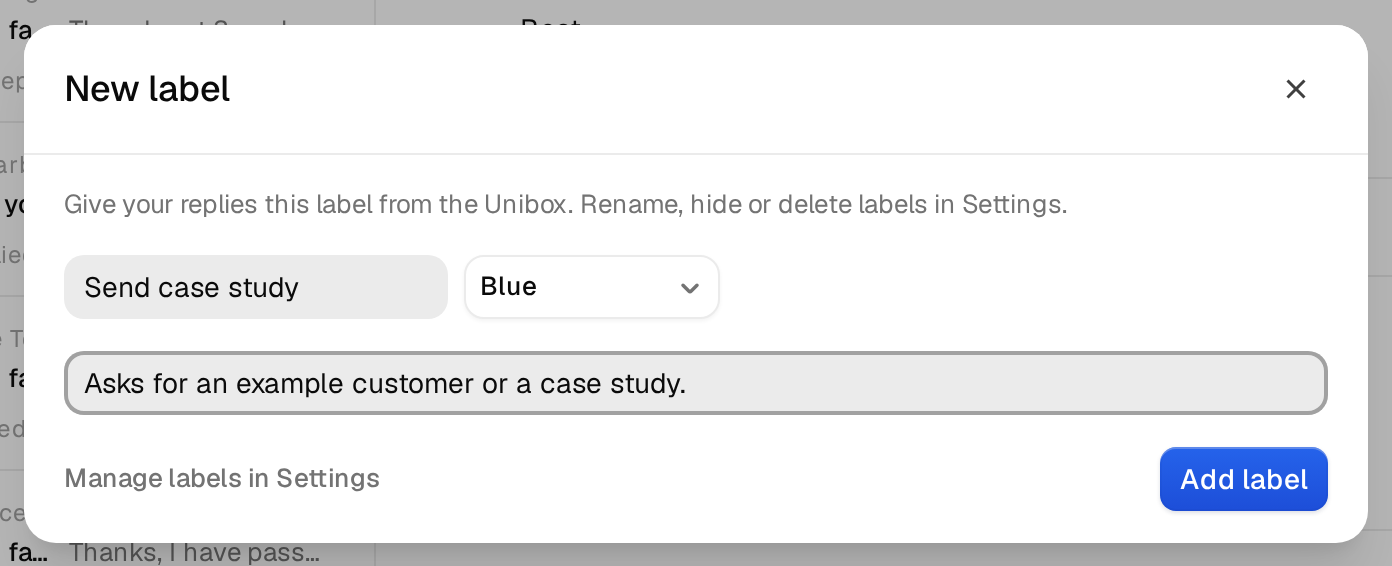
- Click New label.
- Fill in Label name, pick a color and describe When a reply fits.
- Click Add label. Then pick it from the label menu at the top of the conversation.
Write a good description
Argorant uses the description when it labels new replies, so it pays to be precise. Write what the person says or asks, not what you want to do next.
| Works well | Works badly |
|---|---|
| Asks what it costs, for a price list or for a quote. | Pricing |
| Says they already work with a provider and the contract ends later this year. | Follow up in Q3 |
| Wants to become a partner or reseller, not a customer. | Partner stuff |
Keep labels apart. If two descriptions overlap, replies jump between them. A label without a description still works in the menu, but automatic labelling then has only the name to go on.
Limits
- A name can be up to 40 characters, a description up to 300.
- A label cannot reuse the name of a standard label. If Argorant tells you a name is taken, pick another one, for example Hot lead instead of Interested.
- There are six colors. Use the same color for labels that belong together, such as green for every good outcome.
Rename, hide or delete
These happen in Settings, then Workspace under Your labels, never in the Unibox.
| Action | How | What happens |
|---|---|---|
| Rename | Click Rename, change the name, the description or the color, then click Save. | Every reply with the label shows the new name at once. |
| Hide | Turn off the switch next to the label. | It leaves the label menu. Replies keep it, and you can turn it back on. |
| Delete | Click Delete and confirm. | Replies that carry it become Other. This cannot be undone. |
Your labels belong to the workspace, so everyone on your team sees and uses the same set.