
The Unibox is where answers to your campaigns land. Every reply from every campaign and every sending mailbox shows up in one list, newest on top, so you never have to log in to each mailbox to see who wrote back. Warm-up emails never show here.
Open it from the sidebar under Outreach, then Unibox.
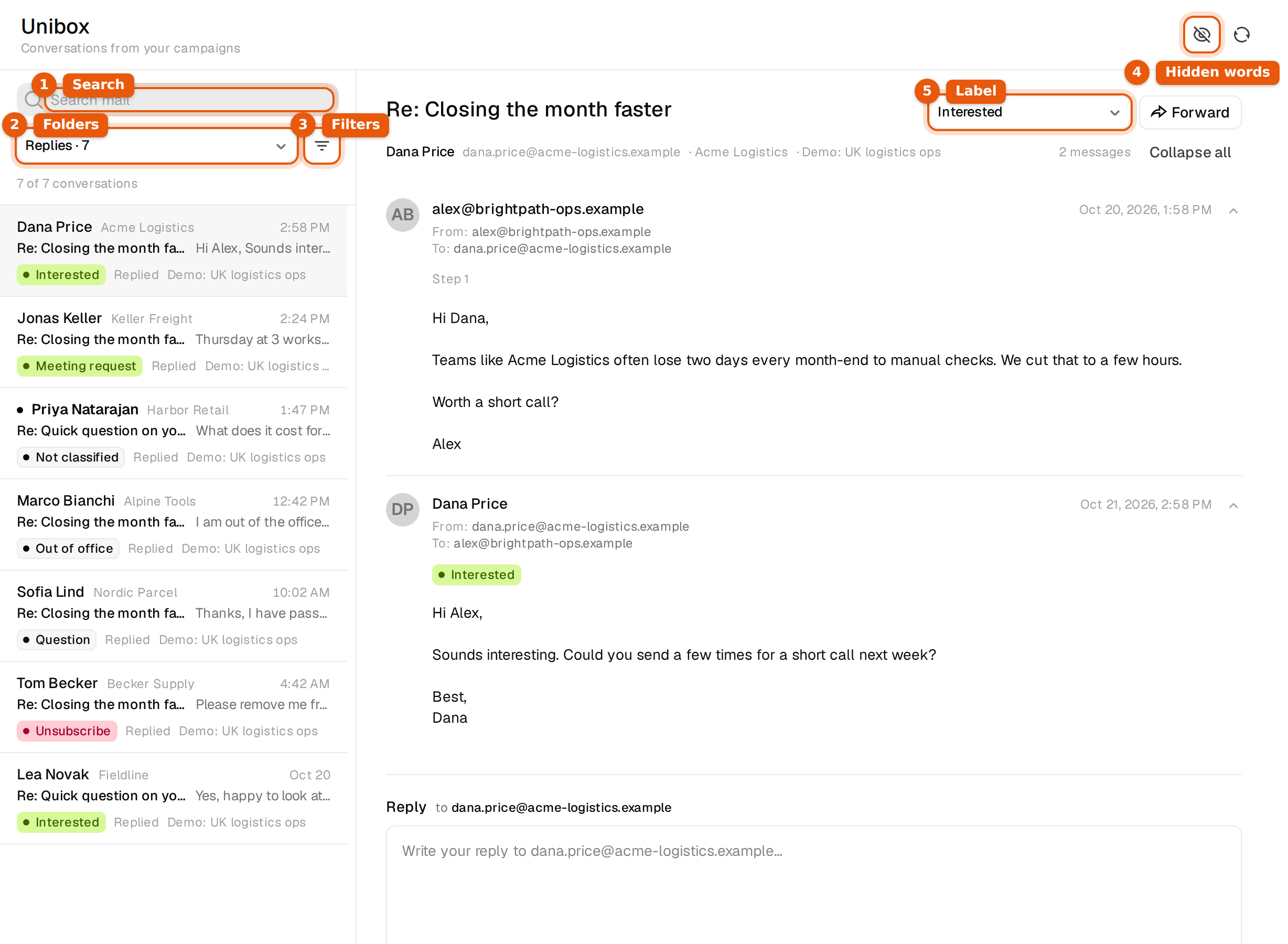
How the page is laid out
| Part | What it does |
|---|---|
| Search mail | Searches names, email addresses, subjects and the text of replies. |
| Folder menu | Picks which replies the list shows. Each folder shows its count next to its name. |
| Filter button | Narrows the list by company or brand, campaign and label. |
| The list | One row per conversation, newest first, with the person, the start of their reply and its label. |
| The reading pane | The whole thread in order: your campaign emails and their answers, with the reply box below. |
| Crossed-out eye | Opens Hidden words. See Hide replies with certain words. |
| Round arrows | Refresh loads replies that came in since you opened the page. |
Folders
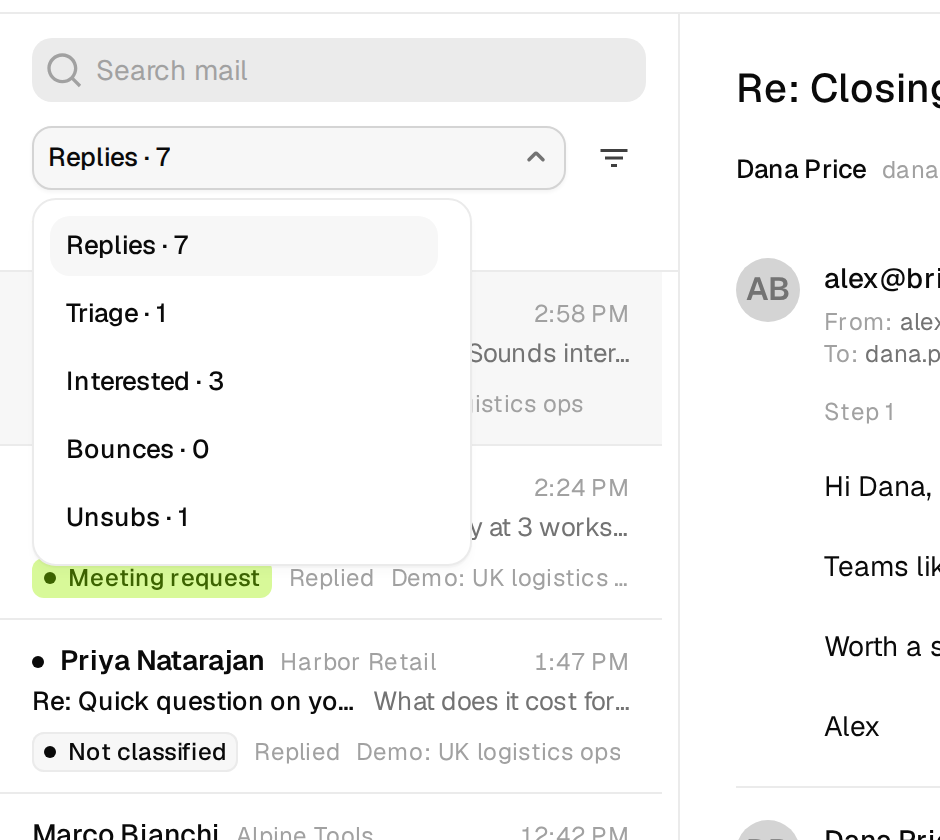
The folder menu at the top of the list switches between these views. The number after each name is how many conversations sit in it right now.
| Folder | What it shows |
|---|---|
| Replies | Every reply. This is where the Unibox opens. |
| Triage | Replies that have no label yet. Work through this folder to make sure nothing slips. |
| Interested | Replies labelled Interested, Meeting request or Meeting booked. |
| Bounces | Emails that could not be delivered. |
| Unsubs | People who asked to stop, or who marked your email as spam. |
Find a conversation
- Pick a folder from the menu at the top of the list.
- Type in Search mail to look for a name, an address, a company or a word from the reply. The list updates as you type.
- Click the filter button next to the folder menu to narrow the list. Three fields open: All companies / brands, All campaigns and All classifications. Pick one or more values in any of them. Classification means the reply label.
- Click Clear filters to go back to the full list. When the filter panel is closed, a short line under the menu tells you how many filters are still on.
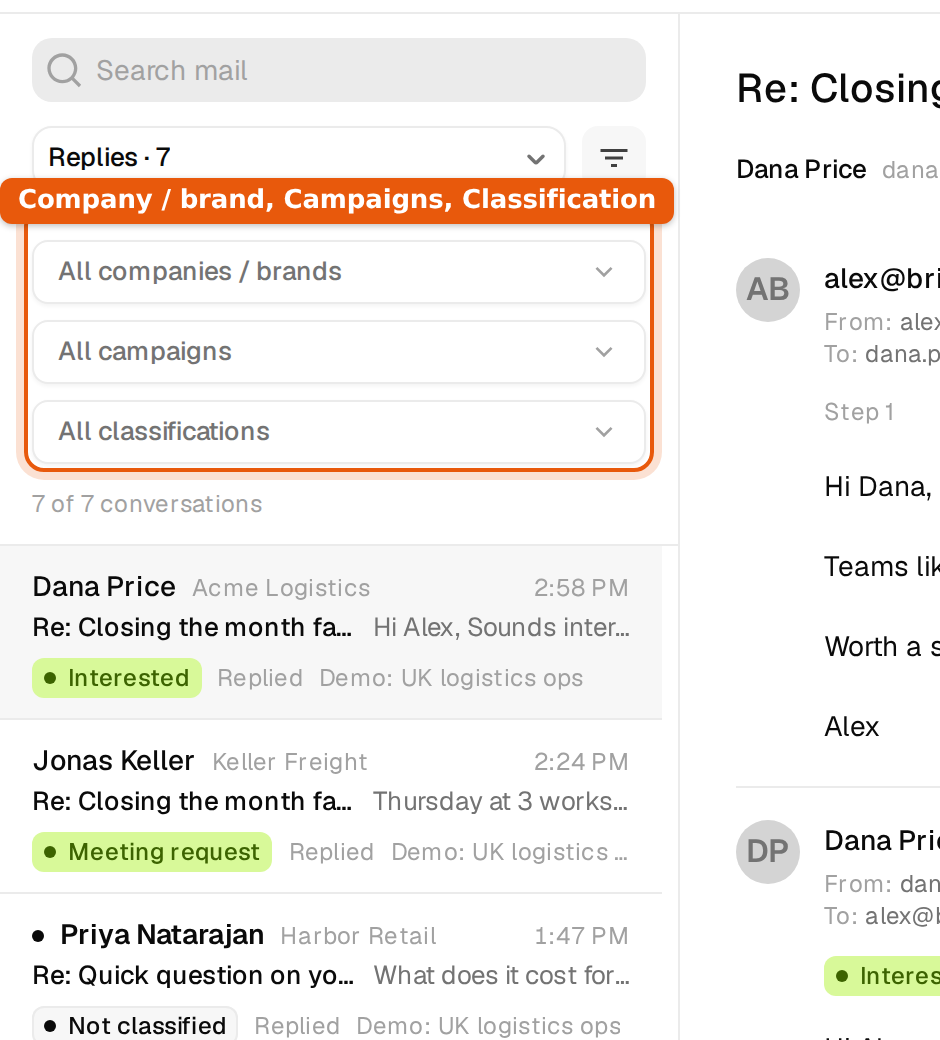
Under the menu you see how many conversations match, for example 7 of 7 conversations. That line counts conversations, not single emails.
Move through the list fast
- Press the down and up arrow keys while the list has focus, or j and k anywhere on the page, to open the next or previous conversation.
- The list loads the newest conversations first. When there are more, click Load 250 older at the bottom. You can go back up to 2,000 conversations this way. Past that, narrow the list with a folder, a filter or a search.
- On a phone the list and the conversation take turns. Tap a row to read it, and tap Back to conversations to return.
Read a conversation
Click a row and the whole thread opens on the right. Your campaign emails are marked with the step they came from, for example Sent · Step 1, and the person's answers carry their label. The header shows the subject, the person's name and address, the company and the campaign. In a long thread, Expand all and Collapse all open or close every message at once.
Click Conversation details at the bottom of the thread to see which of your mailboxes received the reply, how the label was set (Labelled automatically or Labelled by your team), and a button to open the campaign.
Answer, label or forward
Everything you do with a reply happens in the reading pane:
- Change the label with the menu at the top right. See Reply labels.
- Write your answer in the box under the thread and send it from the same mailbox. See Reply and forward from the Unibox.
- Click Forward to send the thread to a colleague.
Common questions
| What you see | What it means and what to do |
|---|---|
| No replies yet | Nobody has answered a campaign yet, or you have no sending mailbox. Click Connect a mailbox if you have none. |
| No conversations match these filters. | A folder, a filter or your search hides everything. Clear the search, click Clear filters and pick Replies. |
| A reply you expected is missing | Check that it does not contain one of your hidden words. Then click Refresh. New replies usually show within a few minutes. |
| Inbox access isn't enabled | Your account cannot open the Unibox yet. Ask the owner of your workspace. |
A reply also stops that person's next steps when Stop on reply is on for the campaign, so you do not need to stop them by hand. See Stop on reply.