
You can answer a reply right in the Unibox. Your answer goes out from the same mailbox the person wrote to, in the same thread, so for them it looks like a normal email from you. You can also forward a conversation to a colleague, for example to hand a lead to sales.
Reply to someone
- Open the conversation in the Unibox.
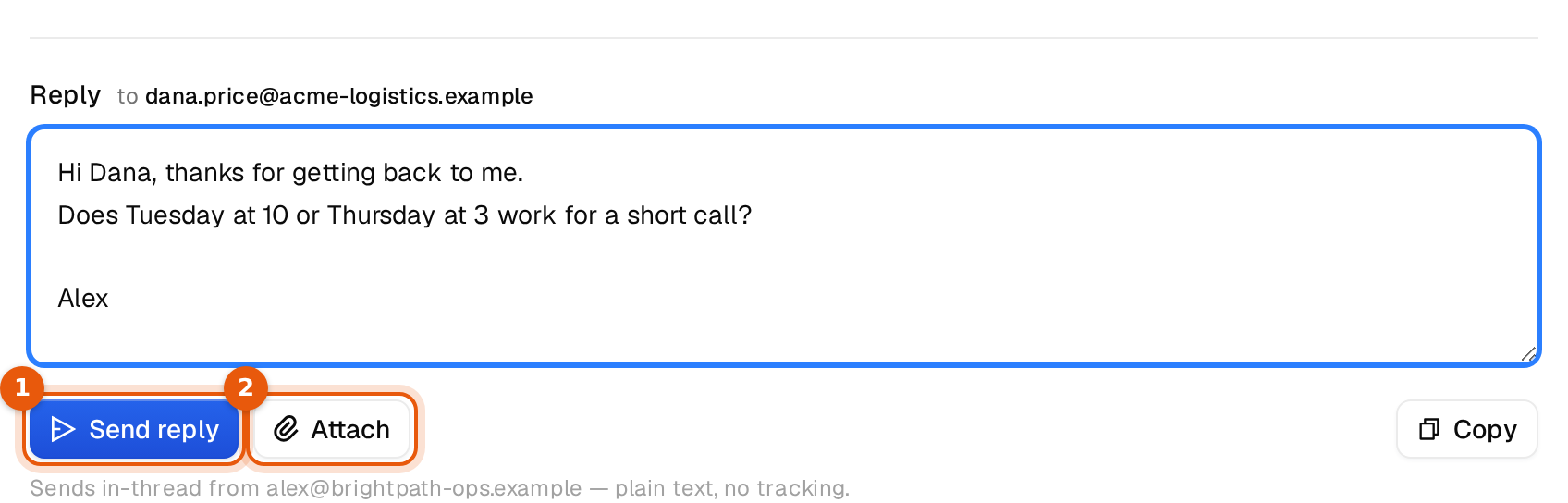
- Scroll to the box under the thread. Above it you see Reply and the address it goes to.
- Write your answer. The box grows as you type.
- To add files, click Attach and pick them. Each file shows as a small chip with its size. Click the x on a chip to take it off again.
- Click Send reply.
A message confirms it, for example Reply sent in-thread to dana.price@acme-logistics.example. The box empties, and your answer shows up in the thread after a moment.
How your reply goes out
- From the mailbox that received the reply. The line under the buttons names it, so you always know which address you are writing from.
- In the same thread, with the same subject, so it lands under the earlier emails in their inbox.
- As plain text, with no open or click tracking. That is what a personal answer looks like.
- Right away. There is no send window or delay for answers from the Unibox.
Your draft is kept per conversation while the page is open. You can switch to another reply and come back, and your text is still there. It is not saved when you reload or leave the page, so send it or copy it first. Copy puts the text on your clipboard.
Attachments
| Limit | Value |
|---|---|
| Files per reply | Up to 10 |
| Total size per reply | Up to 25 MB, all files together |
If you go over a limit, a red line under the box says so, for example Attachments exceed the 25 MB total limit. Remove a file or send it in a second reply.
Forward a conversation
- Open the conversation and click Forward at the top right.
- Under To, enter one or more addresses. Separate them with commas.
- Add a Note on top (optional), for example why you are forwarding it and what the colleague should do.
- Click Forward.
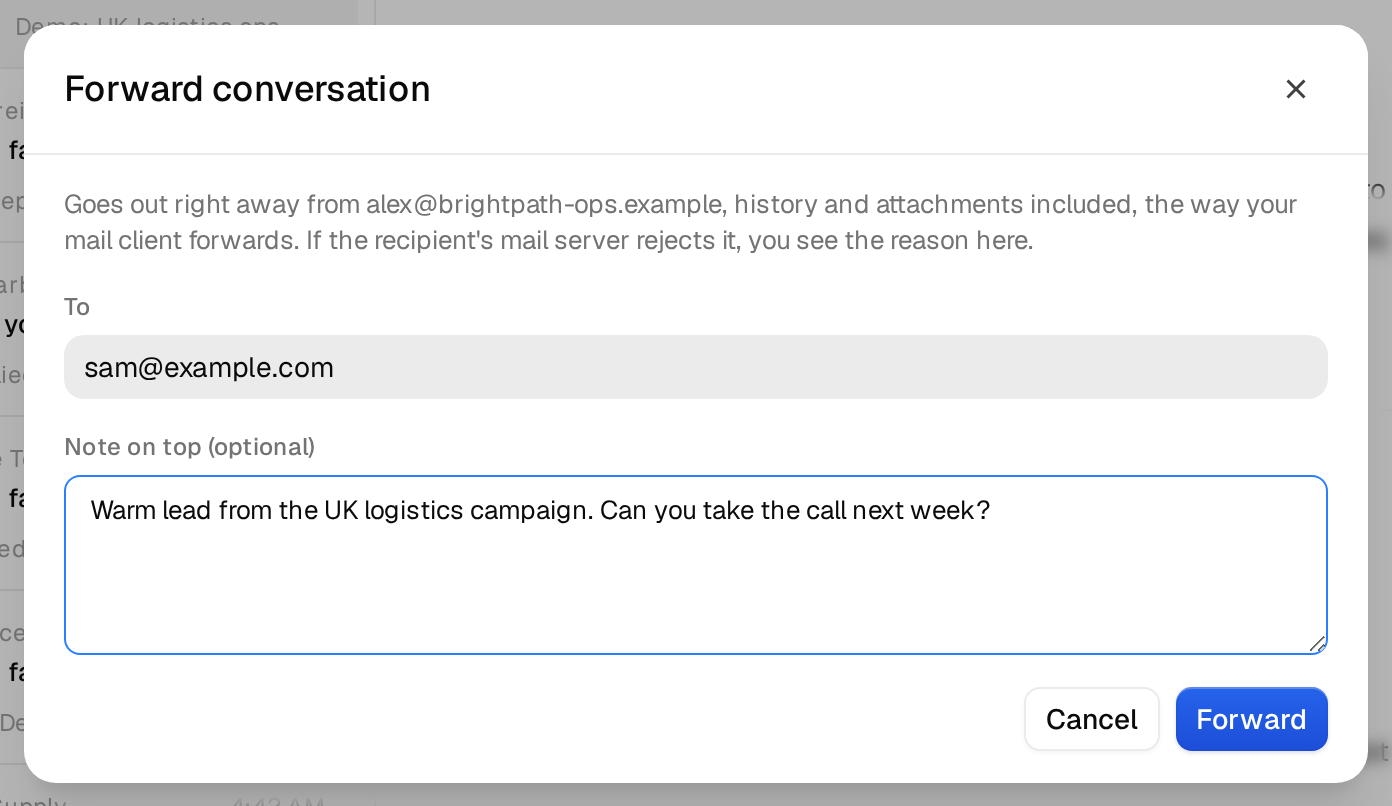
The forward goes out right away from the same mailbox, with the whole history and the attachments, the way your mail client forwards. It then shows in the thread with a status:
| Status | Meaning |
|---|---|
| Checking delivery | Sent. Argorant is watching for a few minutes whether the receiving mail server refuses it. |
| Sent | No refusal came back. The forward is delivered. |
| Rejected | The receiving mail server refused it. The reason shows under the status. Check the address and forward again. |
When you cannot reply
Some rows have no reply box. Instead you see No reply possible and a short reason, for example There is no message from this lead to answer. That happens when the row holds no answer from the person, for example a bounce. There is nothing to reply to, so nothing is lost.
If sending fails
Nothing goes out when sending fails, and your text stays in the box. The message tells you why:
Not sent: the mailbox alex@northwind-supply.example is disconnected or its sign-in expired. Reconnect it under Inboxes in Argorant, then send again.
Reconnect the mailbox in Inboxes and click Send reply again. If the message says the mail server did not accept it, wait a minute and try once more.
Common mistakes
- Replying from your own mail program instead. That works, but the answer does not show in the Unibox thread and your team does not see it. Reply here to keep everything in one place.
- Forgetting to label the reply. Set the label before or after answering, so the conversation sits in the right folder. See Reply labels.
- Stopping the sequence by hand. A reply already stops that person's next steps when Stop on reply is on for the campaign. See Stop on reply.