
The Email finder finds a person's work email from their name and the company's domain. Use it when you already know who you want to reach, for example from a referral, a website or a LinkedIn profile, and only need the address. Do one person at a time, or upload a file with many.
It sits in the sidebar under Email finder. The line under the title shows the prices, and your credit balance is on the right.
Find one email
- Stay on the Single lookup tab.
- Enter the First name and Last name.
- Enter the Company domain, such as acme.com. A website address works too, so https://www.acme.com/about is fine.
- Click Find email.
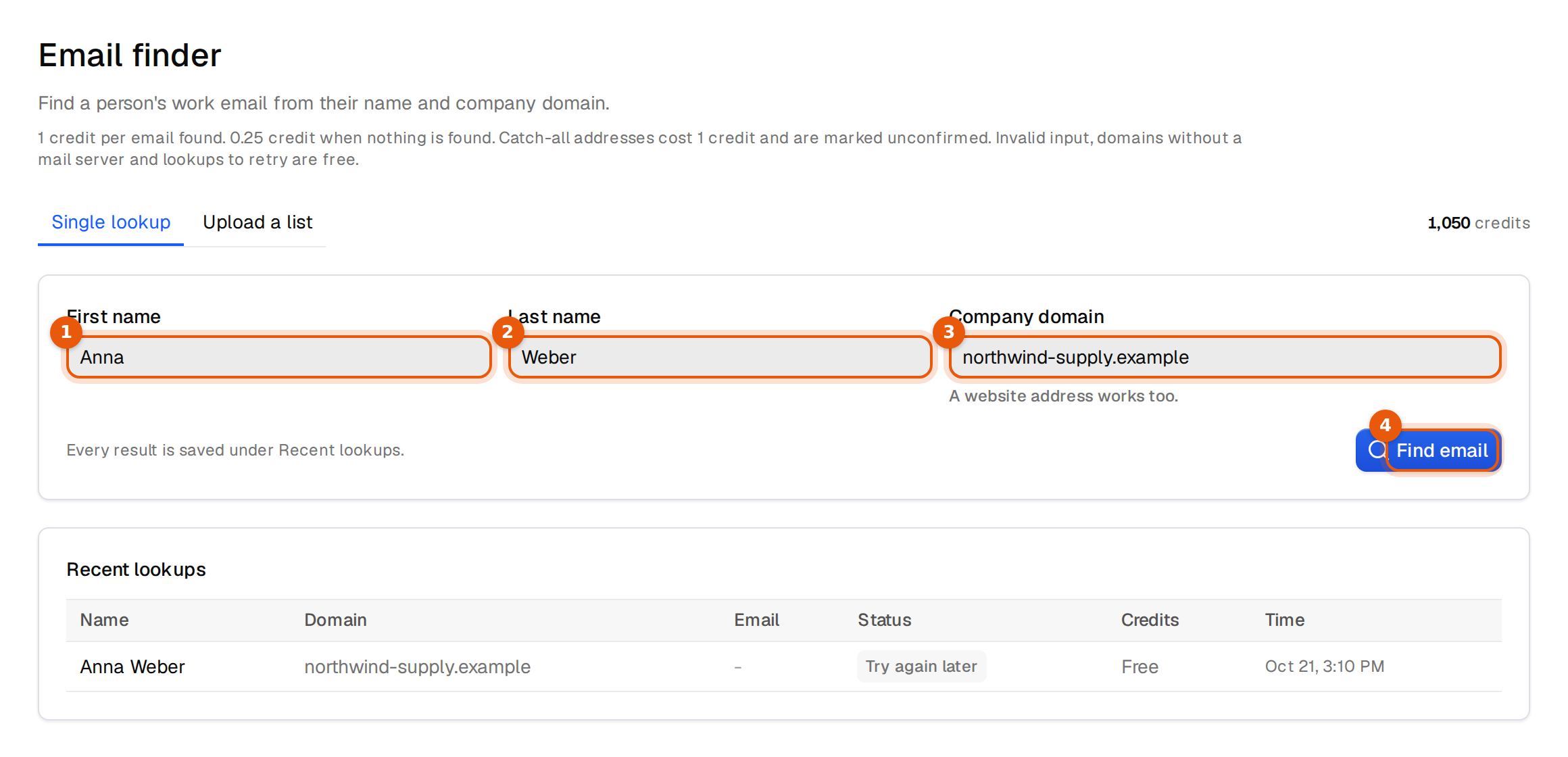
The result shows right under the form: the address with a Copy email button, or No email found, a status, and whether you were charged. Every result is also saved under Recent lookups, with the name, domain, email, status, credits and time.
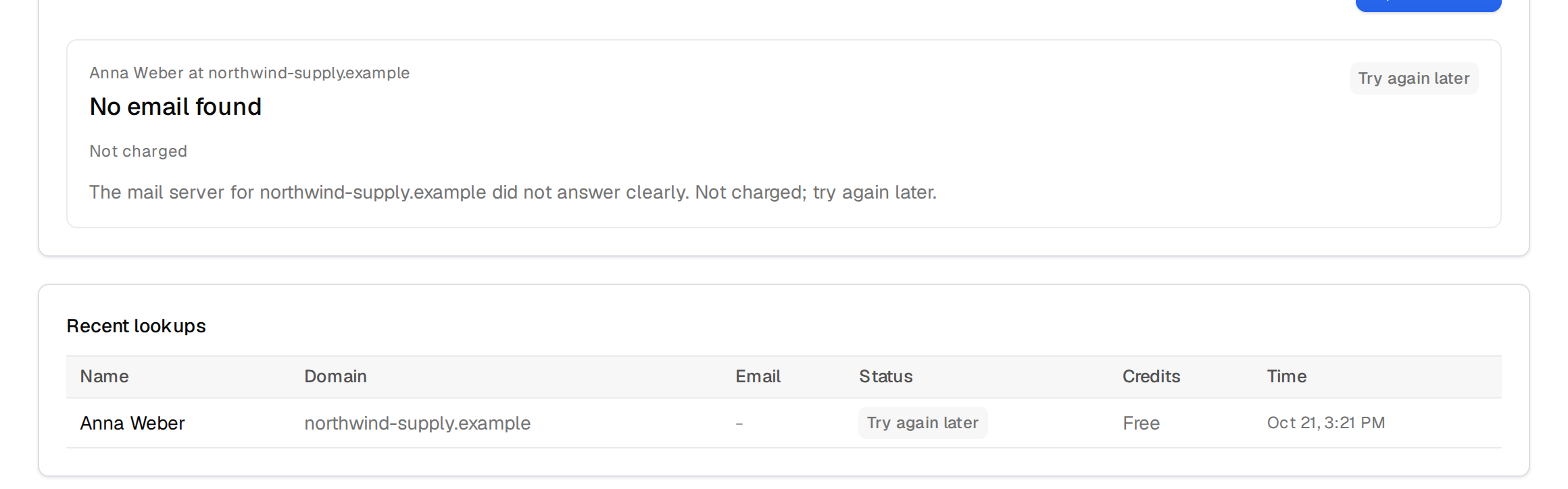
What each result means and costs
| Status | What it means | Cost |
|---|---|---|
| Confirmed | We found the address and confirmed it can receive mail. | 1 credit |
| Unconfirmed (catch-all) | The domain accepts every address, so this is the most likely address but it cannot be confirmed. | 1 credit |
| Not found | No address could be found for this person. | A quarter credit |
| No mail server | This domain cannot receive email. | Free |
| Try again later | This lookup could not be finished right now. | Free |
| Invalid input | A name or domain is missing or malformed. | Free |
| Waiting for credits | In a file run: looked up after your credits ran out. Add credits and resume to see it. | The normal price, once you add credits |
Before you send to a catch-all address, decide if it is worth the risk. It may be right, but nobody can prove it in advance.
Find emails for a whole file
- Click the Upload a list tab.
- Drop your file on the box or click Choose file. CSV, TXT or TSV, up to 10 MB.
- Check Detected columns and the first rows, shown as they will be looked up.
- Read the line with the row count and the Maximum charge. That is what the file costs if every row is found.
- If you want a hard cap, enter a Spending limit (credits). The run pauses when it reaches that amount.
- Click Find 4 emails. The number is the rows it will look up.
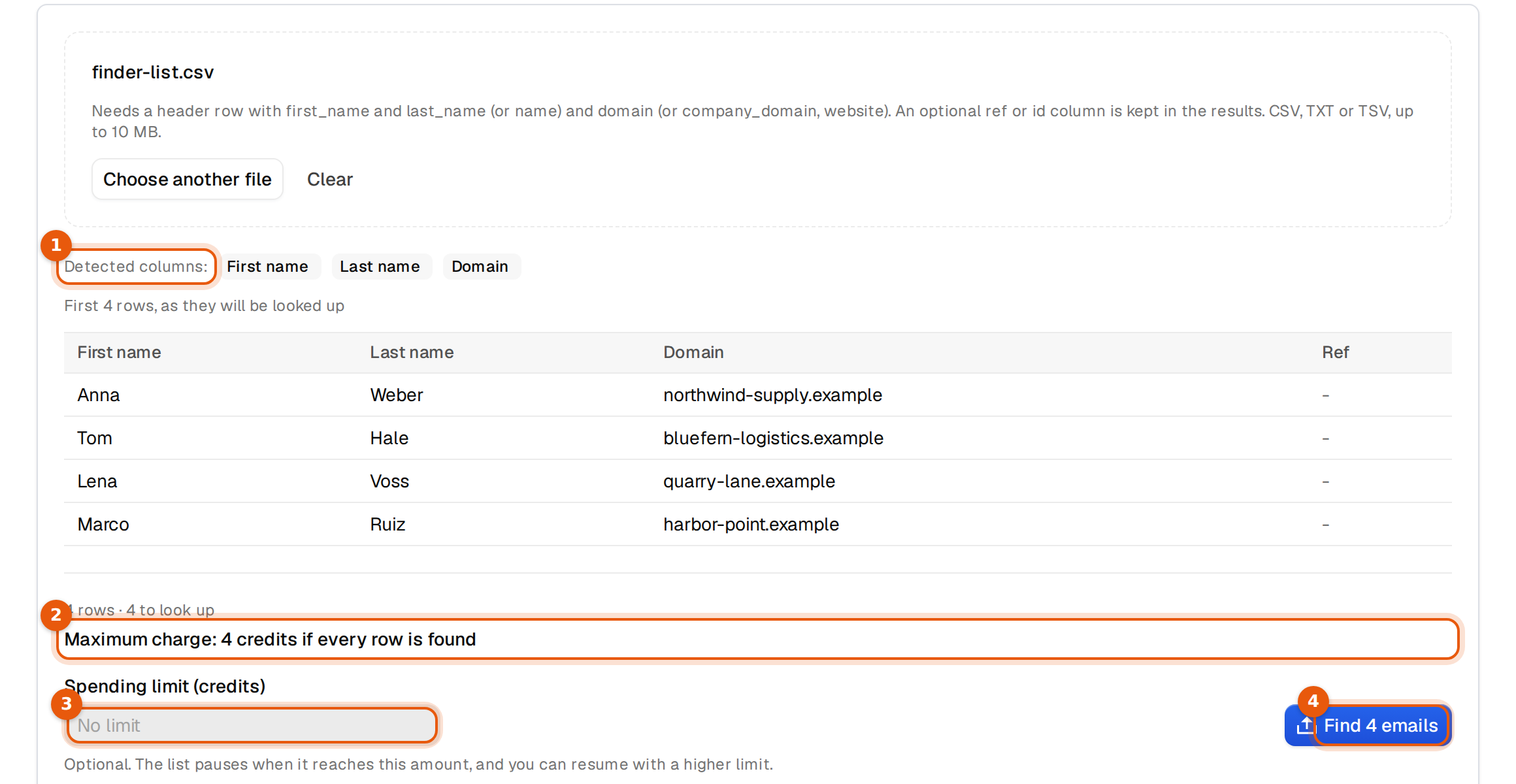
Your file needs a header row with first_name and last_name, or one name column, and a domain column. company_domain and website work for the domain too, and German headers like vorname and nachname are recognised. An optional ref or id column is kept in the results, so you can match rows back to your CRM.
first_name,last_name,domain,ref
Anna,Weber,northwind-supply.example,crm-1042
Tom,Hale,bluefern-logistics.example,crm-1043
Rows without a name or a valid domain are not looked up, and the same person at the same domain counts once. The row count line tells you how many are left to look up.
While the file runs
The run shows its progress and the results as rows finish. You can leave the page. It keeps going, and you find it again under Recent lists. Use Stop list to end it early. Rows already done are kept.
| What you see | What to do |
|---|---|
| Paused at your spending limit. Raise the limit to finish the list. | Enter a higher limit and click Resume, or leave it. |
| Paused because your credits ran out. Add credits, then resume. Rows already done are kept. | Buy credits under Plans and usage, then Resume. |
| Paused because today's lookup limit is reached. It continues on its own after midnight UTC. | Nothing. It continues on its own. |
| Slowed down because almost none of the recent rows had an address to find. | Check that the names and company domains in your file are right. It continues on its own. |
When it is done, click Download CSV. You get your rows back with the email, the status and your ref column.
Common mistakes
- Using the company name instead of the domain. 'Northwind Supply' cannot be looked up. 'northwind-supply.com' can.
- Using a personal email domain. gmail.com or outlook.com will not find a work address.
- Nicknames. Use the name the person uses at work. 'Bill' and 'William' can give different results.
- Old domains. After a rebrand or a merger the old domain may have no mail server. Use the current website.
What happens next
A found address is yours to use. To check addresses you already have, use the email verifier. To find people you do not know yet, start in People search. If you run out of credits mid lookup, the app tells you and offers more.