
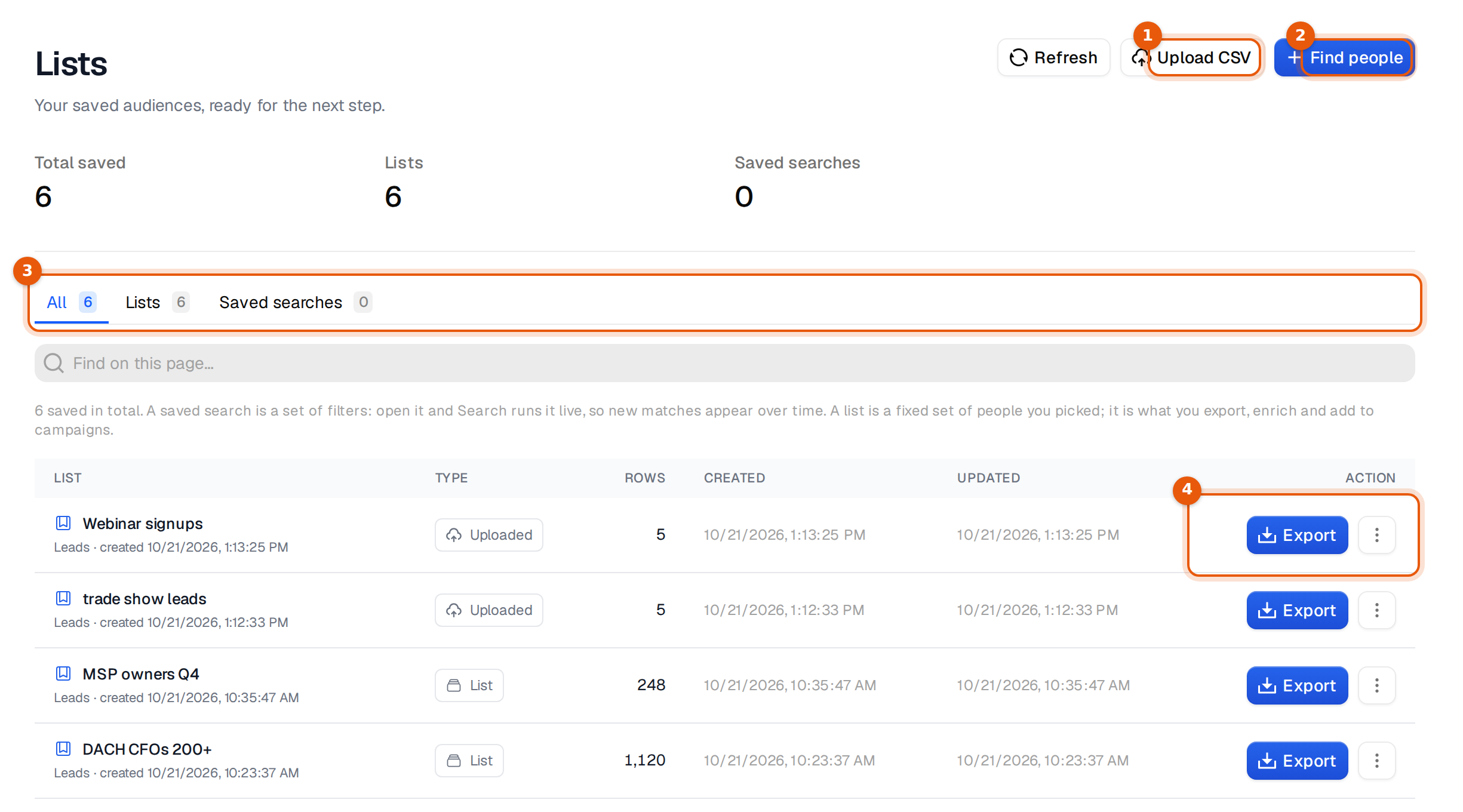
Lists is where every audience you saved lives: the people you picked in Search, the searches you want to run again, and the files you uploaded. From here you export a list, add it to a campaign or send it to another tool, without building the search again.
Lists and saved searches
The page holds two kinds of things, and they behave differently. Pick the one that fits what you want to do next.
| Saved search | List | |
|---|---|---|
| What it keeps | Your filters | A fixed set of people or companies |
| When you open it | Search runs again, so new matches appear over time | The same rows as when you saved it |
| Row count | None until you freeze it, because it changes | Shown in the Rows column |
| Good for | Watching a market, for example 'DACH CFOs 200+' | Exporting, adding to a campaign, sending to another tool |
A list can hold people (Leads) or companies (Companies). Lists you made from a file show as uploaded. The three numbers at the top count everything saved, your lists, and your saved searches.
Make a list
- From Search. Tick people or companies in People search and save them as a list, or save the whole search. See Saved searches and lists.
- From a saved search. Open it and click Snapshot into a list. This freezes the current matches, up to 10,000, into a list you can edit row by row. The saved search itself stays as it is.
- From your own file. Click Upload CSV. See Upload your own CSV as a list.
Find and manage your lists
- Use the tabs All, Lists and Saved searches to narrow the table.
- Type in Find on this page… to filter by name.
- Click Export on a row to download it straight away.
- Click the three dots on a row for Rename and Delete list.
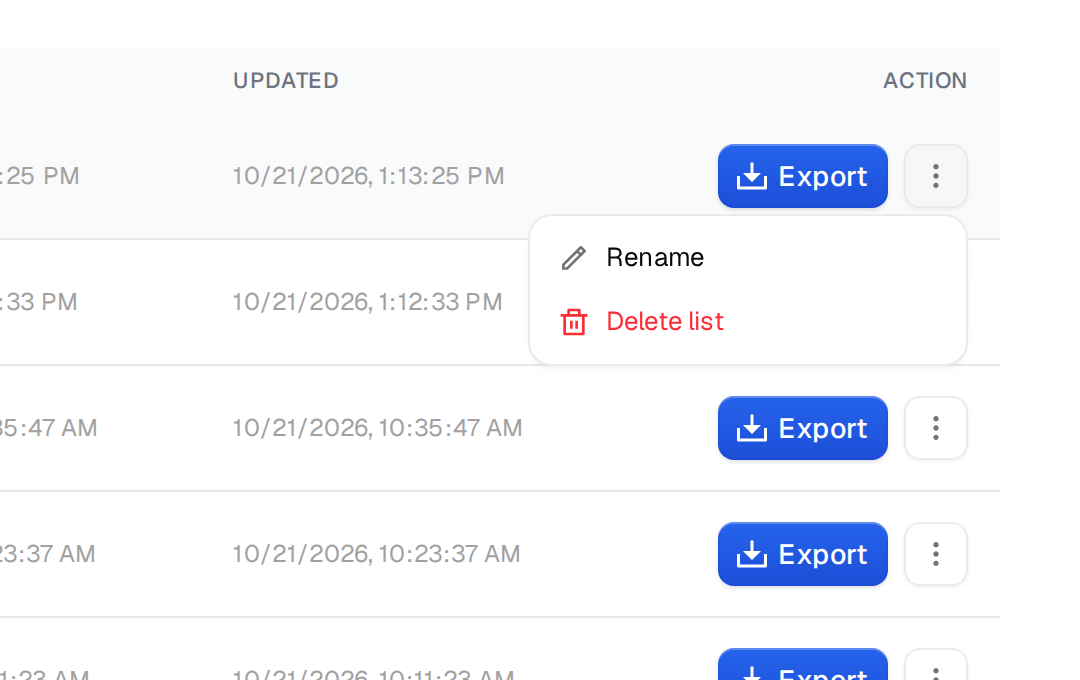
Deleting a list cannot be undone, so the app asks you to confirm first.
Inside a list
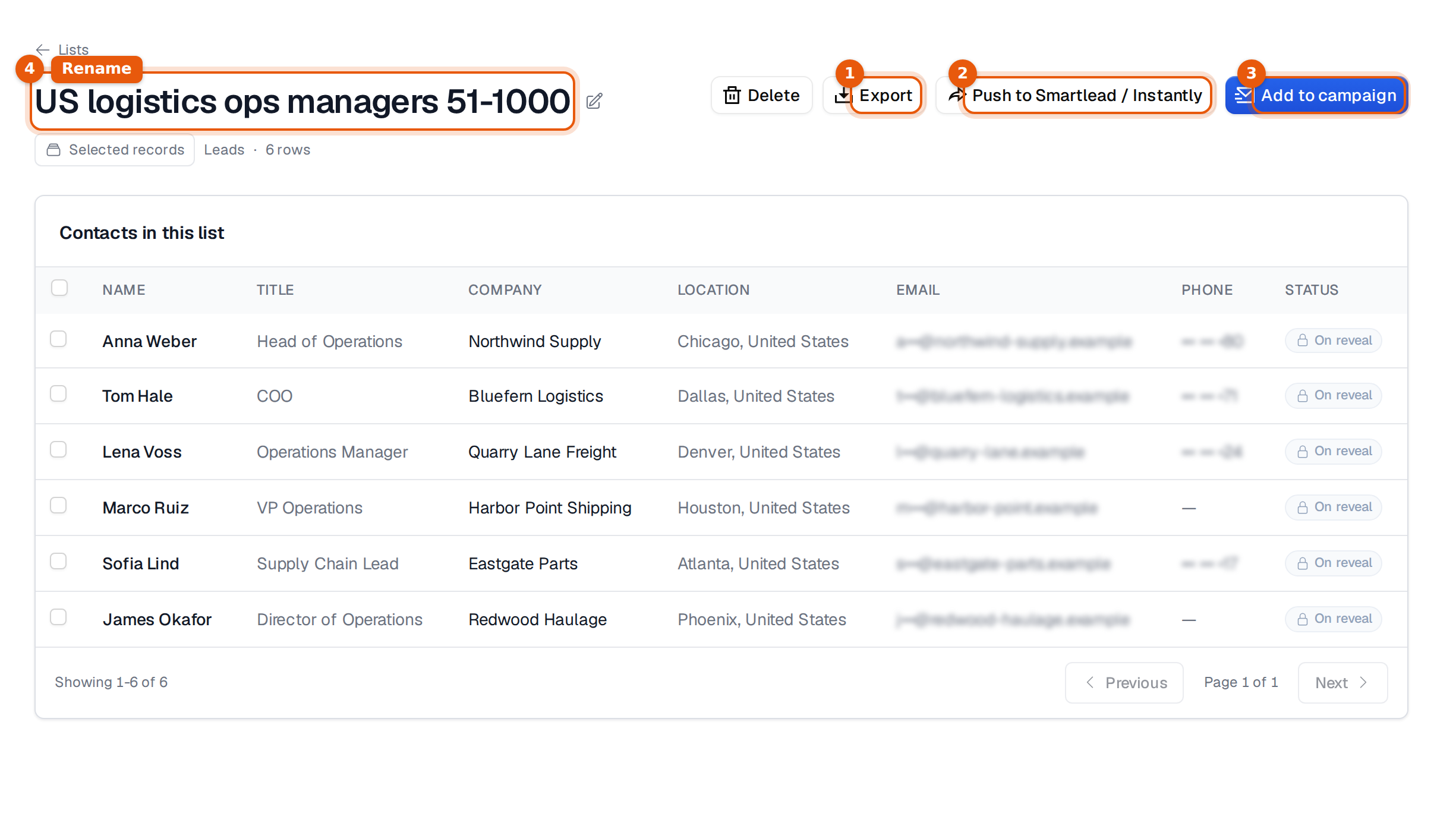
Click a list's name to open it. The header shows the type, the kind of rows and the count, and the buttons for what comes next.
| Button | What it does |
|---|---|
| Export | Downloads the list as a CSV. You pick which email grades to include before anything is charged. See Reveal and export. |
| Push to Smartlead / Instantly | Exports the list first, then sends it to your connected Smartlead or Instantly account. Only for people lists from Search, not for uploaded files. |
| Add to campaign | Adds the people to a new or existing campaign. People you already unlocked and people from your own files are free to add. |
| Open in Search | On a saved search: opens Search with the same filters, so you can change them. |
| Snapshot into a list | On a saved search: freezes today's matches into a list. |
| Delete | Deletes the list after you confirm. |
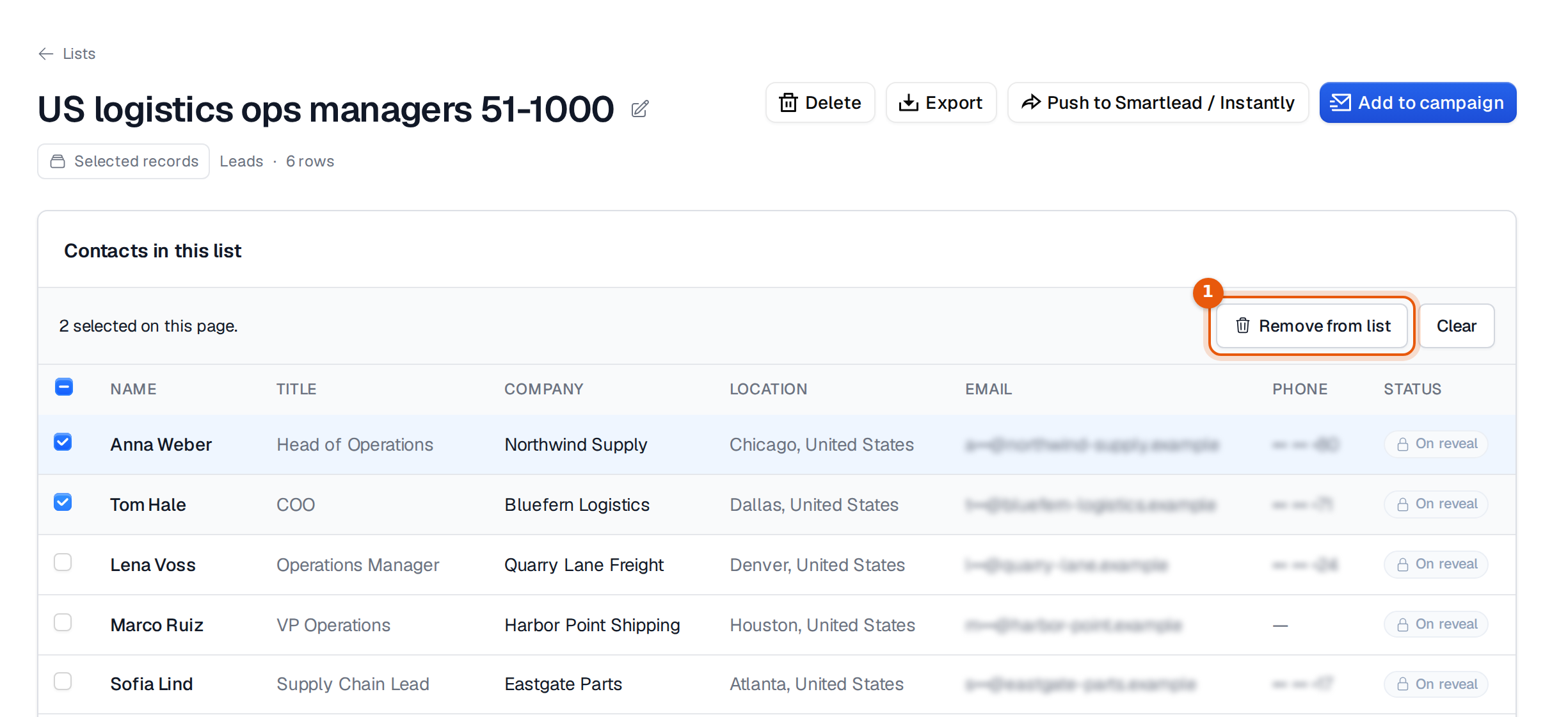
Tick rows to work on part of a list. A bar appears with the number selected, Remove from list and Clear.
The email column
In a list from Search the email shows On reveal until you unlock it. We check whether it can receive mail at that moment, and you only pay for addresses that can. Once checked, it shows a grade: Confirmed, Valid, Catch-all, Risky, Unknown, Invalid or Disposable.
In a list you uploaded the column shows Not checked until you check the addresses. Campaigns check every address before the first email either way.
Limits
- Snapshot into a list keeps up to 10,000 matches.
- An uploaded file holds up to 50,000 rows. Upload more files into the same list if you need more.
- Searches and counts are free. Credits are spent when you unlock or export, not when you save a list.
Common mistakes
- Exporting a saved search and expecting the same file next week. A saved search changes as the market changes. Snapshot it into a list when you need a fixed set.
- Looking for Push to Smartlead / Instantly on an uploaded list. It only shows for people lists from Search. Export the file instead.
- Two lists with the same name. Names do not need to be unique, so give each list a clear name with the three dots menu, for example the segment and the month.