
Upload a CSV when the people you want to email are already in your own file: trade show leads, a CRM export, a partner's list. The file becomes a list in Lists. The contacts are private to your account, and adding them to a campaign costs no credits.
Get the file ready
- Save it as CSV in UTF-8. From Excel or Google Sheets use CSV UTF-8. An .xlsx file does not work.
- Commas or semicolons both work. Tabs and pipes are recognised too.
- Put column names in the first row, for example
Email,First Name,Company. - One person per row. Every row needs an email address. Rows without one are skipped.
- Up to 50,000 rows per upload. Split bigger files and upload them into the same list.
A small example that maps cleanly:
Email,First Name,Last Name,Company,Job Title,Website,Booth visit
anna.weber@northwind-supply.example,Anna,Weber,Northwind Supply,Head of Operations,northwind-supply.example,Day 1
tom.hale@bluefern-logistics.example,Tom,Hale,Bluefern Logistics,COO,bluefern-logistics.example,Day 2
Upload it, step by step
- Open Lists and click Upload CSV.
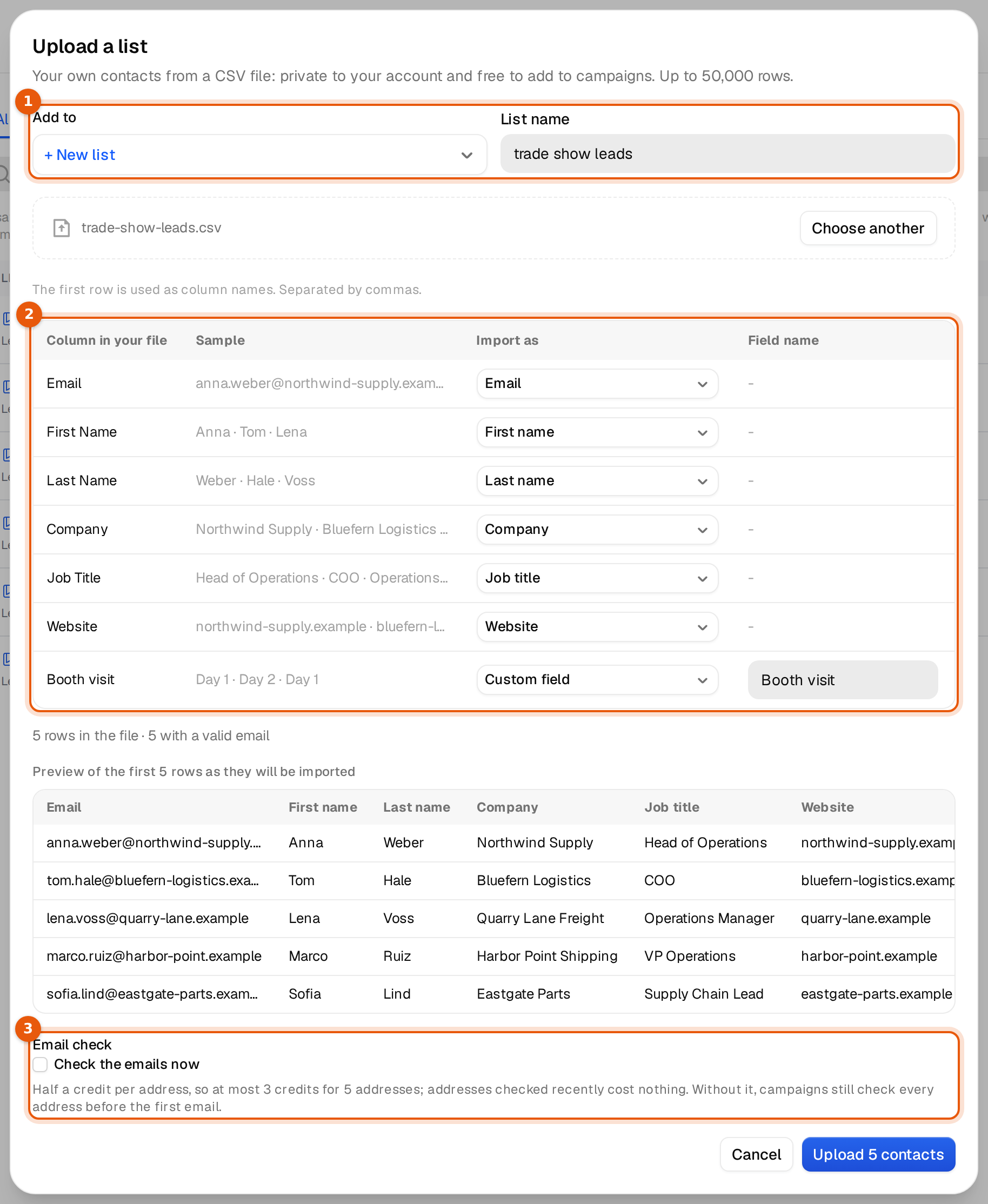
- Under Add to, keep + New list and type a List name, or pick a list you uploaded before to add to it. The name starts as your file name.
- Drop the file on the box or click Choose file. A line tells you whether the first row is used as column names and which separator was found.
- Check the mapping table. Each column of your file gets one Import as choice. Argorant guesses it from your column names.
- If you want the addresses checked right away, tick Check the emails now under Email check.
- Click Upload 5 contacts. The number is the rows with a valid email.
What each Import as choice means
| Choice | Use it for |
|---|---|
| The address you will send to. Required, exactly one column. | |
| First name, Last name | Two separate name columns |
| Full name (split into first and last) | One name column. 'Ann-Marie van der Berg' becomes Ann-Marie and van der Berg. Use this or the two name fields, not both. |
| Company, Job title, Website, Phone | The standard contact details, each for one column only |
| Custom field | Anything else you want to keep, such as a booth day, a deal owner or a pain point. Give it a name under Field name. It starts as your column header. |
| Don't import | Columns you do not need |
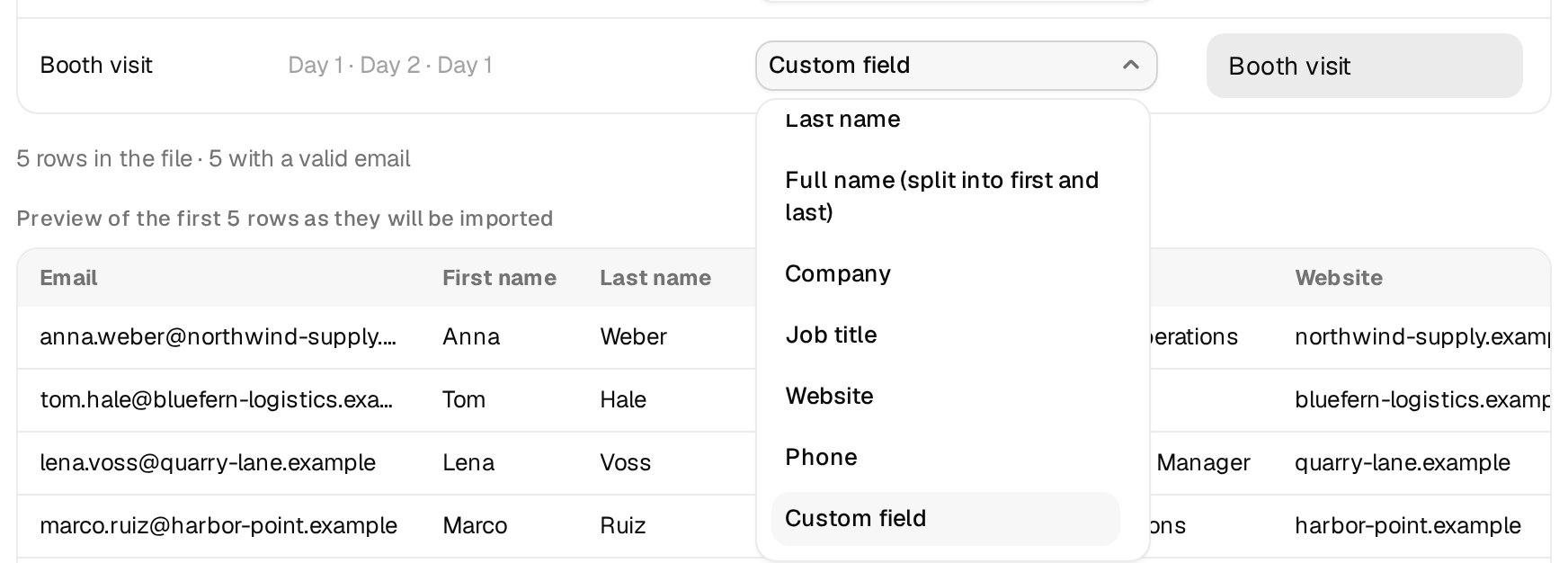
Custom fields become variables in campaigns with exactly their field name, so a field called Booth visit is ready to use in your emails. See Use your own CSV columns as variables.
Under the mapping you see how many rows have a valid email and a preview of the first rows as they will be imported. Read it once. A wrong mapping shows up there straight away.
The email check
Ticking Check the emails now checks every address as part of the upload. It costs half a credit per address, so at most 3 credits for 5 addresses. Addresses checked recently cost nothing. Leave it off and nothing is charged. Campaigns still check every address before the first email, so you never send to an address we know is bad.
Tick it when you plan to export the file again or want to see the quality of a bought list before you plan a campaign.
What happens after you click Upload

The summary counts the rows read, the contacts added, the duplicates and the rows without a usable email. Click Open list to see the contacts.
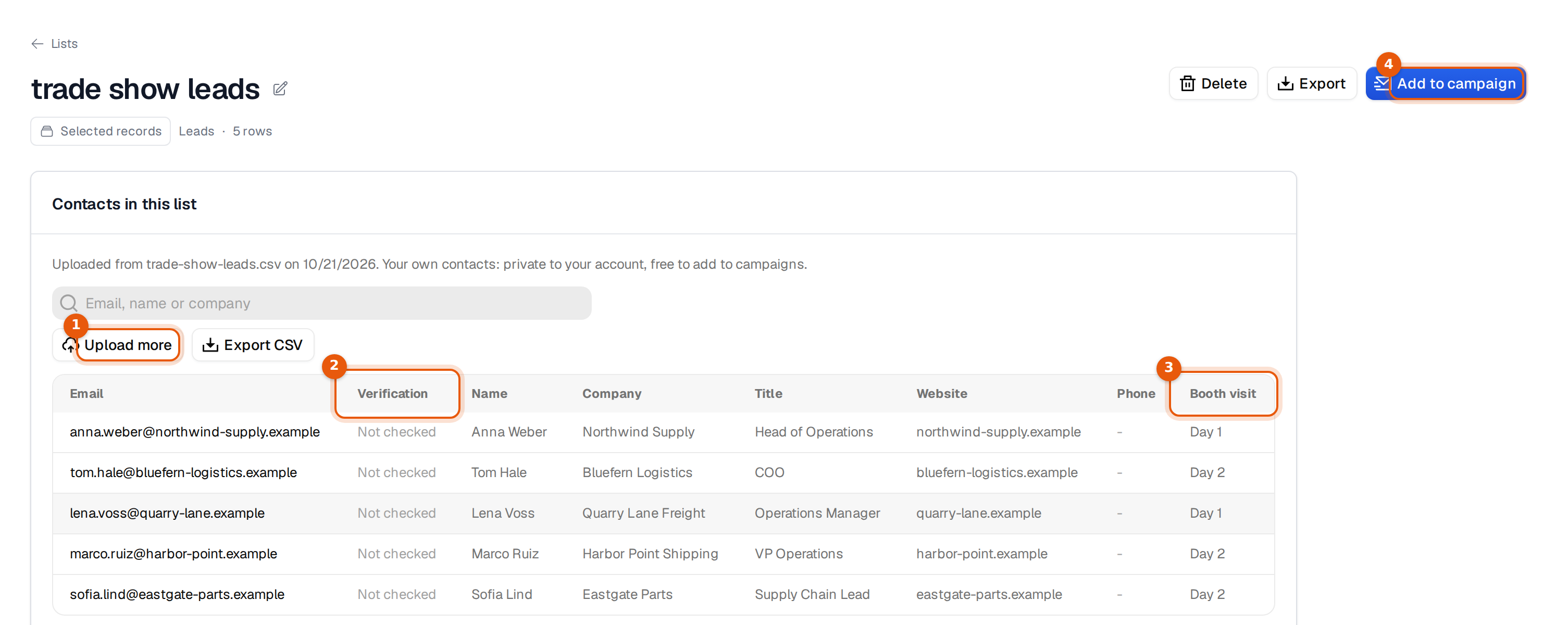
The list shows where it came from and when. Search it by email, name or company, click Upload more to add another file, or Export CSV to download it again. The Verification column reads Not checked until the addresses are checked.
Error messages and how to fix them
| Message | Fix |
|---|---|
| Pick the column that holds the email address. | Set one column's Import as to Email. |
| Use either Full name or First and Last name, not both. | Set the extra name columns to Don't import. |
| Give every custom field a name. | Fill in Field name for each Custom field. |
| Two custom fields have the same name. | Rename one of them. |
| A custom field can't be named like a standard field (email, first_name, company...). | Pick another name, such as company_size, or map the column to the standard field. |
| Pick a .csv file. Excel files: save as CSV (UTF-8) first. | Save the sheet as CSV UTF-8 and choose that file. |
| This file has 62,000 rows. Up to 50,000 per upload: split it. | Split the file and upload both parts into the same list. |
| No header row found: columns are numbered. | Your first row looked like data. Add column names or map the numbered columns by hand. |
Common mistakes
- Strange characters in names. The file was not saved as UTF-8. Save it again as CSV UTF-8.
- Everything lands in one column. The separator is unusual. Use commas or semicolons.
- Fewer contacts added than rows. Rows without a usable email and duplicates are left out. The summary tells you how many.