
Your CSV can carry anything you know about a contact: a pain point you researched, a recent event, a calendar link, the name of their account manager. Import those columns as custom fields and each one becomes a variable you can write into your emails, such as {{pain_point}}.
Where you can upload a CSV
- Step 1 of the campaign wizard, with Upload CSV under Audience.
- The Leads tab of an existing campaign, with Add leads.
- Lists, with Upload CSV. The custom fields travel with the list into any campaign you add it to.
All three use the same column mapping. The file needs an email column and can be comma or semicolon separated, in UTF-8. Your own rows use no credits.
Map the columns
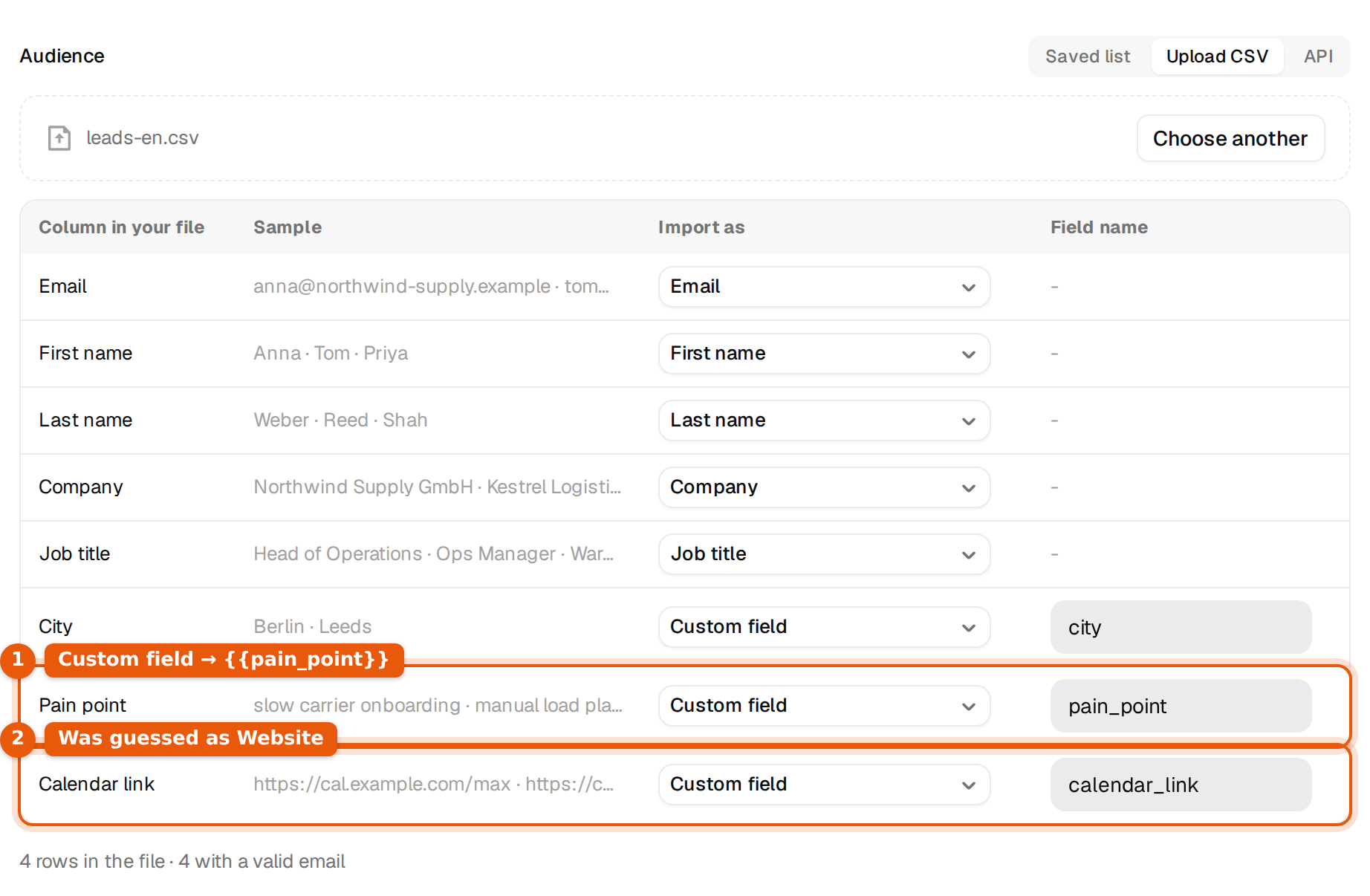
- Upload the file. A table appears with one row per column: Column in your file, a Sample of its values, Import as and Field name.
- Check each Import as. Argorant guesses from the header, in English, German, French and Spanish, and from the values when the header says nothing.
- For every column you want in your emails that is not a standard field, pick Custom field.
- Check the Field name on the right. It starts as the column header. Change it to the exact name you will write in your emails, for example
pain_point. - Read the line under the table, such as 4 rows in the file · 4 with a valid email, and the preview of the first rows below it.
- Continue with Save and continue in the wizard, or finish the upload in the other places.
| Import as | Fills |
|---|---|
| The address. Required, and only one column can have it. | |
| First name, Last name | {{first_name}} and {{last_name}}. |
| Full name (split into first and last) | Both names from one column. Ann-Marie van der Berg becomes first name Ann-Marie and last name van der Berg. |
| Company, Job title, Website, Phone | The standard fields. Company fills {{company}}, Job title fills {{title}}, Website fills {{website}}. |
| Custom field | A variable with the name you type under Field name. |
| Don't import | Nothing. Use it for columns you do not need. |
Write it into an email
A field named pain_point becomes {{pain_point}}. A field named calendar_link becomes {{calendar_link}}. There is no prefix to add.
Teams in {{city|your area}} often tell us that
{{pain_point|manual planning}} slows them down.
Here is my calendar if easier: {{calendar_link|just reply with a time}}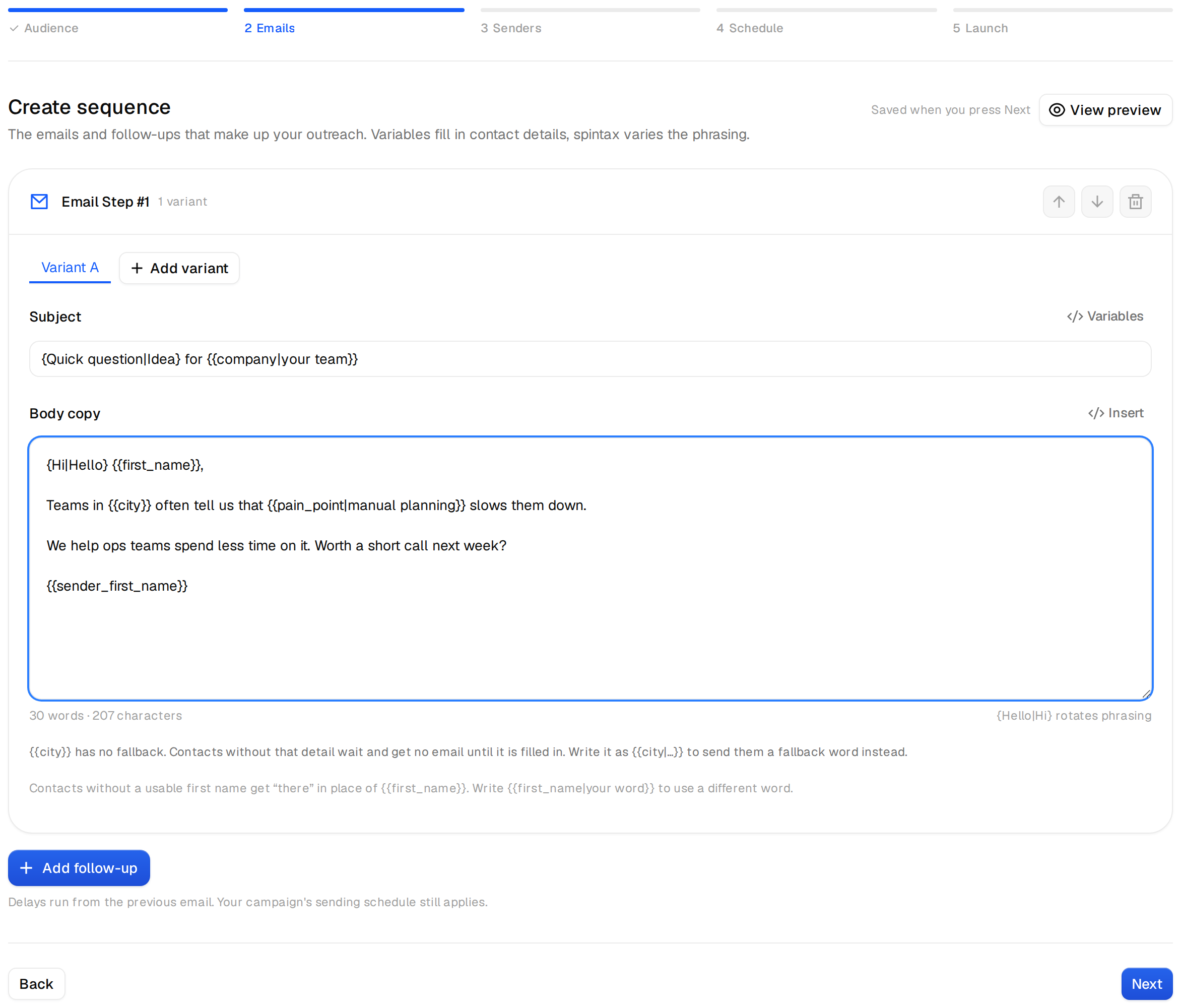
If you wrote your emails first, the mapping offers their variables at the top of the Import as list, marked in your emails, and picks them by itself when a header matches. A column called Calendar link is matched to {{calendar_link}}.
Naming rules
- Use letters, numbers and underscores. A field name with spaces, such as Pain point, cannot be used as a variable. Rename it to
pain_pointin the mapping. - The name is case-sensitive. A field named
Citydoes not fill{{city}}. Write the field name exactly as you write it in the email. - A custom field cannot be named like a standard field, such as email, first_name or company, and two custom fields cannot share a name.
- A column with LinkedIn profile links is kept as a custom field, not as Website.
Messages and how to fix them
| Message | Fix |
|---|---|
| Pick the column that holds the email address. | Set one column to Email. |
| Email is picked for more than one column. | Keep Email on one column. Set the other to Custom field or Don't import. |
| Use either Full name or First and Last name, not both. | Choose one way to bring in names. |
| Give every custom field a name. | Fill in the empty Field name. |
| Two custom fields have the same name. | Rename one of them. |
| A custom field can't be named like a standard field (email, first_name, company...). | Pick another name, such as work_email. |
Common mistakes
- A link column guessed as Website. When most values look like web addresses, the column is set to Website. For a calendar or case study link, switch it to Custom field.
- Rows that disappear. Rows without a usable email, and repeats of an email higher up in the file, are not imported. The line under the table counts both.
- Empty cells. A contact with an empty cell has no value for that field. Give the variable a fallback, or that contact waits. See Fallbacks.
Fields you send over the API work the same way: every extra key in a row becomes a field of that lead.