
You can add people when you create a campaign or any time later, also while it is sending. Every address is checked before it can be sent to, and nothing goes out until you launch.
There are four ways in: a saved list, your own CSV file, People search, and the API.
From a saved list
- Open the campaign and click the Leads tab.
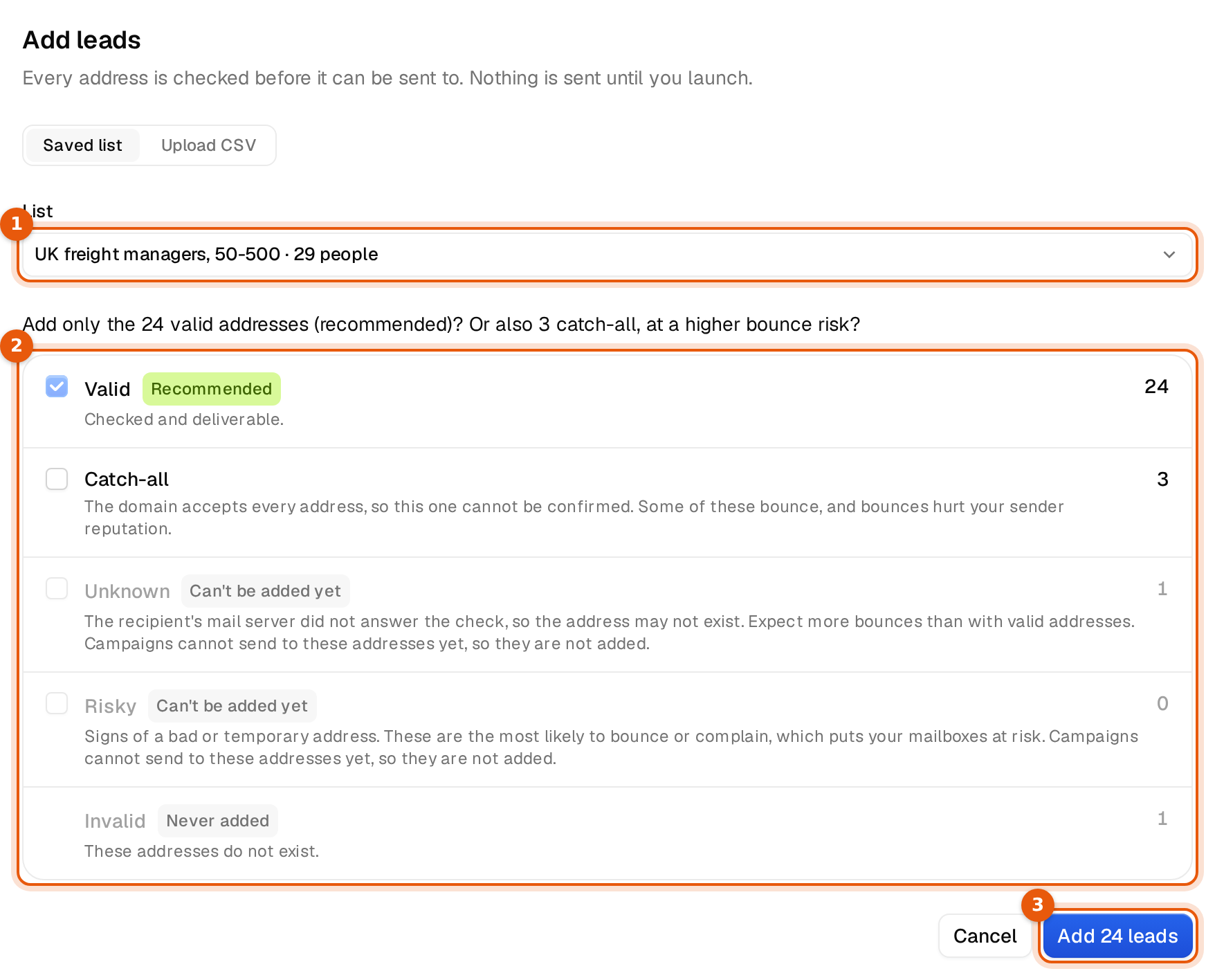
- Click Add leads. The Add leads window opens on Saved list.
- Under List, click Choose a list and pick one. Each list shows how many people it holds. You can type to find a list.
- Argorant counts the addresses by grade and asks, for example, Add only the 24 valid addresses (recommended)? Or also 3 catch-all, at a higher bounce risk?
- Leave the choice on Valid, or tick Catch-all and confirm it.
- Click Add 24 leads. The number on the button is what will be added.
- Read the summary and click Done.
From a CSV file
A CSV goes through three short steps, shown at the top of the window: Columns, Check and Addresses.
- Click Add leads, then Upload CSV, and choose your file.
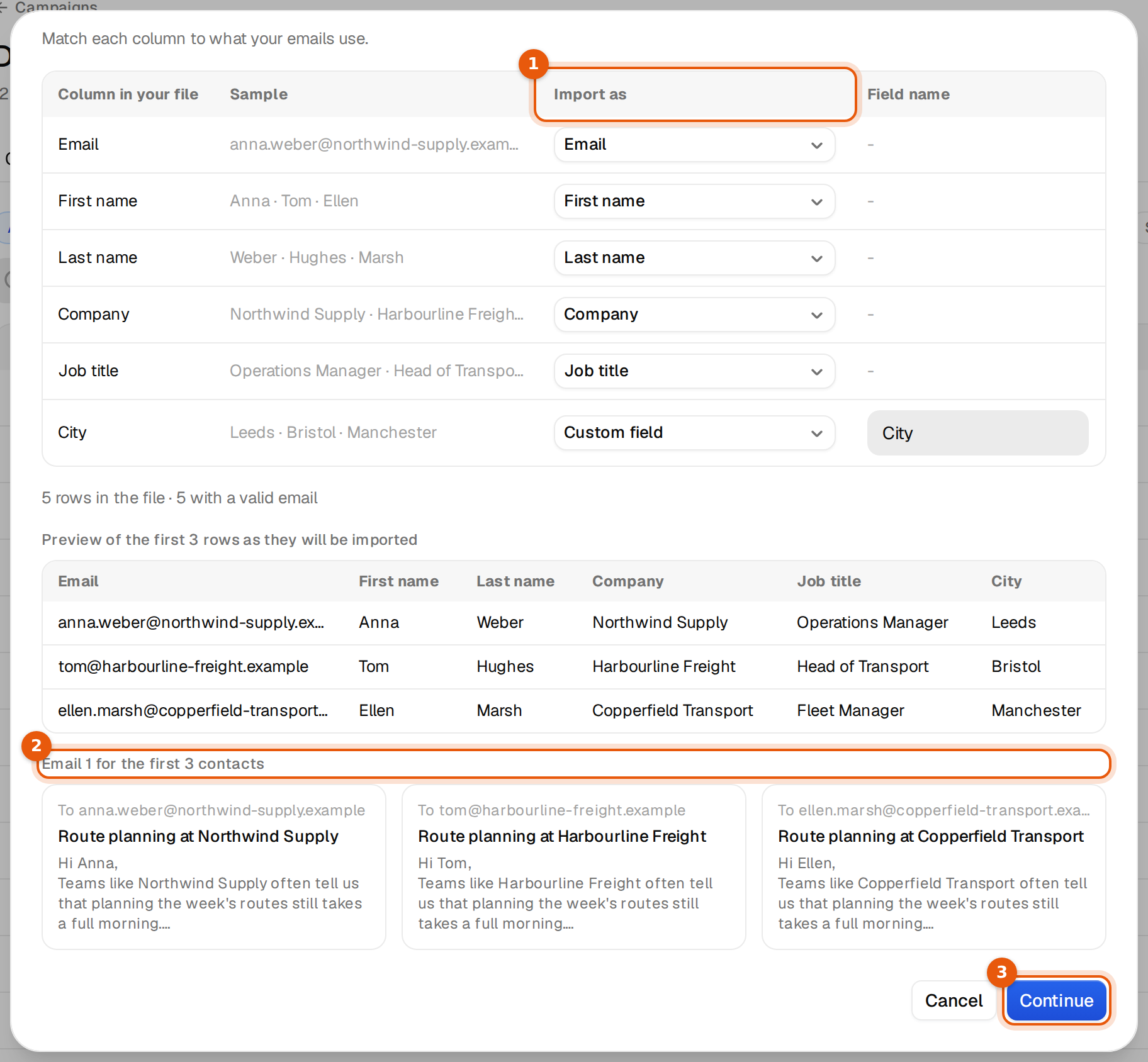
- Columns. For each column in your file, pick what it becomes under Import as, for example Email, First name, Company or Job title. Email is required. Any other column can be a Custom field with its own Field name. If your emails use a variable such as
{{pain_point}}, the window says so and offers it as a target. - Check the three rendered examples under Email 1 for the first 3 contacts. If a variable has no column, a line warns that it would be sent empty. Pick the column, or remove the variable from the emails. Click Continue.
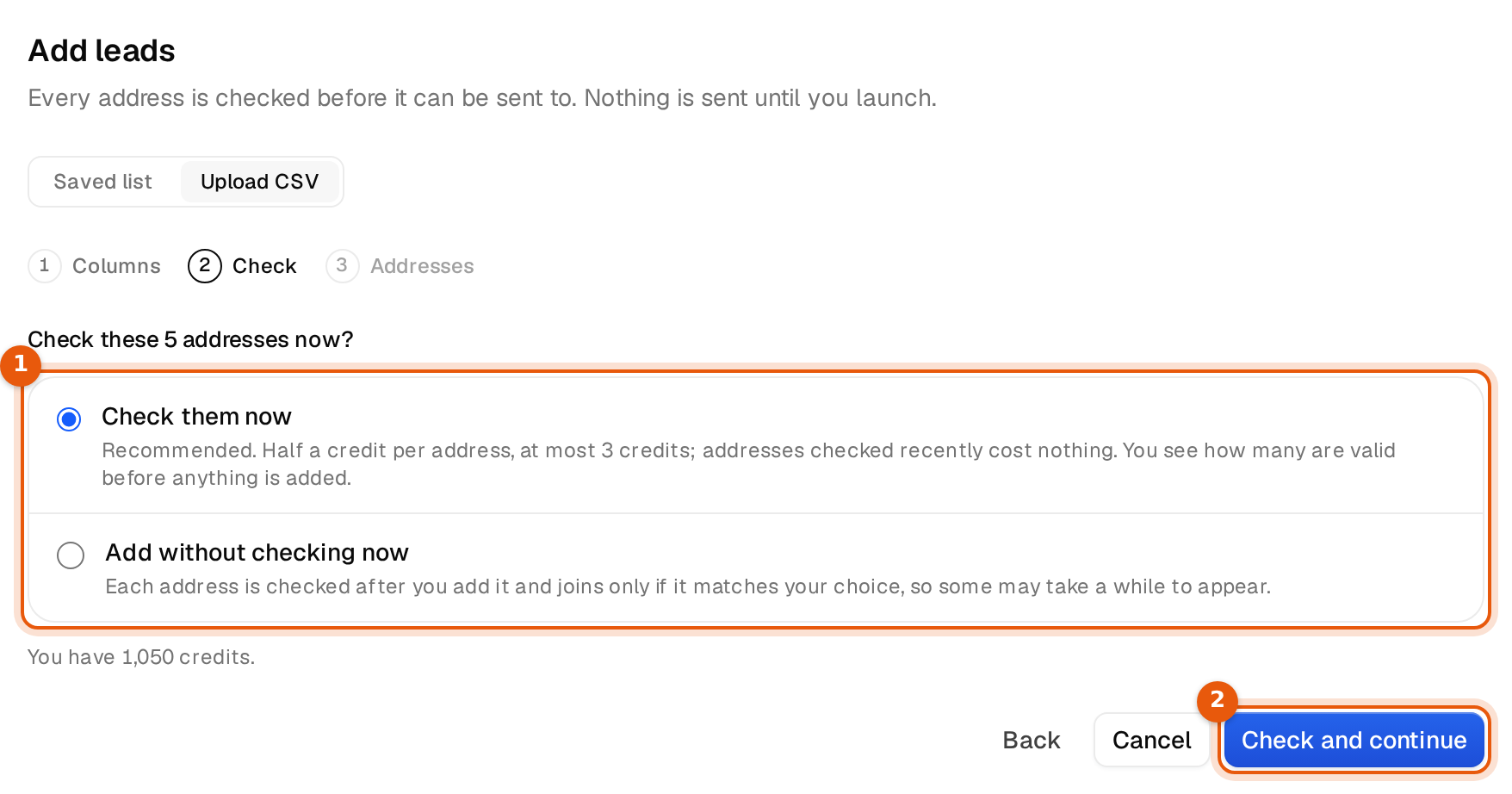
- Check. Choose Check them now or Add without checking now, then click Check and continue or Continue.
- Addresses. Choose which grades to add, as for a list, and click Add.
| Option | What happens | Cost |
|---|---|---|
| Check them now (recommended) | Every address is checked first. You see the counts per grade before anything is added. | Half a credit per address. Addresses checked recently cost nothing. |
| Add without checking now | Each address is checked after you add it and joins only if it matches your choice. Some take a while to appear on the Leads tab. | The same check, later |
The window shows how many credits you have. If they run out during the check, the rest is checked after you add them. Your CSV is saved as a private list, so you can add the same people to another campaign later without uploading again.
From People search
In People search, select people and click Add to campaign. Each person from Argorant's search costs 1 credit, unless you already unlocked them.
From a list
Open a list in Lists and click Add to campaign.
Over the API
The campaign's API tab shows its campaign ID. Paste it into Clay, n8n, Zapier, your CRM or your AI agent, and send rows with your API key. Every pushed address is checked first. See Add leads from your own tools.
Which addresses are added
Each address gets a grade from the check. The grade decides whether it can join.
| Grade | Added? |
|---|---|
| Valid | Yes. Checked and deliverable. Always on and recommended. |
| Catch-all | Only if you tick it and confirm. The domain accepts every address, so some of these bounce. |
| Unknown | Not yet. The recipient's mail server did not answer. The window marks it Can't be added yet. |
| Risky | Not yet. Signs of a bad or temporary address. |
| Invalid | Never. The window marks it Never added. These addresses do not exist. |
Ticking Catch-all always takes a second click. The window warns that these bounce more often and that bounces hurt your mailboxes' reputation. Add them only when the list is small and you know the companies.
What happens after you add
- The window shows a short summary, for example how many joined, how many were already in the campaign and how many are still being checked.
- New people appear on the Leads tab with the status Not started. In a campaign that is already sending, they start at email 1 in the next sending window.
- In a draft, nothing is scheduled or sent until you launch.
Common mistakes
- The Add button shows 0. No address in the list is valid yet, or all of them are still being checked. Wait a minute, or add them without checking now so they join as soon as their check is done.
- A variable would be sent empty. No CSV column fills it. Map the column on the Columns step, or give the variable a fallback. See Fallbacks.
- Fewer people joined than the list holds. People already in the campaign stay as they are and are not added twice. People on your block list, people who opted out and people who replied to another campaign are left out too.
- A column name with spaces. A field like Pain point cannot be used as a variable. Rename it on the Columns step, for example to pain_point.
Limits and costs
- Adding your own CSV rows is free. Checking them costs half a credit per address.
- Each person from Argorant's People search costs 1 credit, unless you already unlocked them.
- The free trial holds 250 leads across your campaigns. The window shows how many you used, and leads past the limit are left out.
- People on your block list are never emailed.