
Every campaign can take new leads straight from your other tools: Clay, n8n, Zapier, your CRM, your own code or your AI agent. All they need is the campaign's ID and an API key. Each address is checked before it joins, exactly as when you add leads in the app.
The API tab
Open the campaign and click the API tab.
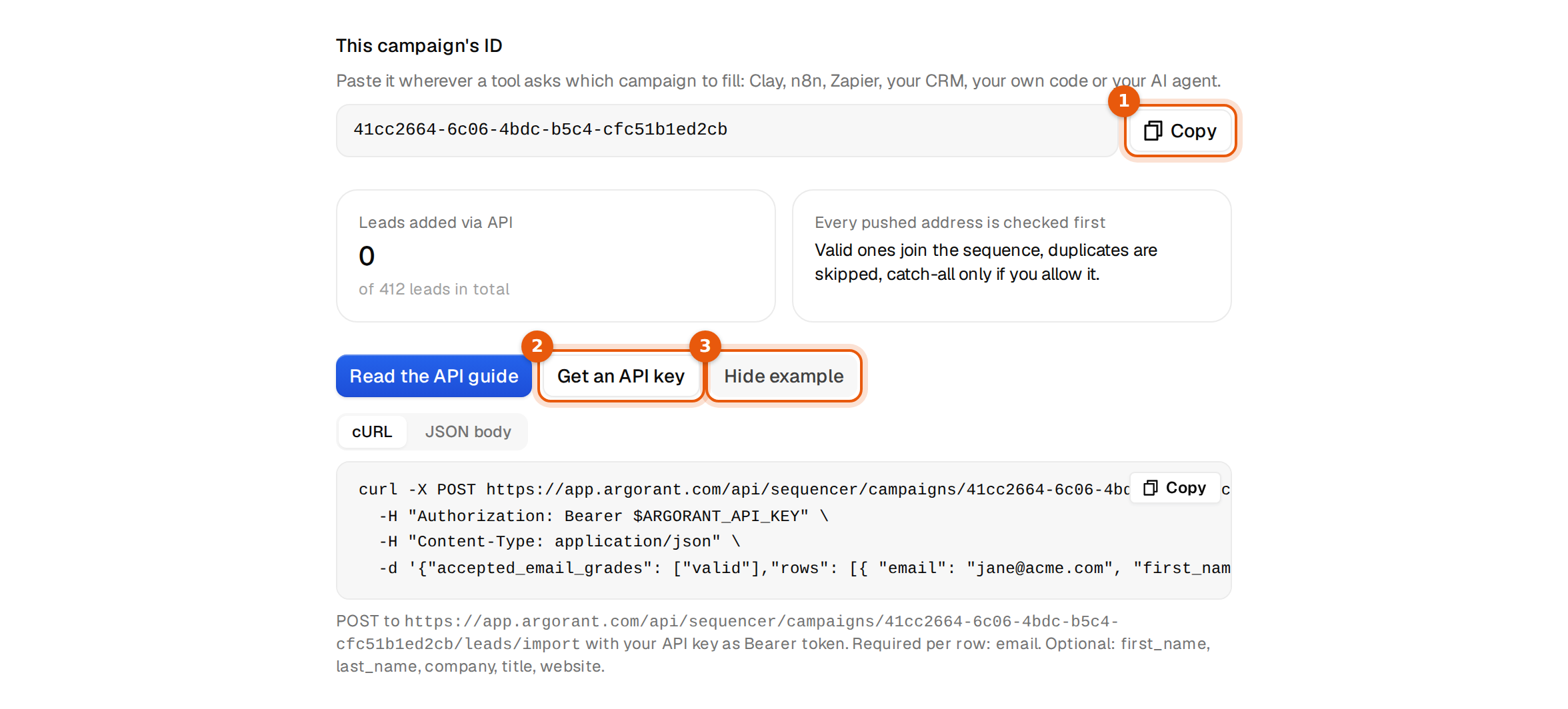
| Part | What it is for |
|---|---|
| This campaign's ID and Copy | The ID to paste wherever a tool asks which campaign to fill. |
| Leads added via API | How many people in the campaign came in over the API, out of all its leads. |
| Every pushed address is checked first | A reminder of the rule: valid addresses join, duplicates are skipped, catch-all only if you allow it. |
| Read the API guide | The full reference for adding campaign leads. |
| Get an API key | Opens Settings, where you create a key. |
| Show a request example | A ready request for this campaign, as cURL or as JSON body, with its own Copy button. |
Set it up
- Click Copy next to the campaign ID.
- Create an API key in Settings, then API keys. Copy it right away and keep it somewhere safe.
- In your tool, add an HTTP step that sends a POST request to the address shown under the example, with your key as a Bearer token.
- Map your columns into the rows.
emailis required,first_name,last_name,company,titleandwebsiteare optional. - Run it once with one test row, then check the Leads tab.
The request looks like this. Replace the campaign ID with your own:
curl -X POST https://app.argorant.com/api/sequencer/campaigns/YOUR_CAMPAIGN_ID/leads/import \
  -H "Authorization: Bearer $ARGORANT_API_KEY" \
  -H "Content-Type: application/json" \
  -d '{"accepted_email_grades": ["valid"],
       "rows": [{"email": "anna.weber@northwind-supply.example",
                 "first_name": "Anna", "last_name": "Weber",
                 "company": "Northwind Supply"}]}'
accepted_email_grades decides which addresses may join. ["valid"] is the safe choice. Add "catch_all" only on purpose.
What happens to each row
| The address is | Result |
|---|---|
| Valid | Joins the campaign as Not started. In a sending campaign it starts at email 1 in the next sending window. |
| Already in this campaign | Skipped. Nobody gets the sequence twice. |
| Catch-all | Joins only if catch_all is in accepted_email_grades. |
| Not checked yet | Checked now. It joins automatically once the check finds it valid. |
| Invalid, or on your block list | Never added. |
The answer to each request says what happened, for example Of the 1 checked: 1 with a valid email are in the campaign. Nothing is scheduled or sent until the campaign is launched.
Limits
- Each API key may send 30 requests a minute during the trial and on pay as you go, 60 on Starter, 240 on Pro, 600 on Scale and 1,200 on Hyperscale. Send many rows per request instead of one request per person.
- The free trial holds 250 leads across your campaigns. Rows past the limit are left out.
- Adding your own rows is free. The check of each address follows the same rules as in the app.
Common mistakes
- 401 or 403. The key is missing, wrong or was deleted. Send it as
Authorization: Bearerfollowed by the key. - Rows go in, but the Leads tab stays empty. The addresses are still being checked, or they did not pass. Look at the answer of the request.
- The wrong campaign fills up. Each campaign has its own ID. Copy it again from the API tab of the right campaign.
- A key in a shared workflow. Anyone who can see the key can add leads. Store it in your tool's secret or credential field, not in plain text.
From your AI agent
Your AI agent can do the same through the Argorant connector, without a request of its own. Tell it the campaign name or ID. See AI connections.
The campaign list also has Copy campaign ID and Copy API command in each row's menu. See The Campaigns page.