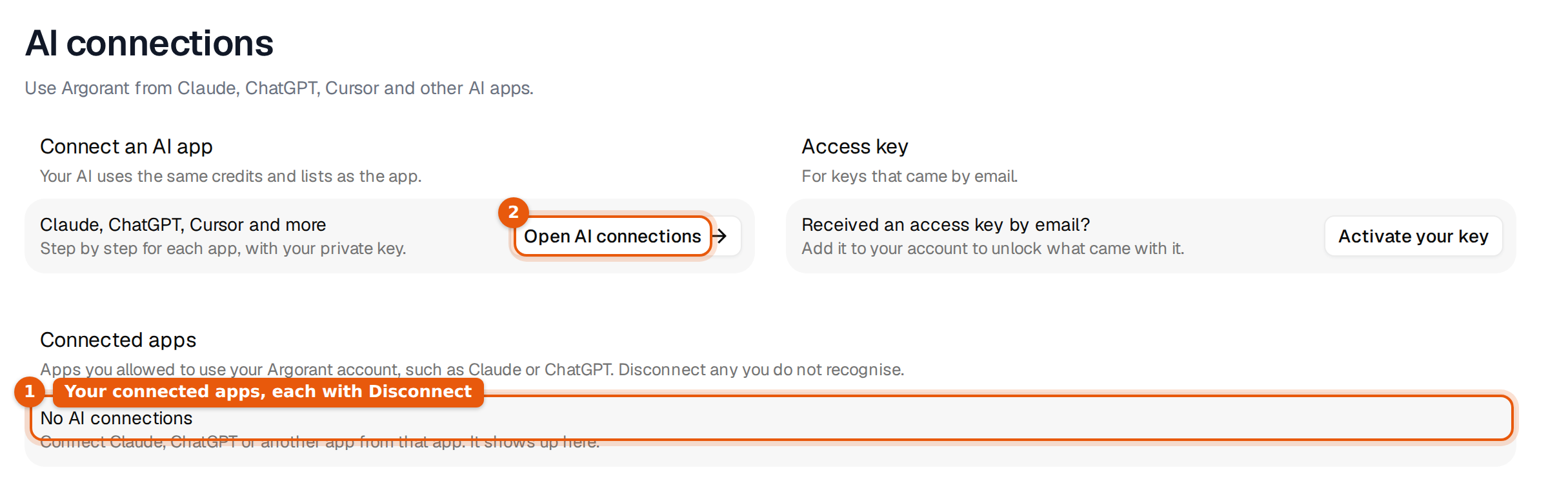
AI connections is where you connect an AI tool to your Argorant account. Pick your tool, follow its three steps, and your AI works with the same account, credits, lists, mailboxes and campaigns as you. Open it from the sidebar, or from Settings, then AI connections, with Open AI connections.
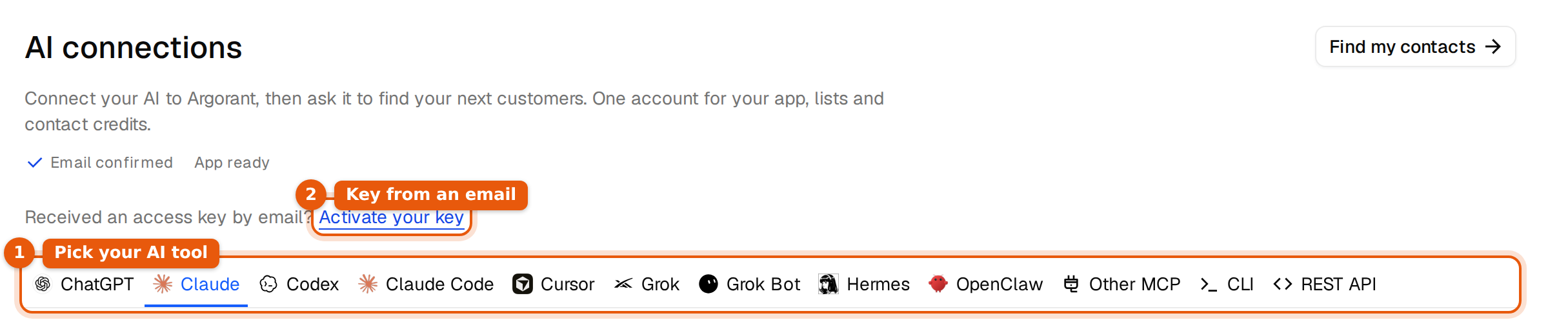
What is on the page
| Part | What it does |
|---|---|
| Status under the title | Shows whether your email is confirmed and your account is ready. Keys and credits need a confirmed email. |
| Find my contacts (or Guide my first search) | Takes you into the app instead. A new account gets the guided first search. |
| Activate your key | For an access key you received by email. It adds what came with it to your account. |
| The tabs | One tab per tool. The page remembers your choice in the address, for example /ai-connections?client=claude, so you can share a direct link. |
| Three numbered steps | Add Argorant, sign in and authorize, ask for your first matches. Each step has the exact value to copy. |
| Manage contact credits | At the bottom. Opens the credit packs, which the app and your AI share. |
The tabs and how each one connects
| Tab | How it connects | What you copy |
|---|---|---|
| ChatGPT | Connector, approved on Argorant's screen | The server address |
| Claude | Connector, approved on Argorant's screen | The server address |
| Codex | Setup prompt with a private key, or the connector | A prompt, or codex mcp add and codex mcp login |
| Claude Code | Setup prompt with a private key, or the connector | A prompt, or claude mcp add |
| Cursor | Connector | An entry for .cursor/mcp.json |
| Grok | Connector | The server address |
| Grok Bot | A plugin, or the command line with a private key | A setup prompt |
| Hermes, OpenClaw | Connector, set up from the terminal | Terminal commands |
| Other MCP | Any tool that can add a remote server with sign-in | The server address |
| CLI, REST API | Private key | Commands with your key filled in |
The connector address is the same on every tab that uses it:
https://mcp.argorant.com/mcpA connector tab, step by step
On the Claude, ChatGPT, Grok, Cursor and Other MCP tabs, the steps are the same in shape.
- Add Argorant in your tool. Small numbered cards show the clicks in that tool. Click Copy next to the address, then the button that opens the tool, such as Open Claude Connectors or Open ChatGPT Plugins.
- Sign in and authorize. Your tool opens Argorant's permission screen. Check the account and click Connect Argorant or Allow access. See The authorization window, explained.
- Ask for your first matches. Click Copy first-search prompt and paste it into a chat with Argorant switched on.
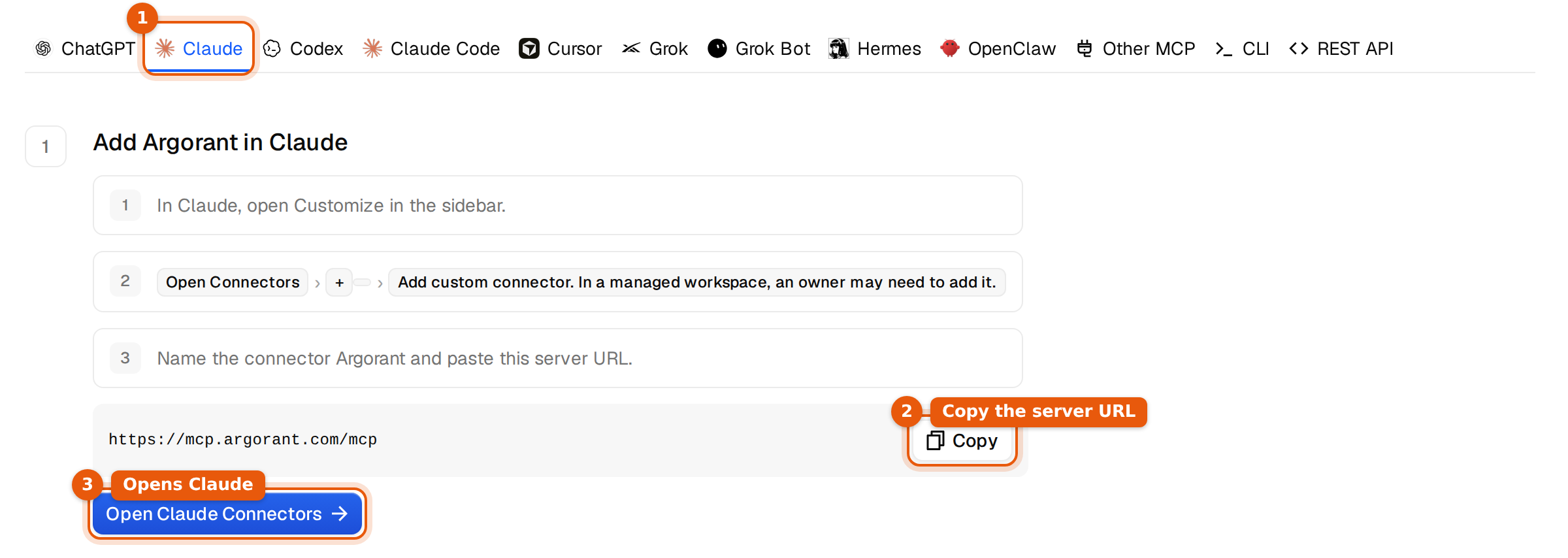
The first-search prompt asks your AI to check your account, ask who you sell to, show a free count and five masked matches, and ask before spending credits.
For full guides see Connect Claude, Set up ChatGPT and ChatGPT, Cursor, Grok and Grok Bot.
Codex and Claude Code: two ways
These tabs open on the setup prompt. Click Create private key, then Copy setup prompt, and paste it into your coding tool. It logs in to the Argorant command line with the key. Prefer the connector? Click Use AI connection settings to see the command instead. Use setup prompt instead switches back.
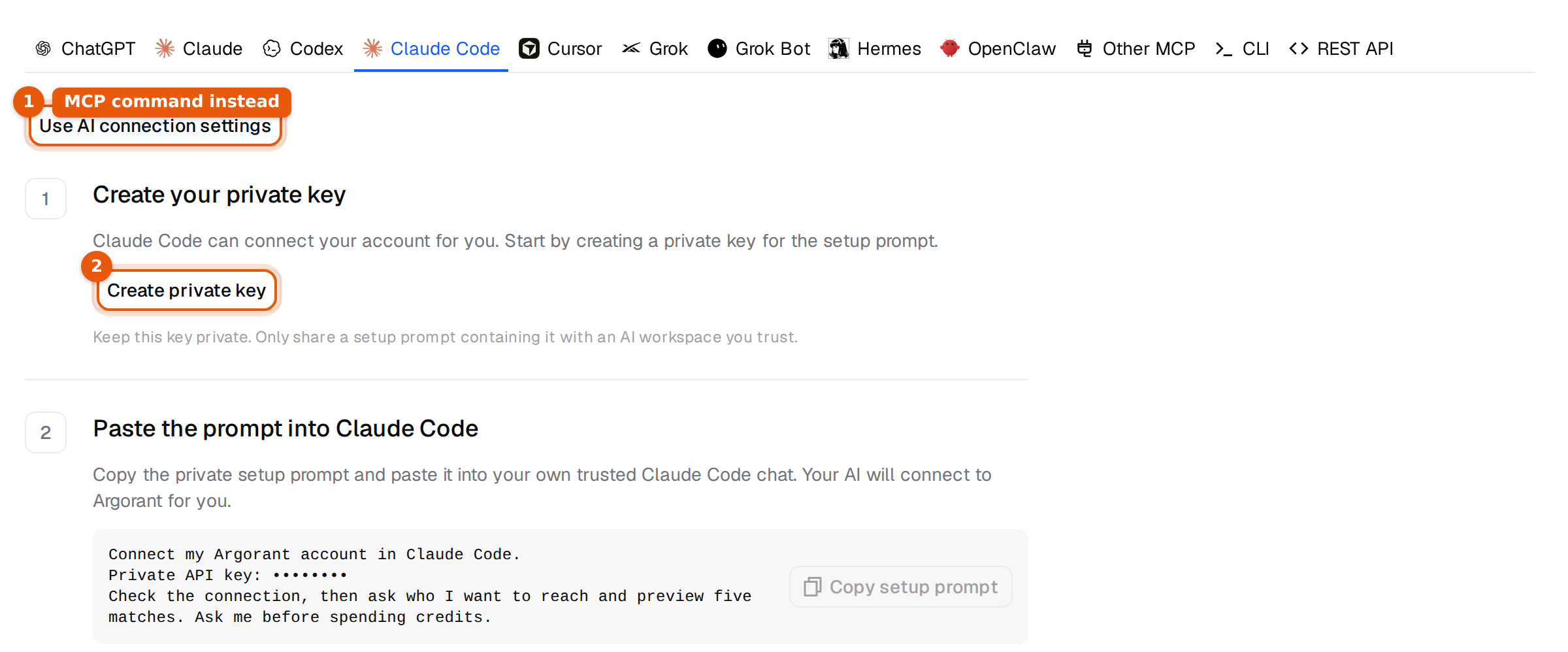
Keys on this page
The CLI, REST API, Grok Bot and the setup prompts use a private key. Click Create private key. The key is shown once, hidden by default. Use Show to see it and Copy key to copy it. The commands and prompts on the tab fill it in for you. Keep the key out of chats, files in a repo and URLs. To see or revoke keys later, open Settings, then API keys.
If you already created a key on this page and reload, the page shows Check API keys in Profile instead, because a key is never shown twice.
Who can use it
Each person connects their own AI tool with their own Argorant login. The connection acts as that person and spends from the workspace's shared balance. Whether you can add a connector inside Claude, ChatGPT or Grok depends on that tool's plan and workspace settings, not on Argorant.
What it costs
Connecting is free and does not change your plan or credit allowance. The footer of the page says so. Counts and masked previews cost no credits. Reveals and exports cost 1 credit per new working email, the same as in the app.
Common mistakes
- Copying the steps is not connecting. Only a successful account check in your AI tool proves the connection. Ask it to check your Argorant account.
- Create private key is greyed out. Confirm your email first. The page shows Continue email confirmation until you do.
- A key in a chat. It connects nothing. Revoke it and use the connector.
- The wrong tab. Claude and Claude Code are different tabs. Claude Code is the terminal tool.
See and disconnect connected apps
Apps you approved are listed in Settings, then AI connections under Connected apps, with where access goes, when it was connected and when it was last used. Click Disconnect to cut access at once.