
Campaigns lists every campaign in your workspace with its most important numbers. From here you open a campaign, find one by status, folder or name, choose which numbers the table shows, and pause, stop, move or delete many campaigns at once.
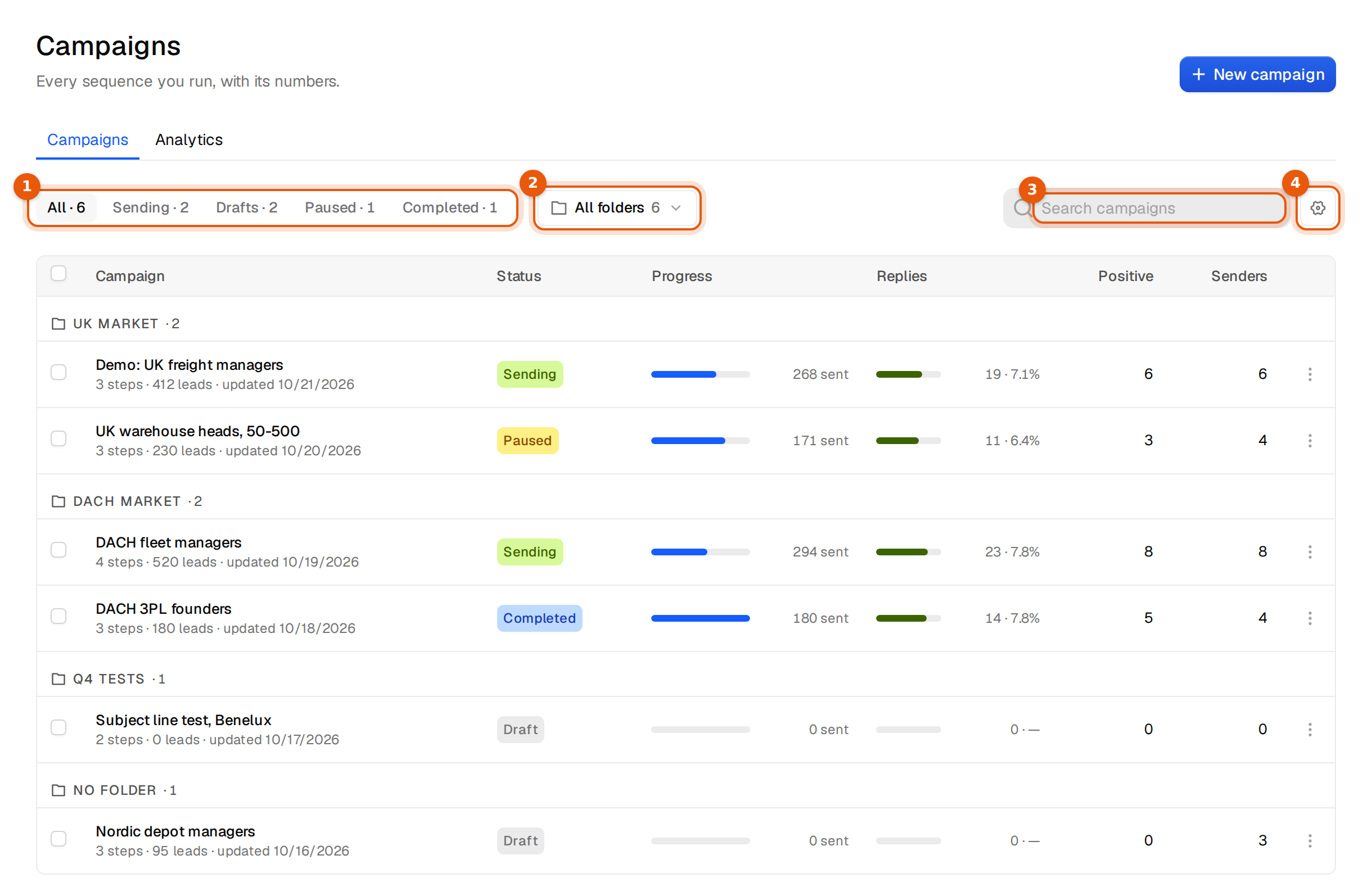
Open it with Campaigns in the sidebar under Outreach. The page has two tabs: Campaigns, the list, and Analytics, the numbers across campaigns. New campaign at the top right starts the wizard.
The header line
Under the title you see Every sequence you run, with its numbers. On a trial or a plan with a monthly allowance, the same line shows how many campaign emails you used, for example 1,240 of 25,000 campaign emails sent this month, and on a trial how many days are left. When the allowance is used up, it says so and links to the plans.
Find a campaign
| Control | What it does |
|---|---|
| Status tabs | All, Sending, Drafts, Paused and Completed, each with a count. On a phone they scroll sideways. |
| Folder menu | Shows All folders, one folder, or No folder. With all folders shown, the table is grouped by folder. See Folders. |
| Search campaigns | Matches the campaign name as you type. |
The filters work together. Paused plus the folder UK market shows only the paused campaigns in that folder.
What the table shows
Each row shows the campaign name, and under it the number of emails in the sequence, the number of leads and when it was last updated, for example 3 steps · 412 leads · updated 10/21/2026. Click the name to open the campaign.
| Column | What it shows |
|---|---|
| Status | Draft, Sending, Paused or Completed. |
| Progress | A bar and the number of emails sent so far. |
| Replies | The number of replies and the reply rate. |
| Reply rate | The reply rate on its own, as a percentage. |
| Positive | Replies labelled Interested or Meeting request. |
| Bounced | Addresses that bounced. |
| Senders | Mailboxes attached to the campaign. |
| Leads | People in the campaign. |
| Queued | People scheduled for their next email. |
Choose columns
- Click the gear button next to the search field.
- Under Show in the table, tick the columns you want.
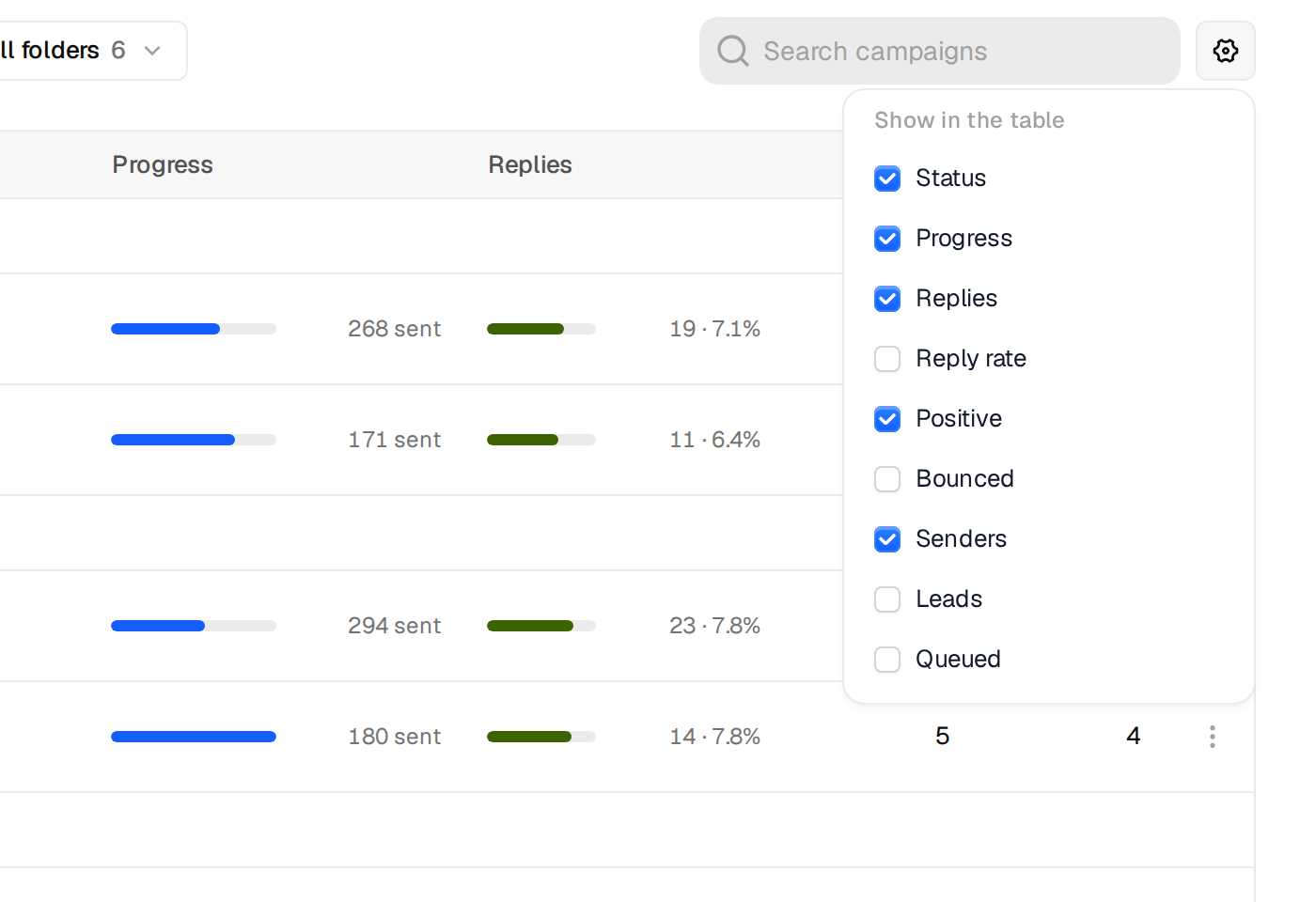
The choice is saved in this browser, so a colleague or another computer may show different columns.
The row menu
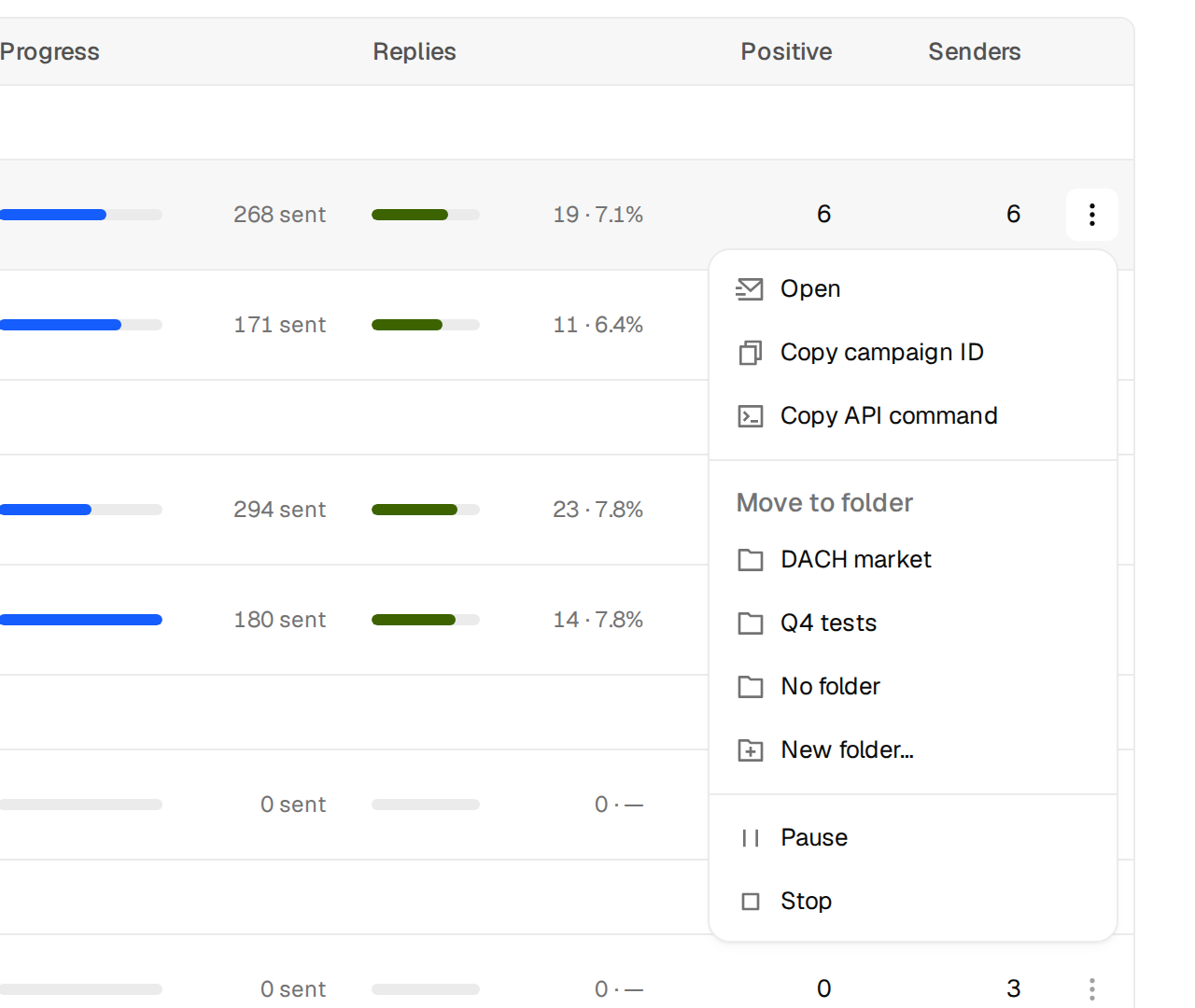
The three dots at the end of a row open the actions for that campaign.
| Item | What it does |
|---|---|
| Open | Opens the campaign page. |
| Copy campaign ID | Copies the ID for Clay, n8n, Zapier, your CRM or your AI agent. |
| Copy API command | Copies a ready cURL command that adds leads to this campaign. Add your API key before you run it. |
| Move to folder | Lists your other folders, No folder and New folder…. |
| Pause / Resume | Shown for sending or paused campaigns. |
| Stop | Ends the campaign after you confirm. |
| Delete | Shown for every campaign that is not sending. Asks before it deletes. |
Bulk actions
- Tick the box at the start of each row you want, or the box in the header to select every campaign shown.
- A bar appears at the bottom, for example 2 selected.
- Choose Pause, Resume, Stop, Delete or Move to folder. The X clears the selection.

Each action applies only to the campaigns that can take it. Pause skips drafts, Resume skips campaigns that are sending, and Delete skips campaigns that are sending. If none can take it, you see Nothing in the selection can take that action. Stop and Delete ask before they run.
Good to know
- With no campaigns yet, the page shows Create your first campaign and Find people first.
- Everyone in your workspace sees the same campaigns and folders.
- Reply numbers here count replies from people. Out-of-office replies are not counted as replies. For the full picture, open the Analytics tab.