
Folders keep campaigns for different products, markets, clients or quarters apart. A folder is only a label for the list. Moving a campaign into a folder, out of it or deleting the folder never changes how the campaign sends.
Everyone in your workspace sees the same folders.
The folder menu
In Campaigns, the folder button sits next to the status tabs. It shows the folder you are looking at and how many campaigns it holds, for example All folders 6.
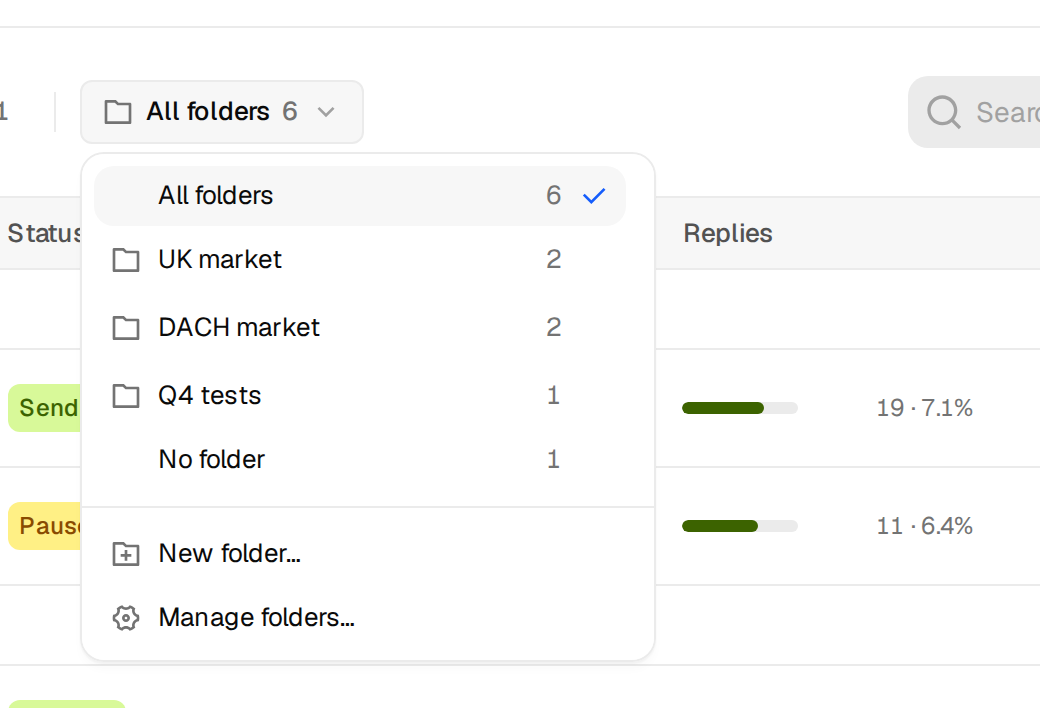
| Item | What it does |
|---|---|
| All folders | Shows every campaign, grouped by folder, with a section for campaigns without one. |
| A folder name | Shows only the campaigns in that folder. |
| No folder | Shows only campaigns that are in no folder. |
| New folder… | Creates a folder. |
| Rename “…”… and Delete “…”… | Shown while you look at one folder. Renames or deletes that folder. |
| Manage folders… | Opens a list of all folders to rename or delete any of them. |
With more than seven folders, a Find a folder field appears at the top of the menu.
Create a folder
- Open the folder menu and choose New folder….
- Type a name under Folder name, for example Q1 2027 outbound. Up to 120 characters.
- Click Create folder.
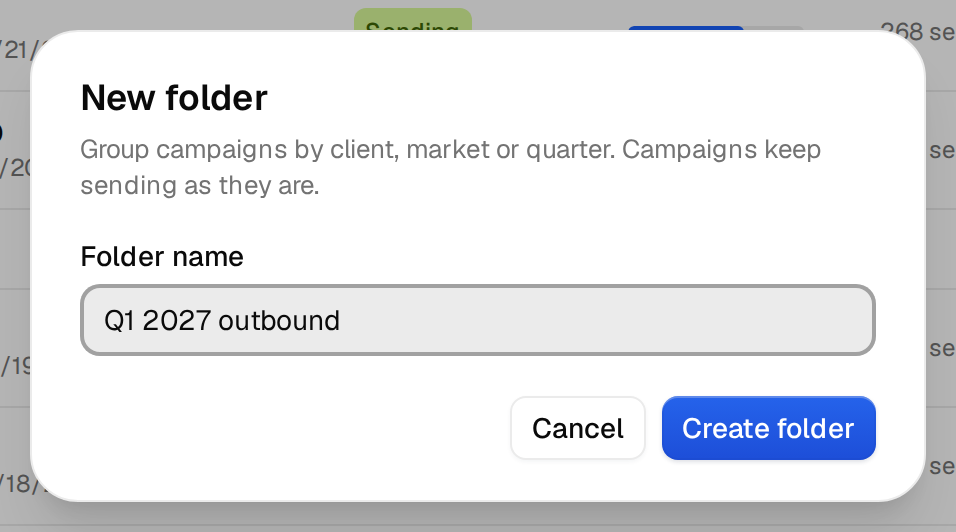
Each name can be used once. If it already exists, you see A folder called "Q1 2027 outbound" already exists.
Tip: tick campaigns first, then choose Move to folder, New folder… in the bar at the bottom. The new folder is created and the ticked campaigns move into it in one step.
Move campaigns
| To move | Do this |
|---|---|
| One campaign | Open its row menu (the three dots) and pick a folder under Move to folder. |
| Many campaigns | Tick them, then use Move to folder in the bar at the bottom. |
| Out of a folder | Pick No folder in either menu. |
You see a short message, for example Moved to UK market.
Rename or delete
- Open the folder menu and choose Manage folders….
- Next to a folder, click Rename, type the new name and click Save. Or click Delete and confirm with Delete folder.
- Click Done.
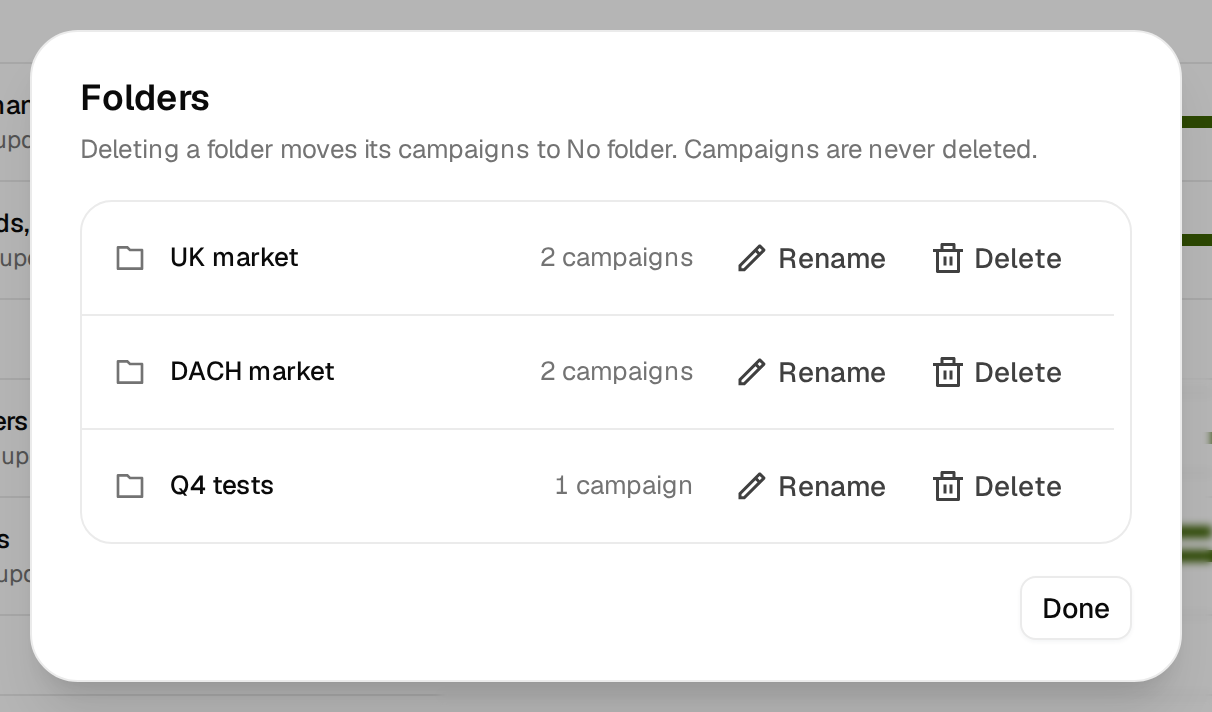
Deleting a folder never deletes its campaigns. They move to No folder, and nothing is paused or changed. Argorant says so before you confirm, for example Its 2 campaigns move to No folder. No campaign is deleted, paused or changed.
Ideas for folders
- One folder per market or language, such as UK, DACH and US.
- One folder per client, if you run outreach for several.
- One folder for tests, so subject line and copy tests do not clutter the main list.