
The block list holds people and companies you never want to contact. Everyone on it is left out of your searches, lists, exports and campaigns, and nobody on it gets an email from your workspace. It applies to your whole team. Other workspaces are not affected.
Use it for your customers, partners, competitors, your own company, and anyone who asked you to stop.
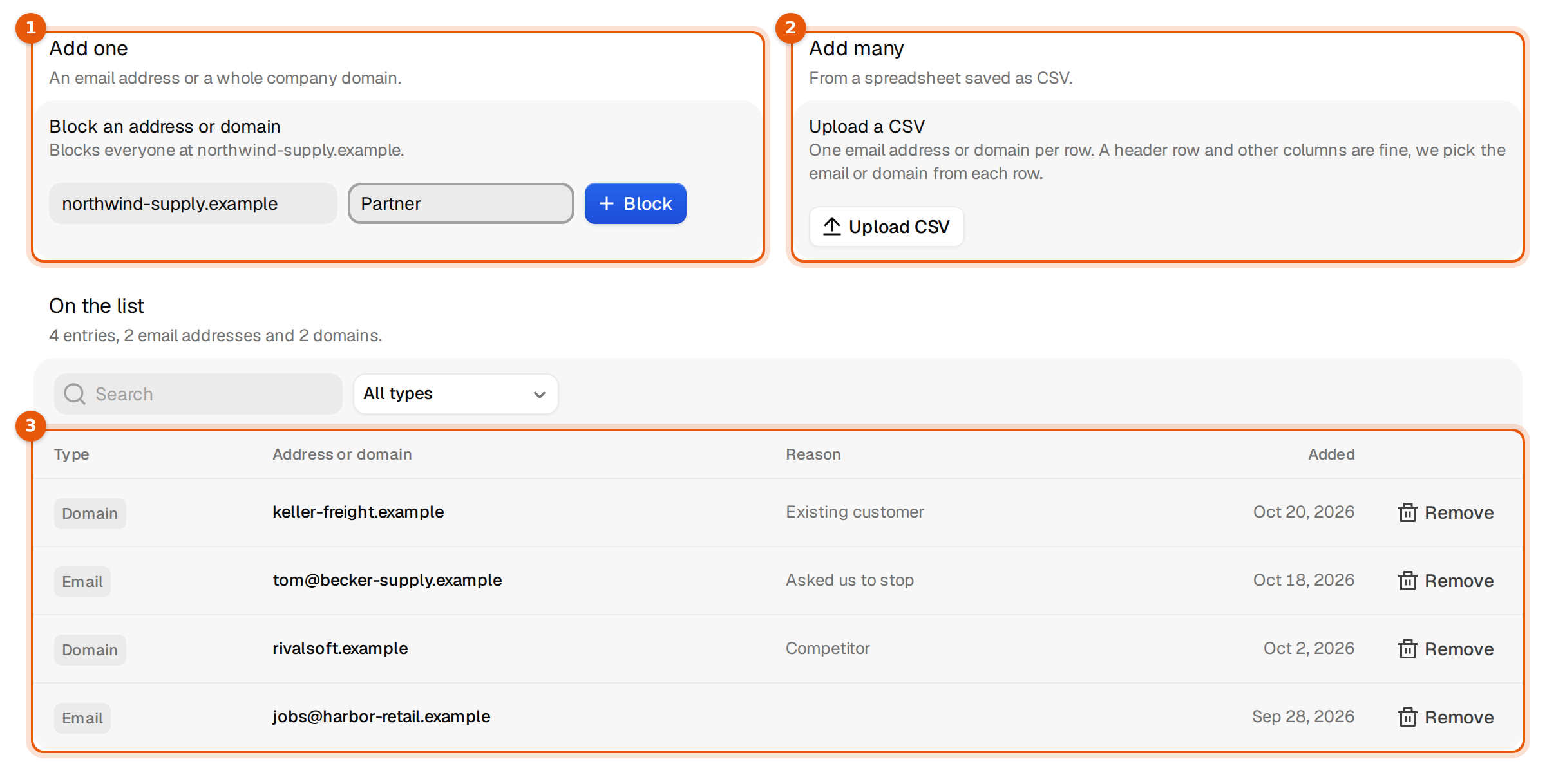
Block one address or domain
- Open Settings, then Block list.
- Under Add one, type an email address, such as
anna@northwind-supply.example, or a company domain, such asnorthwind-supply.example. Argorant works out which one it is. The line above the field tells you, for example Blocks everyone at northwind-supply.example. - Type a reason in Reason (optional) if you like, for example Customer or Asked us to stop. Your team sees it in the list later.
- Click Block, or press Enter.
A message confirms it, for example Everyone at northwind-supply.example is blocked. If people from that address or domain were waiting for their next campaign email, it also tells you how many were stopped.
Address or domain: which to pick
| You type | What is blocked | Use it for |
|---|---|---|
| An email address | Only that one address. | One person who asked you to stop, while their colleagues may still hear from you. |
| A domain | Every address at that domain. | Customers, partners, competitors and your own company. |
You can paste a full web address, such as https://www.northwind-supply.example. Argorant keeps only the domain.
Block many at once
- Save your list from a spreadsheet as a CSV file. Put one email address or domain in each row. A header row and other columns are fine, Argorant picks the email or domain from each row.
- Under Add many, click Upload CSV and choose the file.
The message then sums it up, for example 120 found in customers.csv: 118 added, 2 already on the list. If some rows held neither an address nor a domain, it says how many and shows one example, so you can fix the file and upload it again. Uploading the same file twice adds nothing twice.
Find and remove an entry
- Under On the list, type in Search to find an entry. Use the menu next to it to show only Email addresses or Domains.
- The list shows the type, the address or domain, the reason and the day it was added. Click Show more at the bottom for older entries.
- Click Remove next to an entry and confirm with Remove.
From then on, campaigns can contact that address or domain again. People who were already stopped stay stopped. Add them to a campaign again if you want to write to them.
Limits and good to know
- A CSV file must be under 8 MB. Split bigger files.
- A reason can be up to 200 characters.
- People who unsubscribe or ask to stop are kept out of your campaigns anyway. Add them here too if you also want them out of searches, lists and exports.
- Changes take effect at once for everyone on your team.
Common mistakes
| Message | What to do |
|---|---|
| That is not an email address or a domain. | Check for typos and spaces. Type jane@acme.com or acme.com, not a company name. |
| That file is too large. | Split it into files under 8 MB. |
| The file could not be read. | Save it as CSV, not as an Excel file, with one address or domain per row. |
| ... was already on the list. | Nothing to do. It was blocked before. |