
Everything you bought from us lives on one tab: the orders with their setup progress and billing, and every domain with its renewal and website redirect. Open Inboxes and click Orders & domains. The tab has two views, Orders and Domains, with their counts.
Orders
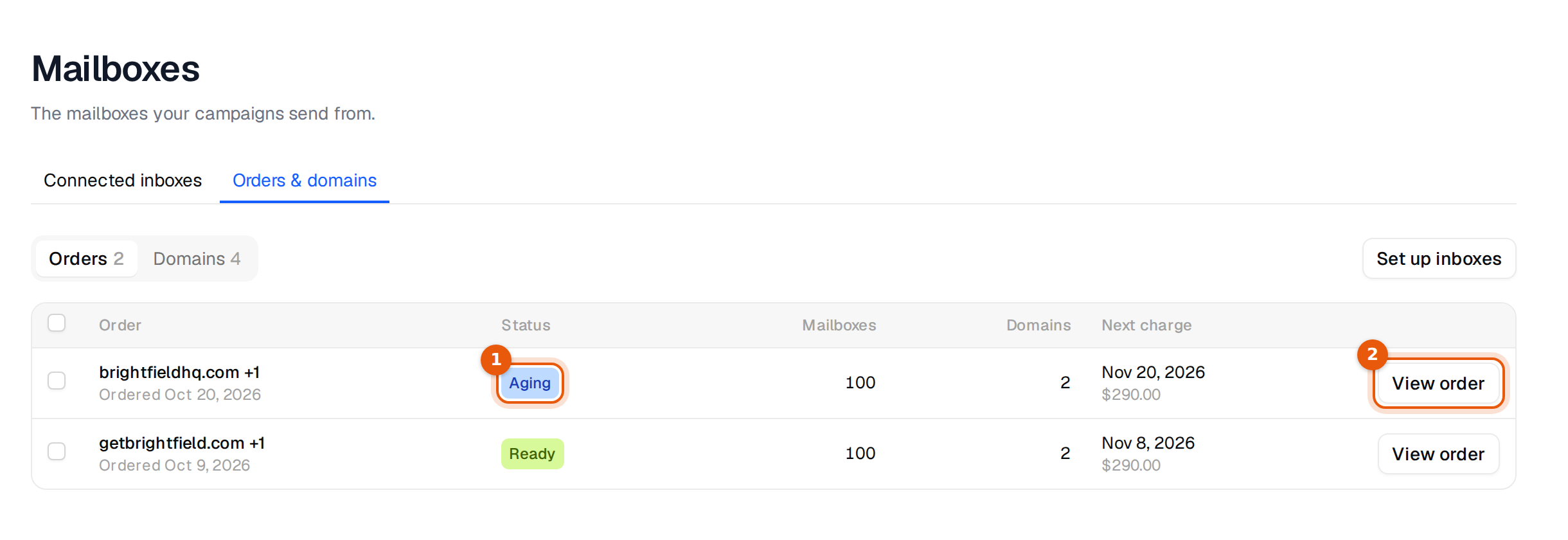
Each row shows the domains of the order, when you ordered it, the status, the number of mailboxes and domains, and the next charge. Click View order for the details.
| Status | What it means | What to do |
|---|---|---|
| Waiting for payment | The order is saved but not paid yet. Nothing is bought before payment. | Finish the payment. |
| Setting up | We are buying the domains, setting up DNS and creating the mailboxes. | Nothing. You get a note when each step is done. |
| We are on it | A step needs a hand from our team and they are on it. | Nothing. |
| Aging | The mailboxes exist and rest for 24 hours before they send. | Attach them to a campaign now if you like. |
| Ready | Done. The mailboxes are connected and in your table. | Send. |
| Payment failed | The last payment did not go through. We retry, and the mailboxes keep sending for now. | Update the payment method. |
| Sending paused | Payment could not be collected after several tries. Cold sending from these mailboxes is paused. Nothing is deleted. | Update the payment method. Sending resumes once the payment goes through. |
| Ending and Ended | The mailboxes were cancelled. They work until the end of the paid period, then they are deleted. | Save anything you need before the end date. |
| Cancelled | The order was cancelled before setup. Nothing was bought or charged. | Nothing. |
One order in detail
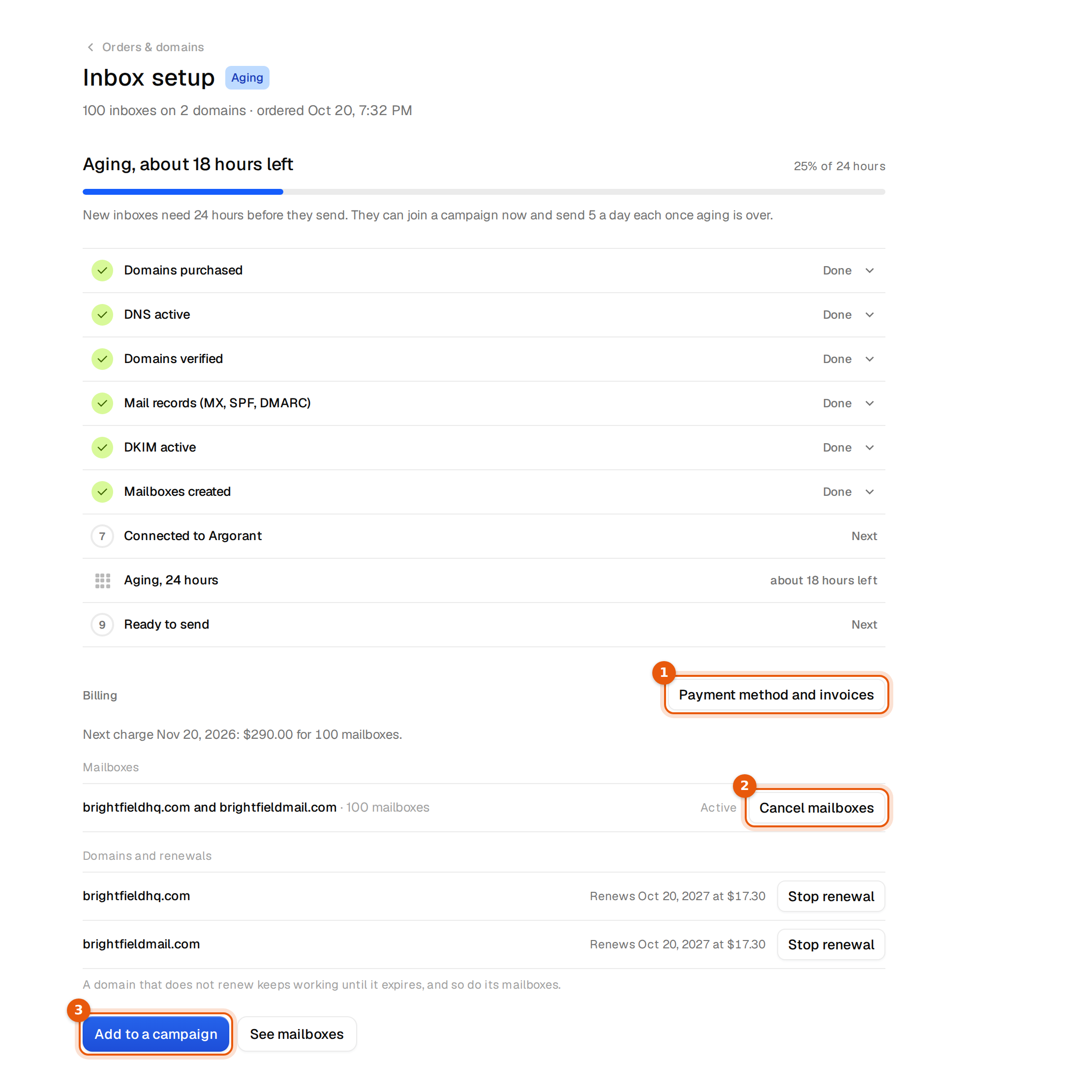
- The top shows the order status and a progress line, for example Aging, about 18 hours left.
- The step list follows the setup with Domains purchased, DNS active, Domains verified, Mail records (MX, SPF, DMARC), DKIM active, Mailboxes created, Connected to Argorant, Aging, 24 hours and Ready to send. Open a step to see each domain.
- Billing shows the next charge, for example Next charge Nov 20, 2026: $290.00 for 100 mailboxes., and the Payment method and invoices button.
- Domains and renewals lists each domain with its renewal date and yearly price.
- Add to a campaign attaches the new mailboxes to a campaign, See mailboxes opens them in the table, and Activity lists every update.
Domains
| Column | What it shows |
|---|---|
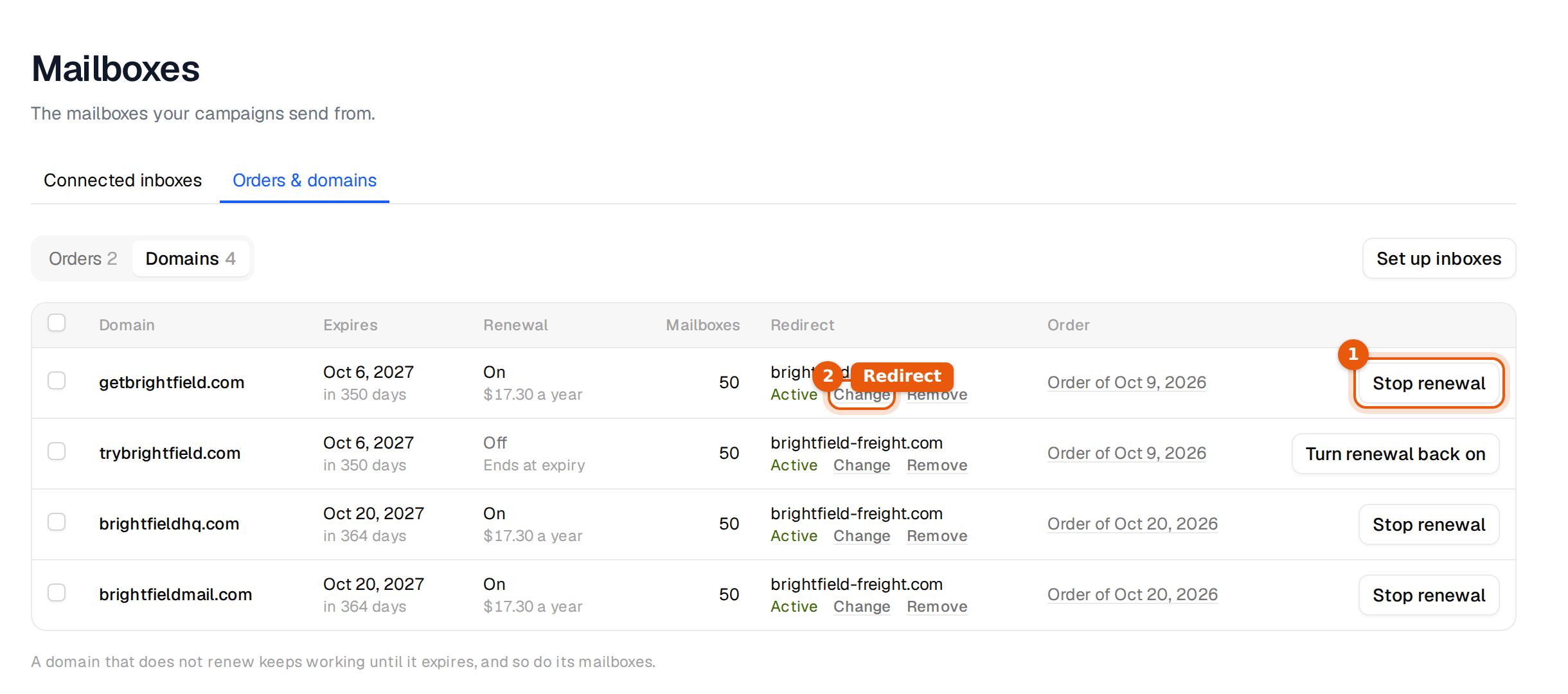
| Expires | The expiry date and the days left. |
| Renewal | On with the yearly price, or Off with Ends at expiry. |
| Mailboxes | How many mailboxes live on the domain. |
| Redirect | Where visitors of the domain go, with Change and Remove. |
| Order | The order the domain belongs to. |
Click Stop renewal to let a domain run out, or Turn renewal back on to keep it. A domain that does not renew keeps working until it expires, and so do its mailboxes. If a domain is already billed for this year, it renews once more and stops after that. Tick several domains to change their renewal together.
To change a redirect, click Change, type a website such as yourcompany.com and save. Leave it empty or click Remove for no redirect. The change takes a few minutes.
Payment and cancelling
- Open the order with View order.
- Click Payment method and invoices to change the card or download invoices. Mailbox billing is separate from your Argorant plan.
- To stop paying for mailboxes, click Cancel mailboxes next to them. Choose a reason under Why are you cancelling? and confirm. You can also choose to keep the domains.
100 mailboxes cancelled. They keep working until the end of the paid period, then they are deleted.
Before the end date, save what you need from those mailboxes. Owners and admins can download the addresses and passwords of every bought mailbox with Download all sign-in details on the Mailboxes page.
Who can do what
Renewals and redirects can be changed by the workspace owner. If the buttons are missing for you, ask the owner of your workspace.