
Cold email should never run on your main company domain. If you want more sending capacity without buying domains, setting up DNS and creating mailboxes yourself, Argorant does all of it for you. You choose how many emails a day you want to send, pick the domains and the sender names, and pay. We buy the domains, set them up, create Microsoft 365 mailboxes and connect them to your account. You do not need an Argorant plan to buy mailboxes.
Where to start
Open Inboxes and click Set up inboxes at the top right, or choose the DFY Microsoft accounts tile under Connect account. Both open the order page at Set up inboxes. Only the workspace owner or an admin can order. The page has five steps, shown as buttons at the top, and a Your setup panel on the right that keeps the numbers and the monthly price up to date.
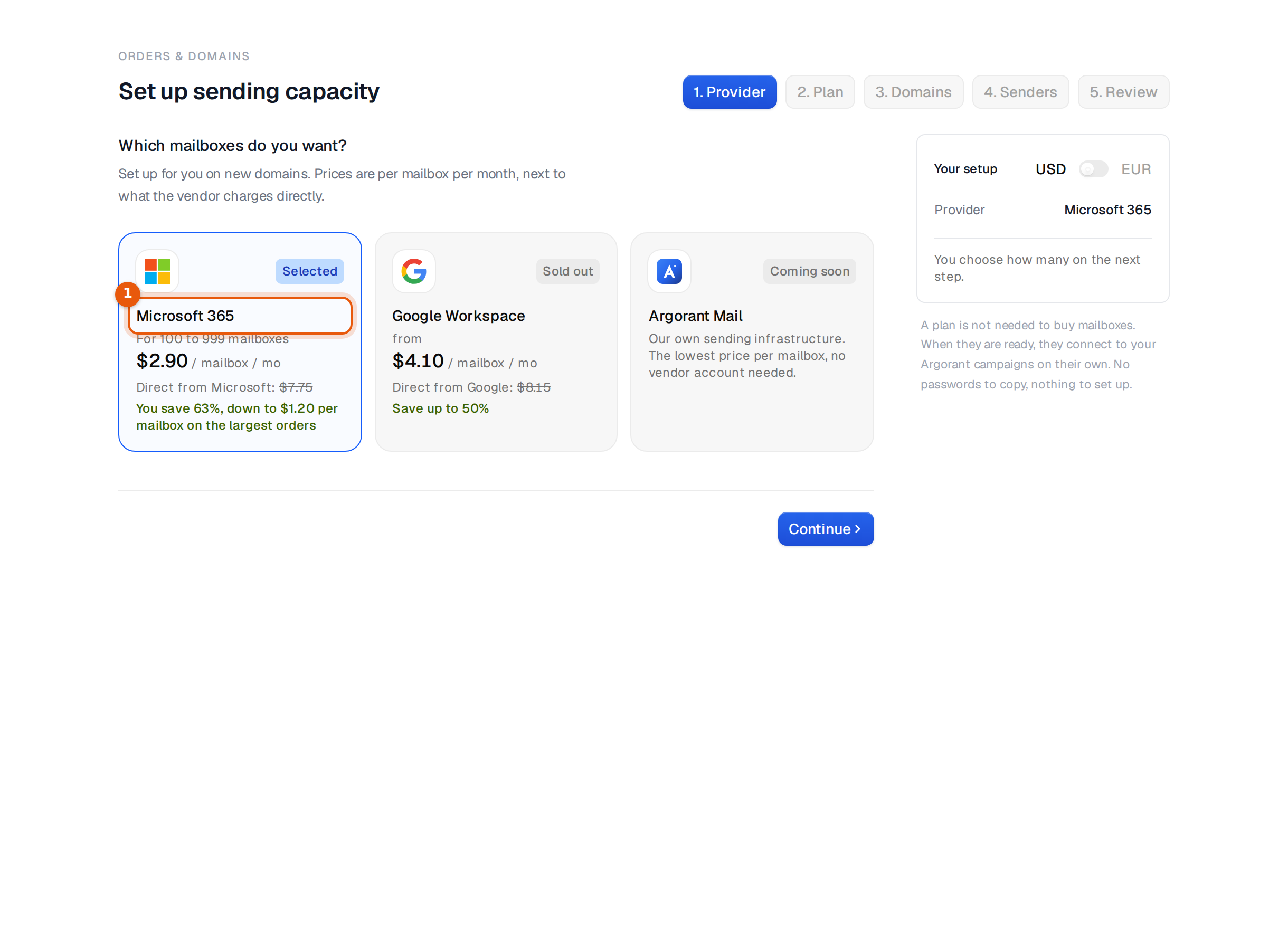
Step 1, Provider
Pick Microsoft 365 under Which mailboxes do you want? The card shows the price per mailbox per month next to what the vendor charges directly. Other providers show as sold out or coming soon when they are not on offer. Click Continue.
Step 2, Plan
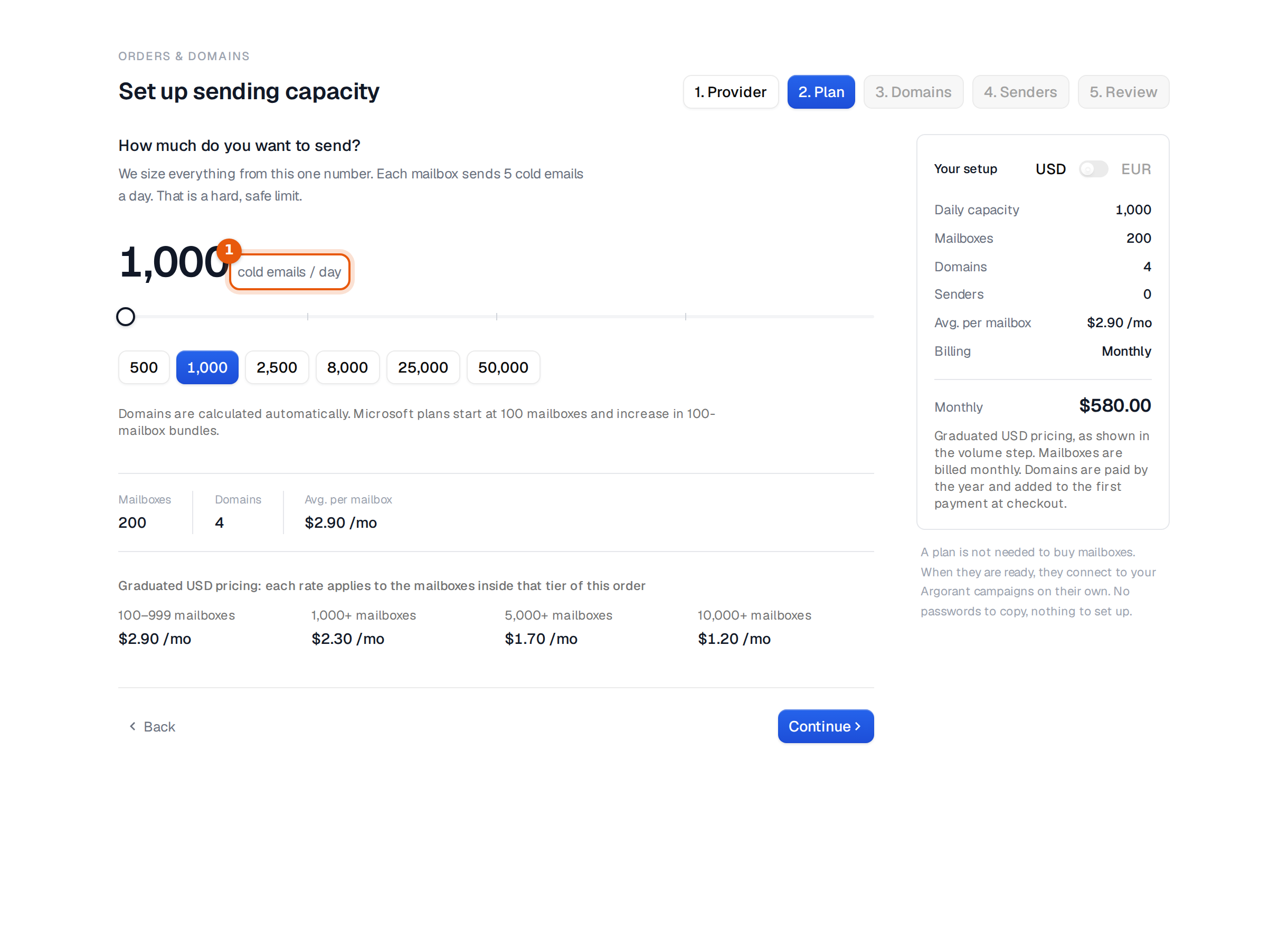
Under How much do you want to send?, set the number of cold emails a day with the slider or the quick buttons (500 to 50,000). Everything else is worked out from this one number.
- Each mailbox sends 5 cold emails a day. That is a hard, safe limit.
- Microsoft plans start at 100 mailboxes and grow in bundles of 100. 1,000 emails a day means 200 mailboxes.
- Each domain carries 50 mailboxes, so 200 mailboxes need 4 domains.
- Pricing is graduated. Inside one order, each rate applies to the mailboxes in that tier. The tiers and the average per mailbox show under the slider.
| Mailboxes in the order | USD per mailbox per month | EUR per mailbox per month |
|---|---|---|
| 100 to 999 | $2.90 | €2.50 |
| 1,000 and more | $2.30 | €2.00 |
| 5,000 and more | $1.70 | €1.50 |
| 10,000 and more | $1.20 | €1.00 |
Switch between USD and EUR at the top of the Your setup panel. The wizard always shows the exact total before you pay.
Step 3, Domains
- Type your real site under Company website, for example
yourcompany.com, and click Suggest domains. - Argorant lists names that look like your brand and checks that they are free. Narrow the list with the extension buttons (All extensions, .com, .co, .net, .org, .sbs). Refresh brings new names.
- Tick the domains you want, or click Select best N to fill the selection. The heading says how many you need, for example Pick 4 sending domains.
- Each name shows its first-year price and the yearly price after that.
- Check Website redirect (optional). It is filled with your website, so anyone who opens a sending domain lands on your real site. Clear it for no redirect.
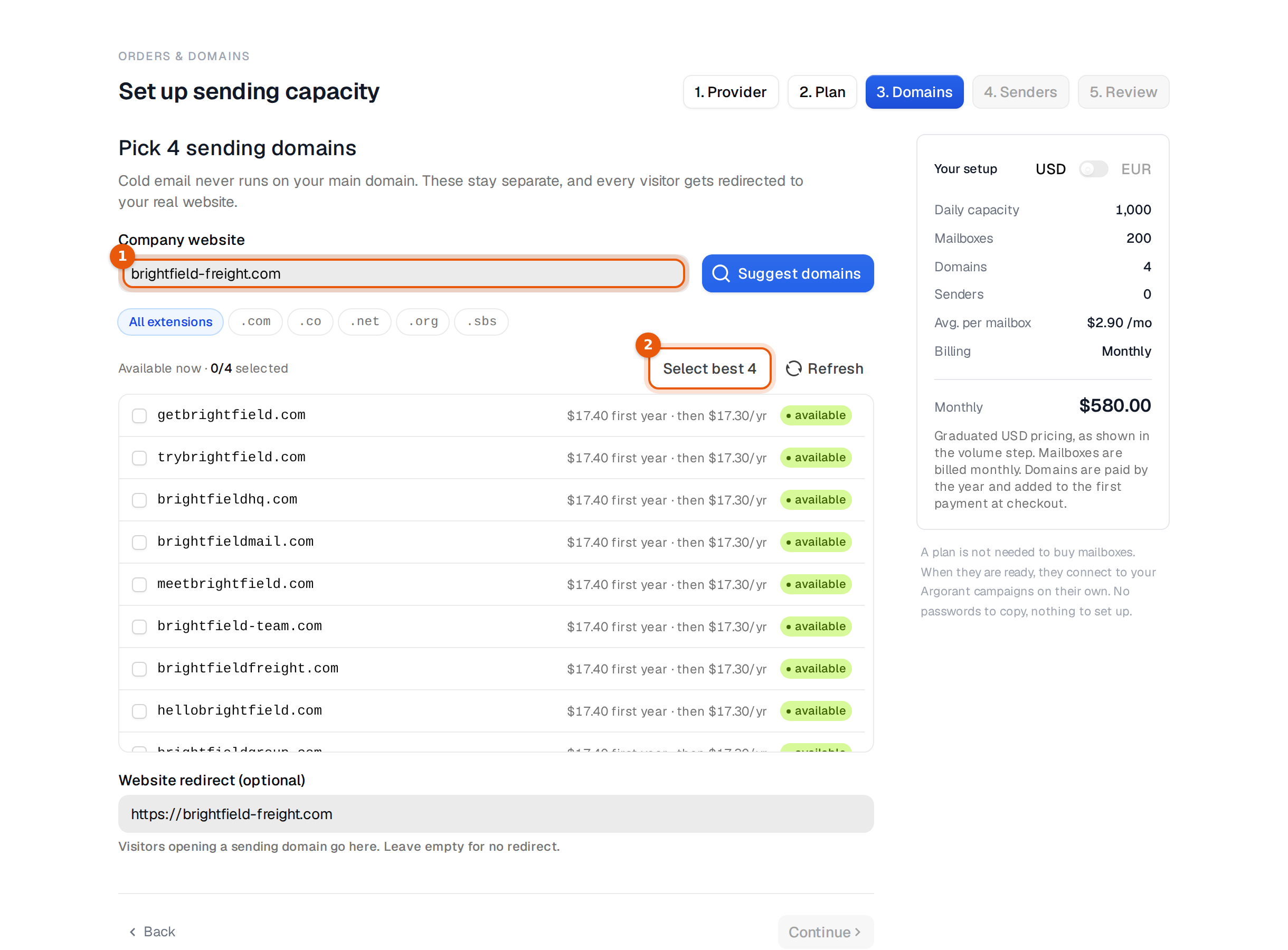
available means no registration was found for the name. The registrar confirms it at purchase.
Step 4, Senders
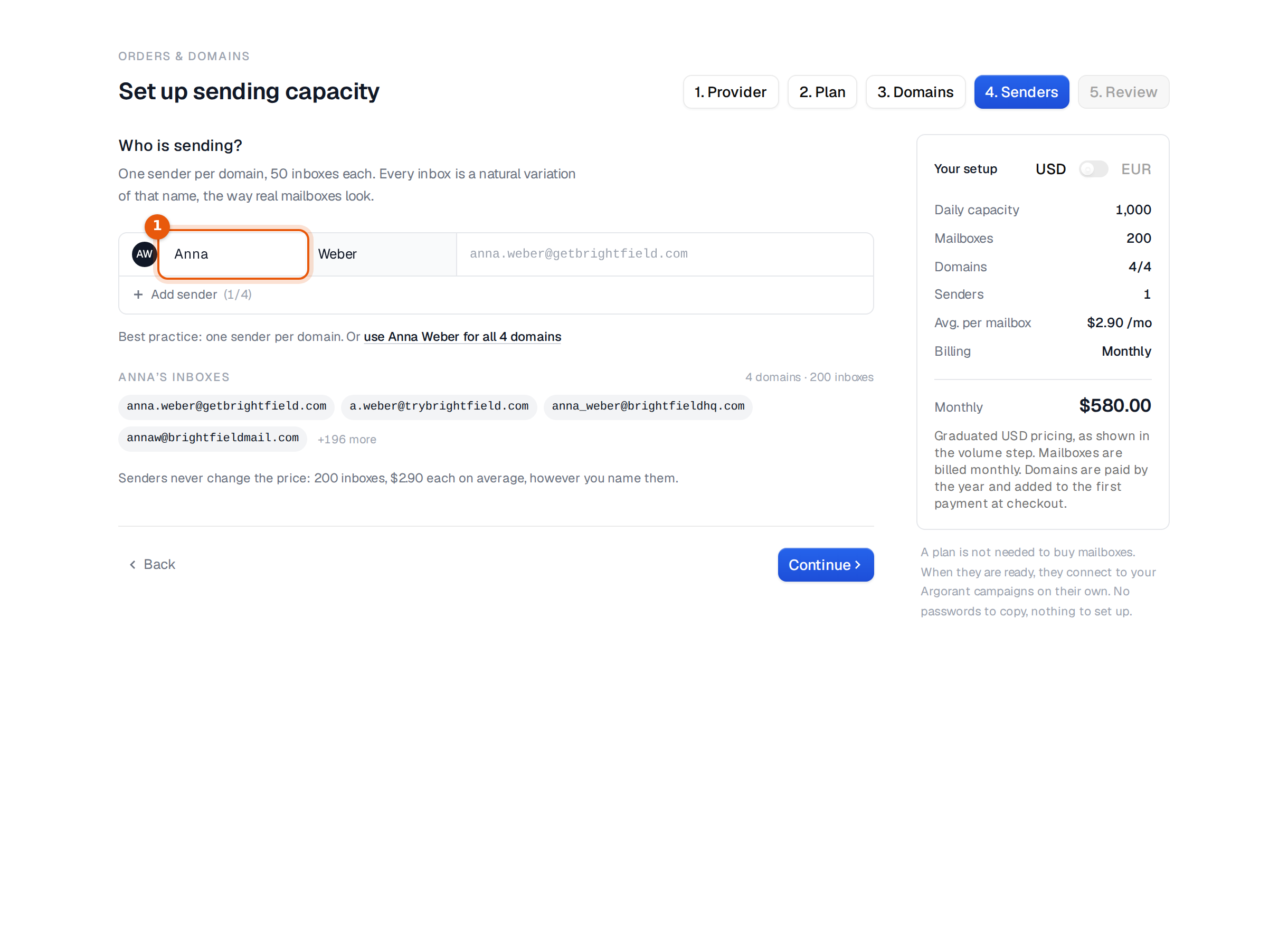
Under Who is sending?, enter the first and last name your mailboxes send as. Best practice is one sender per domain, so Add sender until the count matches your domains, or click the link that offers to use the first name for all domains, for example use Anna Weber for all 4 domains. Each domain gets 50 inboxes that are natural variations of that name, such as anna.weber@, a.weber@ and anna_weber@. Senders never change the price.
Step 5, Review
Check the mailbox line, every domain with its first-year price, and the total under Due today. Switch on Pay quarterly to save 5% on mailboxes, billed every three months. Mailboxes are billed monthly (or quarterly); domains are paid by the year and added to the first payment. Click Continue to payment to pay securely. Nothing is bought before your payment is confirmed.
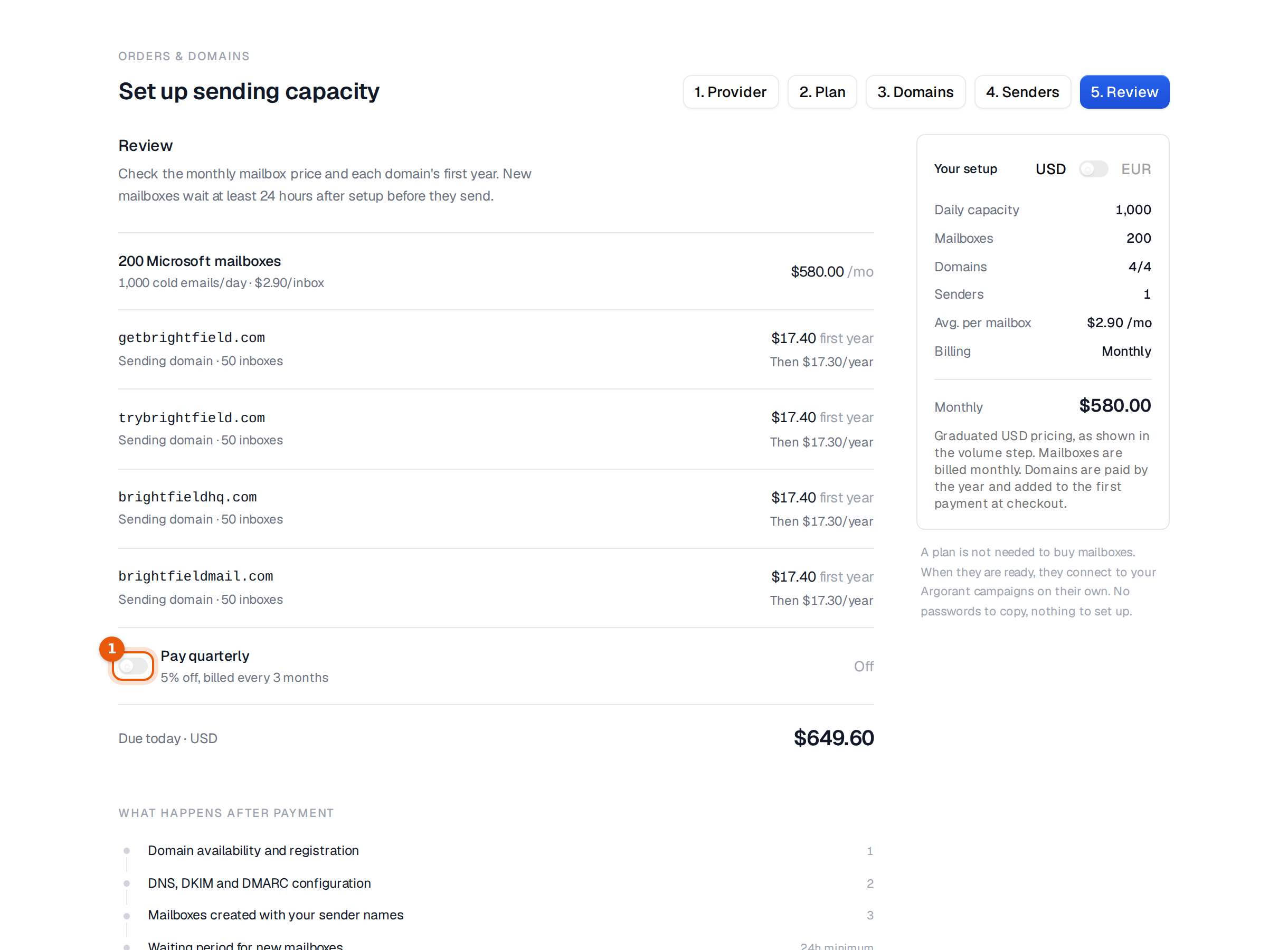
After payment
- The domains are registered.
- DNS, DKIM and DMARC are configured.
- The mailboxes are created with your sender names.
- The mailboxes wait at least 24 hours, shown as Aging.
- They are connected and checked, then they appear in your mailbox table with 5 cold emails a day each. Warm-up starts at 10 a day when aging ends.
You can leave the page after paying. A card in the sidebar shows the progress, and Argorant tells you when each step is done. The mailboxes can join a campaign right away and start sending once aging is over. Follow everything under Orders and domains.
Good to know
- Mailboxes you buy never count toward the free trial's 2-mailbox limit. Sending campaigns after the trial needs a plan.
- You can sign in to bought mailboxes yourself too. Owners and admins find the sign-in details in Edit sender and can download all of them with Download all sign-in details on the Mailboxes page. They are ready once the 24 hours of setup are over.
- Separate orders are priced separately. The lower rates only apply to the mailboxes inside one order, so 2,000 mailboxes in one order cost less than two orders of 1,000.