
Argorant does not send cold email from a shared server. Every campaign email goes out from a real mailbox that belongs to you, so it looks like a normal email and replies land in a real inbox. This page explains where those mailboxes live in the app, the ways to add them, and what to do first.
Where to find your mailboxes
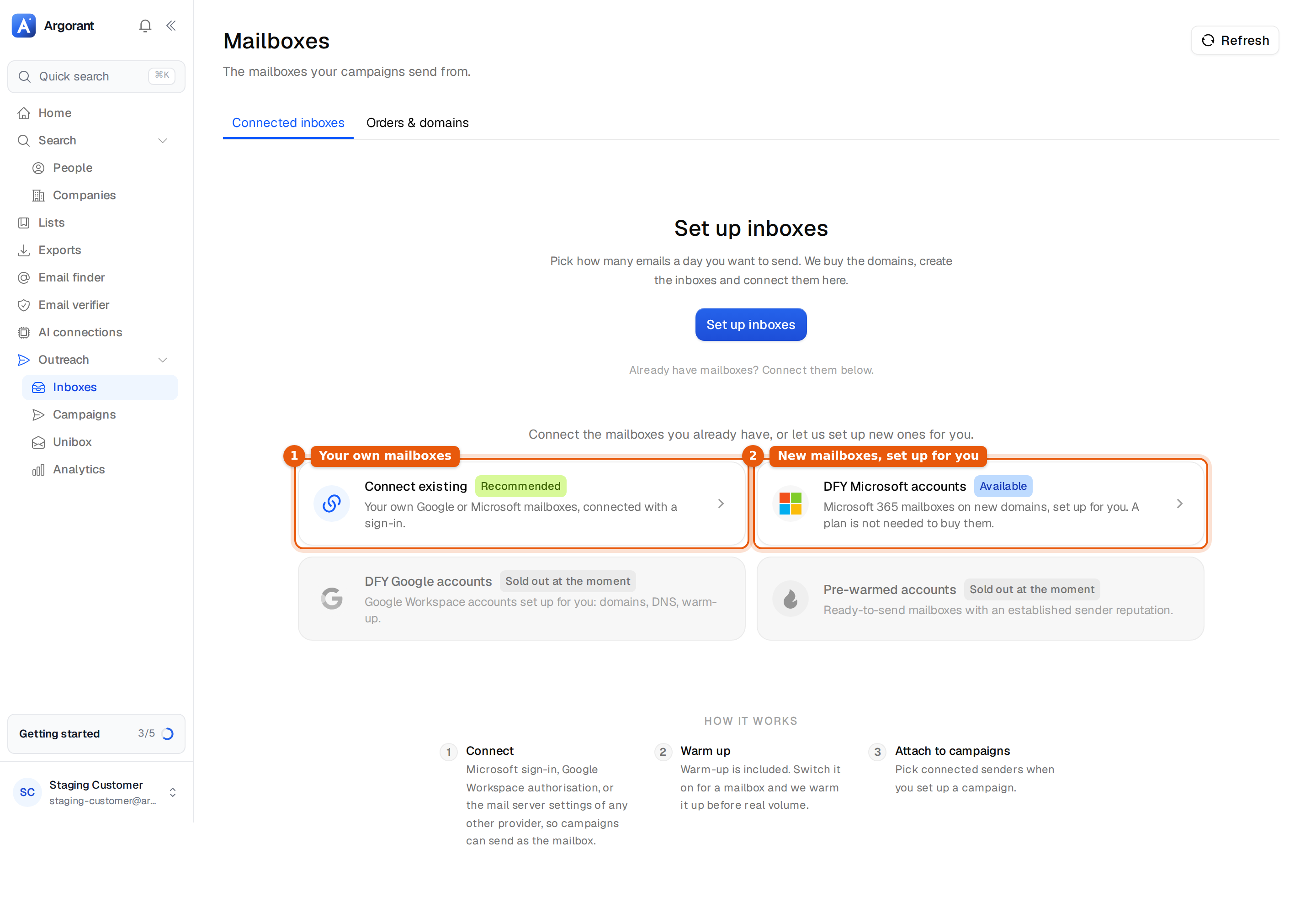
In the sidebar, open Outreach and click Inboxes. The page is called Mailboxes and has two tabs. Connected inboxes lists every mailbox your campaigns can send from. Orders & domains lists mailboxes and domains you bought from us. Only the workspace owner or an admin can add or change mailboxes. Other members see the page but cannot connect anything.
Two ways to get mailboxes
| Option | What you get | When to pick it |
|---|---|---|
| Connect existing | Your own Google Workspace, Microsoft 365 or other mailboxes, connected with a sign-in or with their mail server settings. | You already have mailboxes on a domain you use for outreach, or you want to start today. |
| DFY Microsoft accounts | New Microsoft 365 mailboxes on new domains, bought, set up and connected for you. You do not need an Argorant plan to buy them. | You want to send more without touching your main domain, and you do not want to set up domains and DNS yourself. |
| DFY Google accounts and Pre-warmed accounts | Shown on the page, marked Sold out at the moment when they are not on offer. | Only when the tile is not greyed out. |
Connecting existing mailboxes has three routes, one per kind of mailbox. See Connect Google Workspace mailboxes, Connect a Microsoft 365 or Outlook mailbox and Connect any other mailbox with SMTP and IMAP. Ordering is explained in Order new mailboxes and domains.
Your first mailbox, step by step
- Open Inboxes. Before your first mailbox, the options show on the page. Later they sit behind the Connect account button at the top right.
- Click Connect existing and pick Gmail / Google Workspace, Office 365 / Outlook or Any other provider. Follow the steps on screen.
- When the mailbox shows in the table, open its menu (the three dots at the end of the row) and choose Edit sender. Check the display name, the timezone and Cold emails per day.
- Switch on Warm-up in the same dialog if the mailbox is new or has not sent much. Warm-up is off until you switch it on.
- Click Save sender. Then attach the mailbox to a campaign, in the campaign wizard or on the campaign's Senders tab. See Choose which mailboxes send a campaign.
What the page shows once you have mailboxes
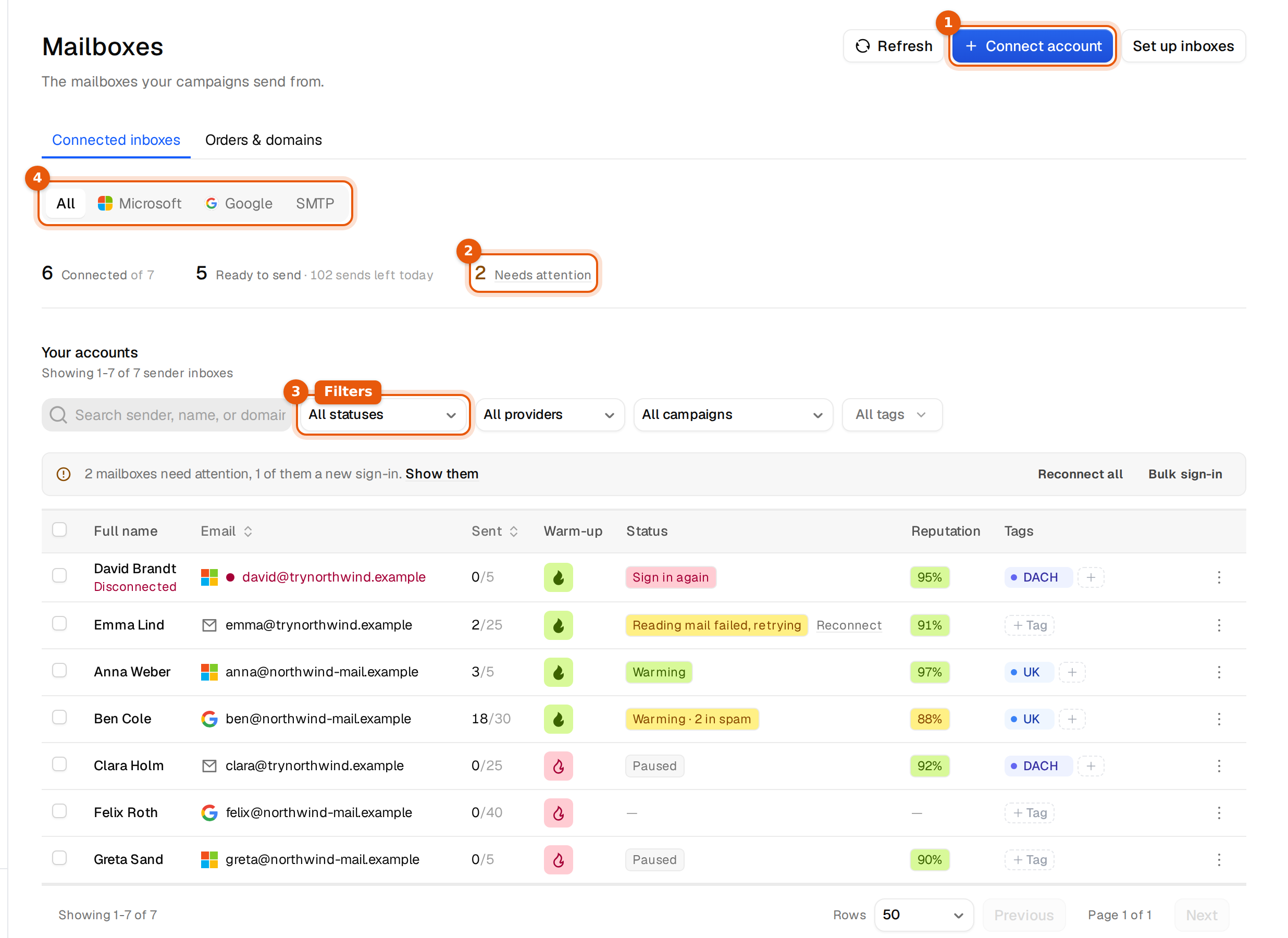
- The row of numbers at the top says how many mailboxes are Connected, how many are Ready to send with the sends left today, and how many Needs attention. Click Needs attention to filter the table to those.
- The switch above it (All, Microsoft, Google, SMTP) narrows the page to one kind of mailbox.
- The filter row searches by sender, name or domain, and filters by status, provider, campaign and tag.
- The table shows the full name, the address, Sent today against the daily limit, the warm-up flame, the status, the reputation and the tags. On wide screens a Campaign column shows where each mailbox sends.
What each status means and how to fix it is in Mailbox statuses and what to do.
Limits
- The free trial includes 2 connected mailboxes. A third is refused with the message below. A mailbox you already connected can always sign in again.
- With a plan you connect as many mailboxes as you like, and warm-up is included.
- Mailboxes you buy from us never count toward the trial limit.
- Each mailbox starts with a safe daily limit: 5 cold emails a day for Microsoft 365 sign-ins and bought mailboxes, 40 for Google Workspace, 25 for other providers. See Daily sending limits per mailbox.
The free trial includes 2 mailboxes. Choose a plan to connect more.
Common mistakes
- Sending from your main company domain. If those emails get flagged, your normal email suffers too. Use separate sending domains, or order mailboxes on new domains.
- Skipping warm-up on a new mailbox and starting at full volume. Switch warm-up on first and raise the daily limit slowly.
- Trying to connect a personal address such as @gmail.com or @outlook.com with the Google or Microsoft option. Those options take work mailboxes on your own domain only, and a mailbox on your own domain is the better sender anyway.
- Attaching too few mailboxes to a big campaign. Each mailbox sends only a few cold emails a day. To send more, add more mailboxes.