
Mailboxes that are not on Google Workspace or Microsoft 365 connect with their mail server settings. Sending uses SMTP, reading replies uses IMAP. Zoho, Fastmail, Yahoo, IONOS, GoDaddy, Titan, Hostinger, Namecheap, iCloud and your own mail server all work this way. You can connect one mailbox with a form, or many at once from a CSV file.
Before you start
- Find your provider's settings for mail apps. They are usually on a help page called IMAP settings or email app setup.
- Turn on IMAP access in your mailbox settings if your provider has a switch for it (Zoho does, for example).
- If your account uses two-step sign-in, create an app password at your provider. Many providers refuse the normal password for mail apps.
- If your mailbox actually runs on Microsoft 365 or Google Workspace (some GoDaddy plans do), use the Microsoft or Google option instead. It is more reliable.
Connect one mailbox
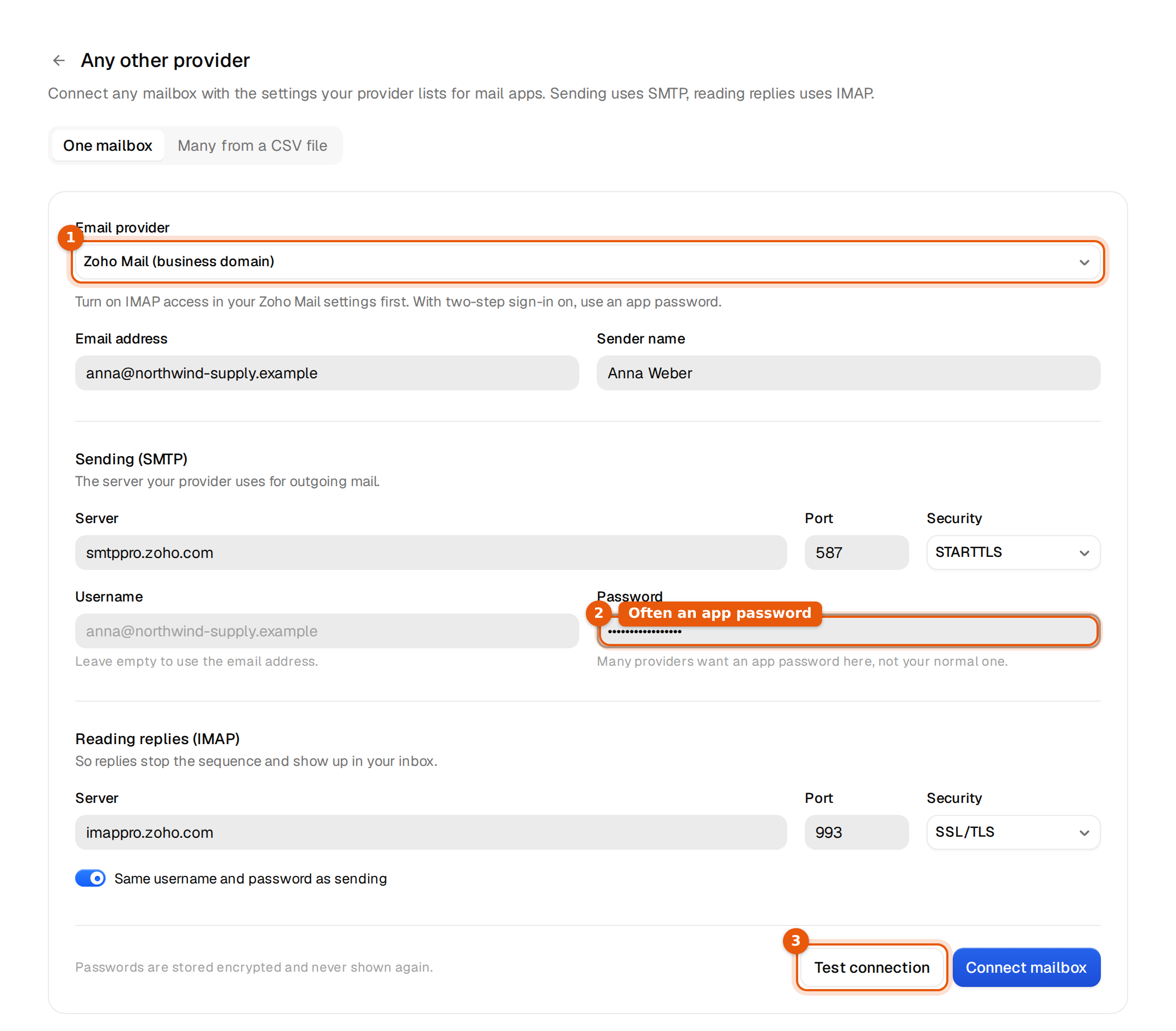
- Open Inboxes. Click Connect account at the top right (before your first mailbox the options show on the page). Choose Connect existing, then Any other provider.
- Leave One mailbox selected.
- Pick your Email provider. A known provider fills in the servers, ports and security for you and shows a short tip under the list. If yours is not listed, keep Other provider and type the settings yourself.
- Enter the Email address and the Sender name recipients should see.
- Under Sending (SMTP), check Server, Port and Security. Leave Username empty to use the email address. Type the Password.
- Under Reading replies (IMAP), check the server. Keep Same username and password as sending switched on unless your provider uses a different login for reading.
- Click Test connection. Argorant signs in to both servers without saving anything and shows one line for Sending and one for Reading replies. Both should say Works.
- Click Connect mailbox. You see the confirmation below and the mailbox appears in the table.
anna@northwind-supply.example is connected. Campaigns can send from it now, and replies show up in your inbox.
Passwords are stored encrypted and never shown again. If a server answers on a different port or security than you typed (for example port 465 that does not answer and works on 587 with STARTTLS), the test says so and the mailbox is saved with the setting that worked.
Which settings to pick
| Field | Usual value | Notes |
|---|---|---|
| Sending port and security | 587 with STARTTLS | 465 with SSL/TLS is the other common pair. Pick No encryption only if your provider says so. |
| Reading port and security | 993 with SSL/TLS | Almost every provider uses this. |
| Username | Your full email address | Leave it empty and Argorant uses the address. |
| Password | An app password | Your normal password works only if the provider allows it for mail apps. |
Connect many mailboxes from a CSV file
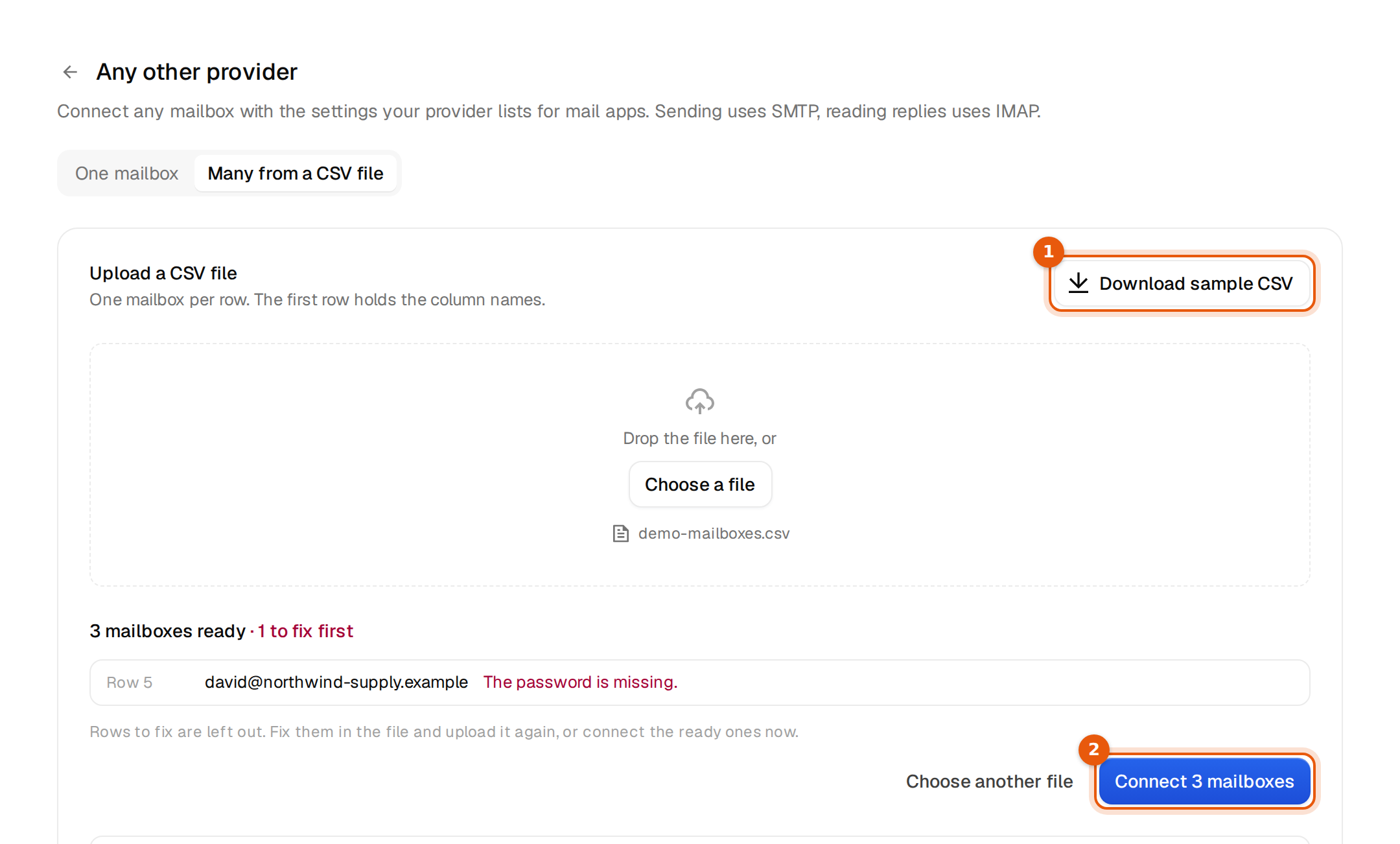
- In the same step, switch to Many from a CSV file.
- Click Download sample CSV. It holds the column names and two example rows.
- Fill one row per mailbox and save the file as CSV. The first row must keep the column names.
- Drop the file on the upload area or click Choose a file. Argorant checks every row before anything is sent and shows how many mailboxes are ready and how many need a fix, with the row number and the reason.
- Fix the rows in the file and upload it again, or click Connect N mailboxes to connect the ready ones now. Each mailbox takes a few seconds, so keep the window open until the result shows.
| Column | Needed | What goes in it |
|---|---|---|
email | Yes | The address you send from. |
sender_name | No | The name people see. |
preset | No | A provider from the list, such as zoho, fastmail, yahoo or ionos_de. It fills the servers for you, so leave the server columns empty. |
smtp_host, smtp_port | Without a preset | Sending server and port, for example smtp.example.com and 587. |
smtp_security, imap_security | No | ssl, starttls or none. |
smtp_username | No | Defaults to the email address. |
smtp_password | Yes | The password or app password. |
imap_host | Without a preset | Server for reading replies. |
imap_port, imap_username, imap_password | No | Default to 993 and to the sending login. |
daily_limit | No | Cold emails a day, a whole number from 1 to 10,000. Defaults to 25. |
A file holds up to 500 mailboxes and up to 2 MB. Common column names such as password, name or provider are understood too.
Common mistakes
| What you see | What to do |
|---|---|
| The sending line says the sign-in was refused | Use an app password, and check that the username is the full address. |
| Sending works, reading replies does not | Turn on IMAP access in your mailbox settings, or switch off Same username and password as sending and enter the reading login. |
| The password is missing. on a CSV row | Fill smtp_password for that row. |
| Add a preset, or the sending server, its port and the reading server. | Either fill preset or all three server columns. |
| Too many mailboxes this hour. Upload the rest a little later. | Wait a little, then upload the rows that are left. |
| Outlook.com or Hotmail refuses the password | Try an app password. If the test still fails, use the Microsoft sign-in. |
When the password changes
If you change the mailbox password at your provider, sending stops and the row shows a status with a Reconnect link next to it. Click it, or open the row's menu and choose Reconnect mailbox. Type the password again, update the server or username if they changed too, and click Save and reconnect. The address cannot change here, because a new address is a new mailbox.
What happens next
A new SMTP mailbox starts at 25 cold emails a day and warm-up is off. Open Edit sender to switch warm-up on, then attach the mailbox to a campaign. See Warm-up and Daily sending limits per mailbox.