
Connecting mailboxes one by one gets slow past a handful. Each kind of mailbox has its own fast path: a whole Google Workspace in one step, any number of SMTP mailboxes from one CSV file, and Microsoft 365 mailboxes after a one-time admin approval. Once they are in, the selection bar changes many mailboxes at once.
Which path to use
| Your mailboxes | Fastest way | Who has to help |
|---|---|---|
| Google Workspace | Authorise Argorant once, then tick every mailbox in one list. | A Workspace super admin, once. |
| Zoho, Fastmail, IONOS and other providers | One CSV file with a row per mailbox. | Nobody, if you have the passwords or app passwords. |
| Microsoft 365 | Approve Argorant once for the organisation, then each mailbox signs in with Login. | A Microsoft 365 admin, once, if Microsoft asks for approval. |
Google Workspace: every mailbox in one step
- Your admin adds Argorant under domain-wide delegation in Google Admin, as described in Connect Google Workspace mailboxes.
- In Argorant, enter the admin's address under Admin email and click Check. Argorant lists every active mailbox of the Workspace, across all its domains. Aliases show as separate senders.
- Mailboxes that are not connected yet are ticked. Use Select all or None, then untick what should not send.
- Click Connect N mailboxes. The result says how many connected, and each one shows Ready or the reason it could not be reached.
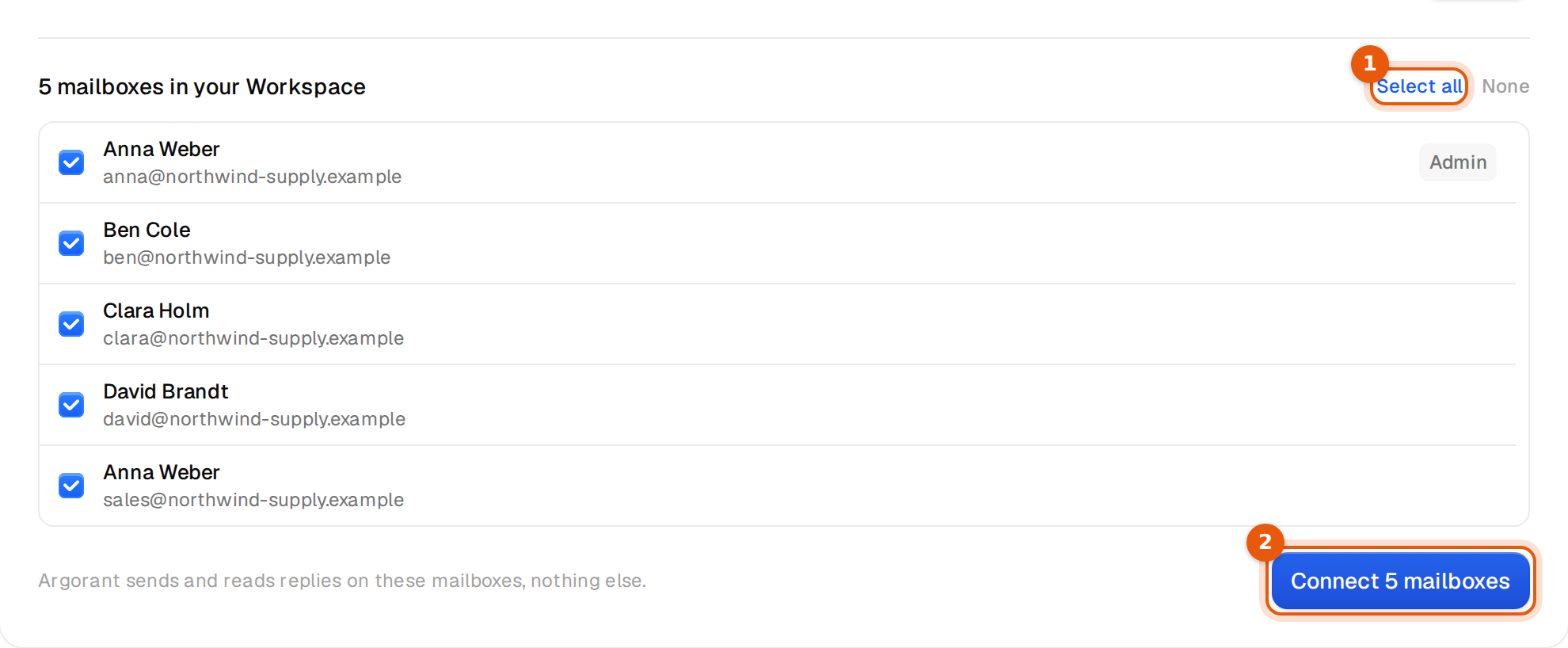
Click Connect another domain afterwards to repeat this for a second Workspace.
Any other provider: one CSV file
- Open Connect account, Connect existing, Any other provider, then Many from a CSV file.
- Click Download sample CSV, fill one row per mailbox and upload the file.
- Argorant checks each row first and lists the rows to fix with their row number and reason. Connect the ready rows now, or fix the file and upload it again.
A file holds up to 500 mailboxes and 2 MB. Each mailbox takes a few seconds, so keep the window open. The columns and the usual mistakes are in Connect any other mailbox with SMTP and IMAP.
Microsoft 365: approve once, then sign in each mailbox
Microsoft mailboxes connect with a sign-in, one mailbox per sign-in. What makes many of them fast is the admin approval: some organisations block outside apps until an admin has agreed once. The Microsoft step in Argorant has an approval link for that. After one admin opens it and accepts for the whole organisation, every mailbox of that organisation connects with a plain Login. Make sure Authenticated SMTP and IMAP are on for each user first. See Connect a Microsoft 365 or Outlook mailbox.
Change many mailboxes at once
Tick mailboxes in the table, or tick the box in the header for the whole page. A bar appears at the bottom of the screen.

| Button | What it does |
|---|---|
| Sign in | Opens the Microsoft sign-in for the ticked mailboxes that need one. |
| Pause sending | No new campaign emails from these mailboxes until you switch them back on. Warm-up and history stay. |
| Warm-up on and Warm-up off | Switch warm-up for all of them. You confirm first. |
| Edit | Set Cold emails per day, Warm-up per day, the warm-up settings, and add or remove tags. Fields left on Keep stay as they are. |
| Delete | Removes the mailboxes from Argorant after a confirmation. |
| Clear | Unticks everything. |
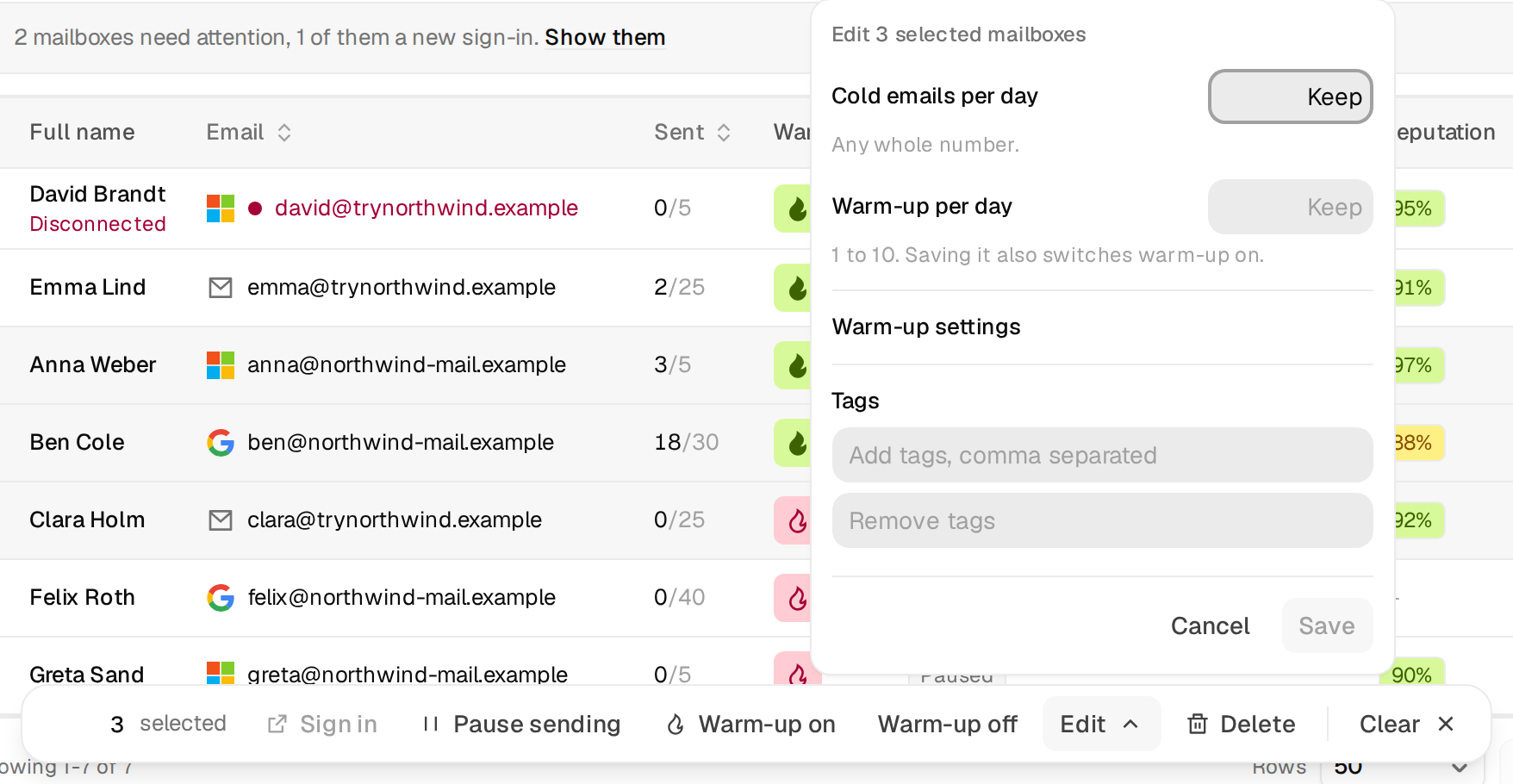
To select beyond one page, click Select all N in the bar, or type a number into the count and press Enter to select that many matching mailboxes.
Reconnect many at once
When mailboxes need a new sign-in, a notice above the table says how many, for example 2 mailboxes need attention, 1 of them a new sign-in. Click Show them to filter the table. For Microsoft mailboxes, Reconnect all tries the sign-in again in the background. If it says there is nothing to reconnect, tick the mailboxes and use Sign in. SMTP mailboxes reconnect one by one with their password.
Limits and good practice
- The free trial connects 2 mailboxes. Anything beyond that is refused with The free trial includes 2 mailboxes. Choose a plan to connect more.
- New mailboxes start with a safe daily limit and warm-up off. Set warm-up for all of them with Warm-up on before you attach them to a campaign.
- Tag mailboxes as you bring them in (by client, domain or market) with Edit, so you can filter and attach them as a group later.