
A campaign only sends from the mailboxes you attach to it. You pick them once in the campaign wizard and can change them at any time on the campaign's Senders tab, also while the campaign is sending.
Pick senders in the campaign wizard
The third step of New campaign is Senders. It lists your connected mailboxes and says how many are selected, for example 4 of 7 connected mailboxes selected.
- Every connected mailbox is ticked at first. Untick the ones this campaign should not use.
- Use Use all or None to change all of them, and Filter senders to find mailboxes by address or name.
- Click Next. The selection is saved when you press Next.
No mailbox yet? The step says No connected sending accounts yet and offers Add sending accounts. Connect one first, see Mailboxes: how sending accounts work.
Change senders later
- Open Campaigns, open the campaign and click the Senders tab. The line at the top says how many mailboxes send this campaign and how many you have connected in total.
- To add mailboxes, click Add mailboxes. The dialog lists connected mailboxes that do not send this campaign yet. Filter by address, provider, health or tag, tick the ones you want, or use Select all N. Click Add N mailboxes.
- To remove mailboxes, tick them in the list and click Remove N from campaign in the bar that appears. They stay connected and keep sending for their other campaigns.
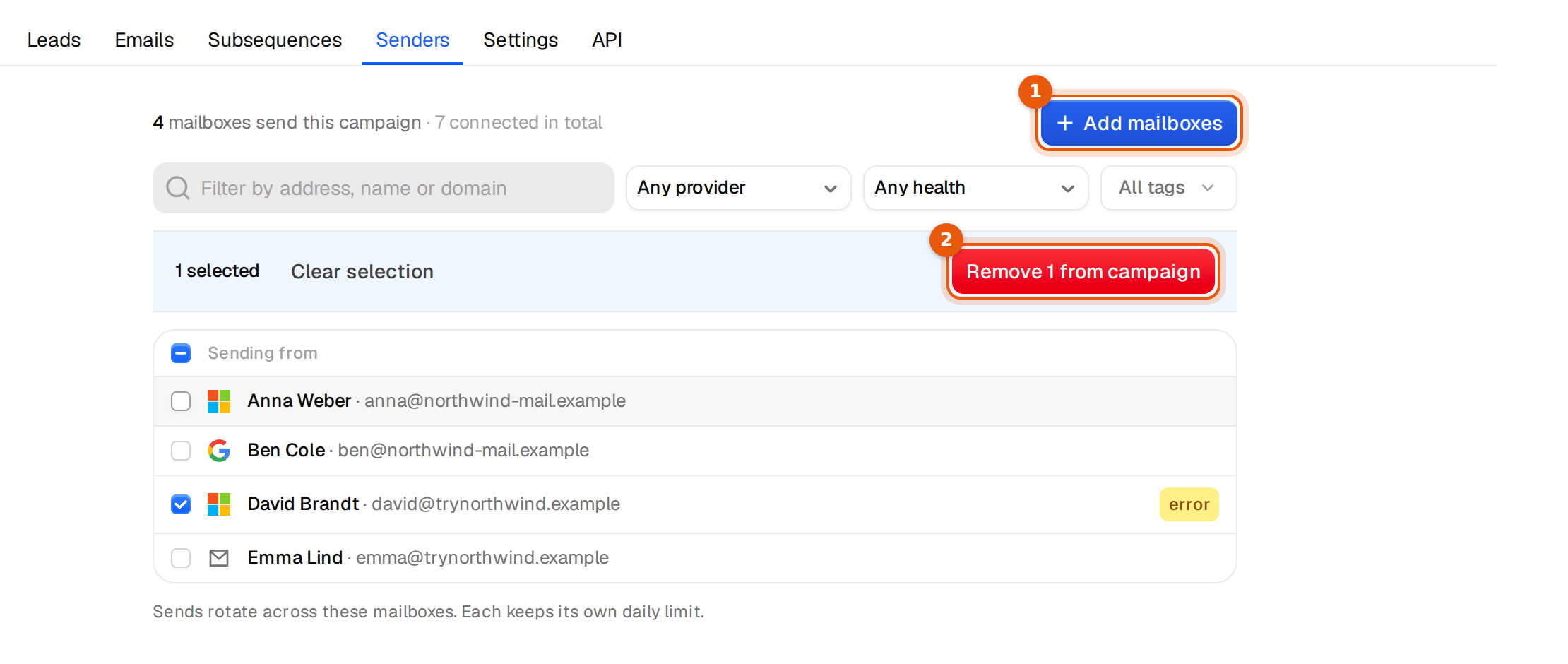
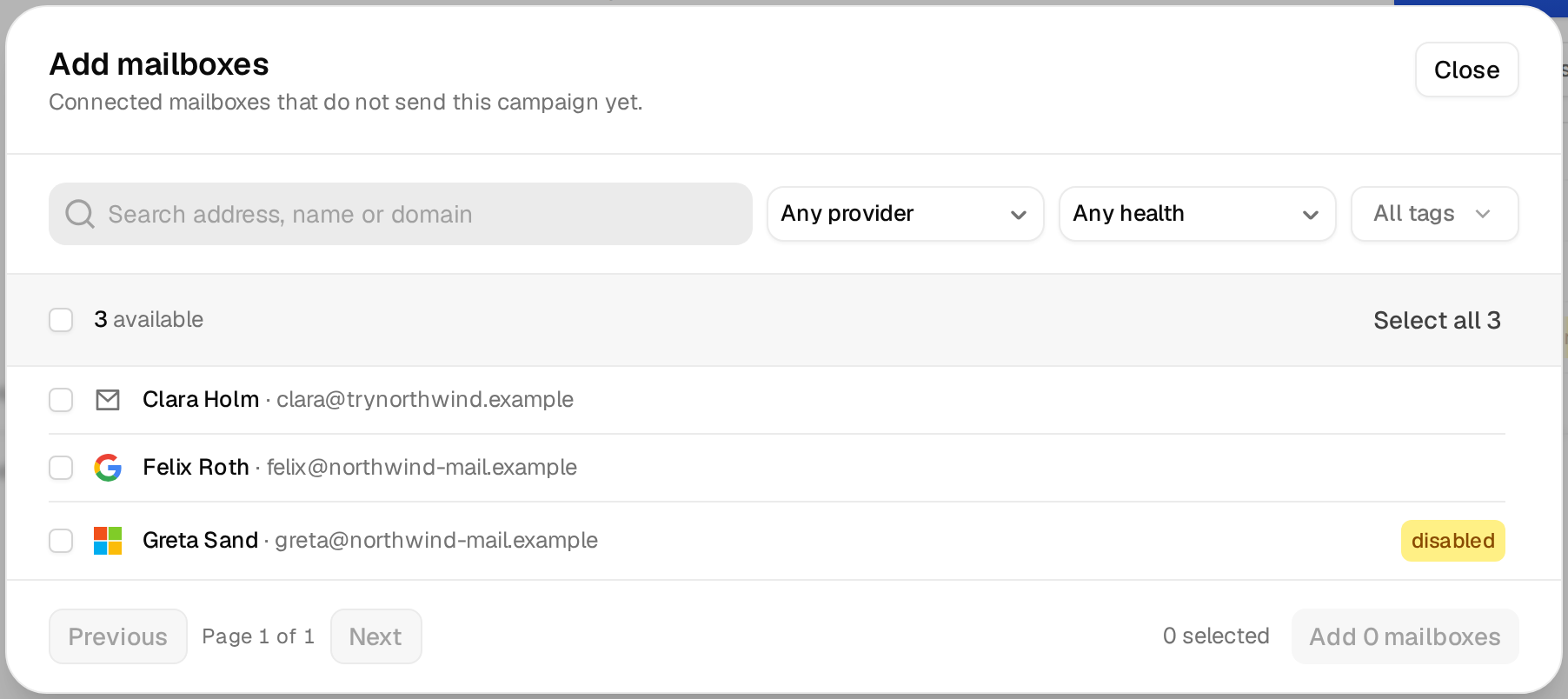
A small yellow tag next to a mailbox, such as error or disabled, means it cannot send right now. Fix it in Inboxes or replace it. See Mailbox statuses and what to do.
How sending is spread
- Sends rotate across all attached mailboxes that can send.
- Each mailbox keeps its own daily limit, even when it sends for several campaigns at once.
- The gap between sends in the campaign settings applies per mailbox.
- A follow-up always goes out from the same mailbox that sent the first email, so the conversation stays in one thread.
- The campaign never sends more than its own Daily send limit, see Daily sending limits per mailbox.
New mailboxes from an order
Mailboxes you bought can join a campaign while they are still aging. Open the order under Orders & domains and click Add to a campaign, or add them in the Add mailboxes dialog. They start sending once their 24 hours of aging are over, at 5 a day each.
How many mailboxes a campaign needs
Divide the number of emails you want to send per day by the daily limit of your mailboxes. A campaign that should send 100 emails a day from mailboxes at 5 a day needs 20 mailboxes. With fewer, it sends less than its daily limit and takes longer.
Common mistakes
- Taking the last working sender off a running campaign. The campaign then has nothing to send from. When you delete or disable such a mailbox in Inboxes, Argorant stops you and asks you to attach another mailbox or pause the campaign first.
- Attaching a mailbox that shows Sign in again. It is skipped until it is fixed.
- Using the same few mailboxes for every campaign. Spread your mailboxes so one busy campaign does not use up the capacity of the others.