
The preview shows one email exactly as a real contact in your campaign will get it, with every variable filled in and the spintax picked. From the same window you can send that version to yourself as a test. Nothing in the campaign starts or changes.
Open the preview
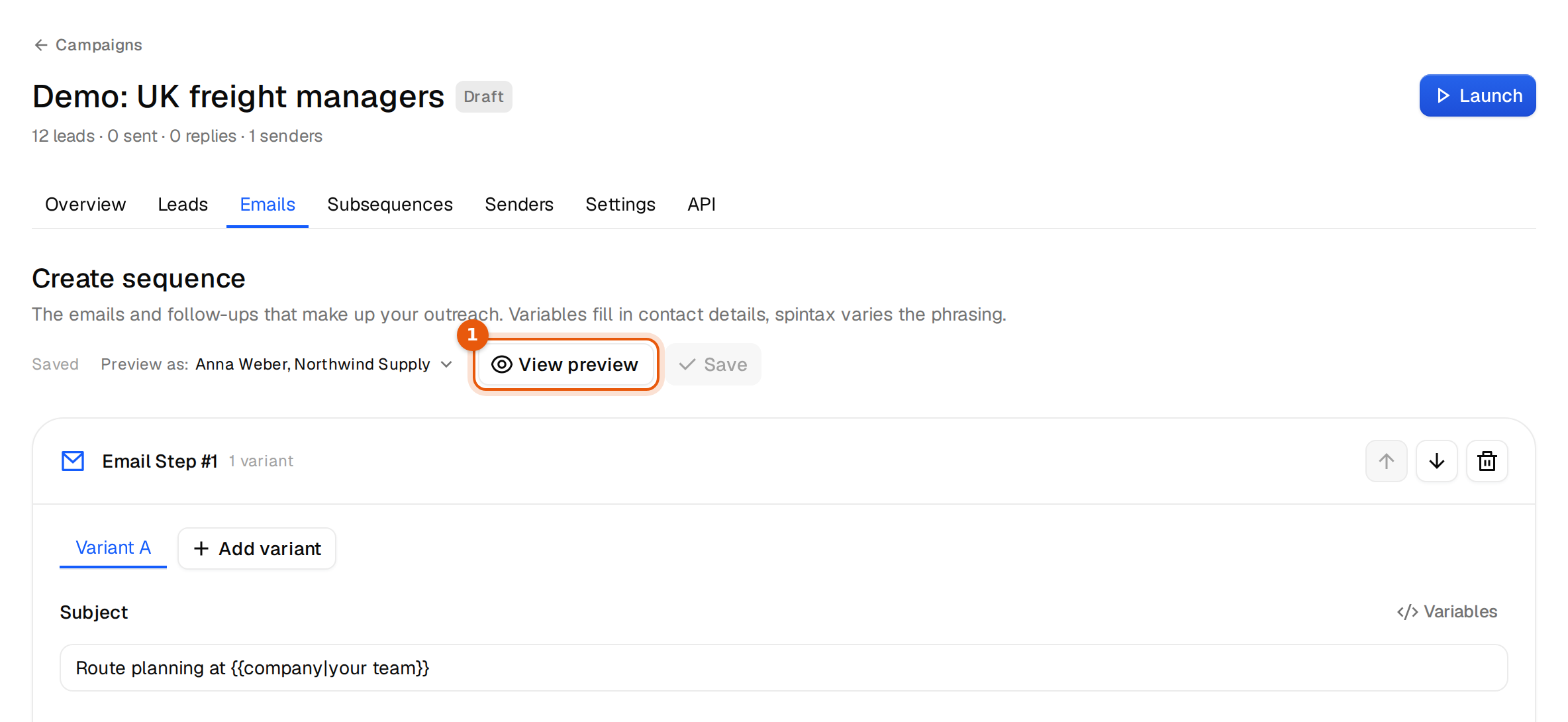
- Open the campaign and click the Emails tab.
- Click the email you want to check in the list on the left, for example email 2.
- Click View preview. The Preview window opens on that email.
What you can do in the preview
| Control | What it does | When you see it |
|---|---|---|
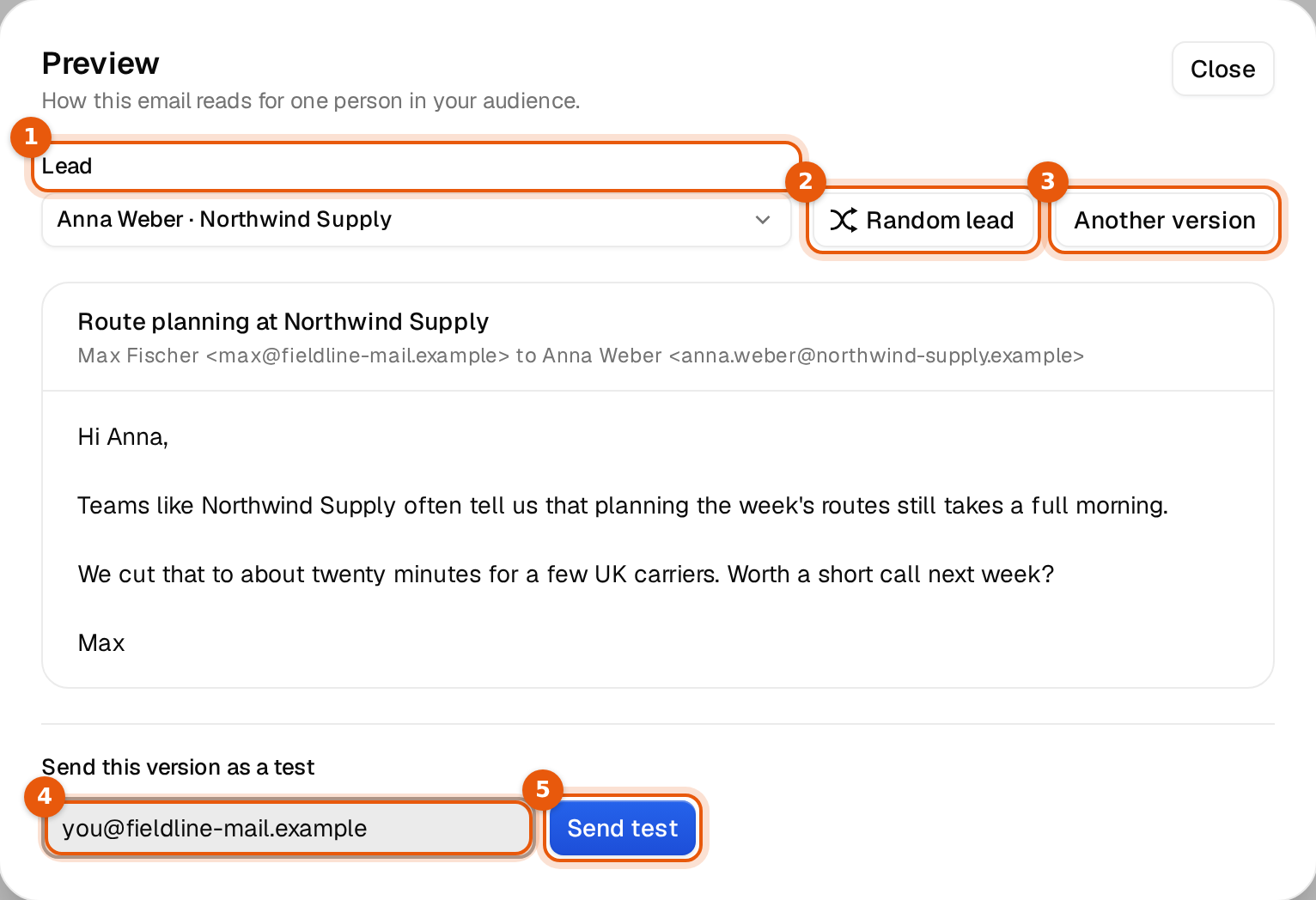
| Lead | Pick any of the first 100 contacts in the campaign. The email renders with their name, company and your own fields. | When the campaign has leads |
| Version | Switch between Variant A, Variant B and so on. Versions you switched off show (off). | When the email has more than one variant |
| Random lead | Jumps to a random contact and picks new spintax at the same time. | With two or more leads |
| Another version | Picks the spintax options again, so you can read other combinations. | When the email uses spintax |
The line under the subject shows who it comes from and who it goes to, for example Max Fischer <max@fieldline-mail.example> to Anna Weber <anna.weber@northwind-supply.example>. The sender is the first mailbox on the campaign's Senders tab. Without a sender you see Your sender and a hint to add one.
Follow-ups with Reply in the same thread switched on show Re: plus the subject of email 1, the way the contact will see it.
Find gaps before your contacts do
If a variable has no value for the contact you picked, the preview says so under the email, for example:
Not filled for this lead: city.
Fix it in one of three ways: give the variable a fallback such as {{city|your area}}, fill the value in your data, or remove the variable. Without a fallback, that contact waits at this email instead of getting a gap. See Fallbacks.
If the campaign has no leads yet, the preview uses your own details, and fields that come from leads stay in braces. Add leads to see real values.
Send a test email
- In the preview, pick the lead and version you want to test.
- Under Send this version as a test, type your own address in the field.
- Click Send test. The button turns into Sent and you see the message below.
Check your inbox. The campaign did not start.
The test is the exact text on screen, with the same subject, from one of the campaign's own mailboxes. So you see how it looks in a real inbox, including the sender name.
Things to check in the test
- The sender name and address look right.
- Line breaks and paragraphs come through as you wrote them.
- Names with umlauts or accents, such as Müller, show correctly.
- The email lands in the inbox, not in spam. If it goes to spam, check the mailbox's warm-up before you launch.
If the test does not send
| Message | What to do |
|---|---|
| This campaign has no connected, healthy sender attached yet. Attach a sender to the campaign, then send a test. | Add a connected mailbox on the Senders tab. If one is attached, open Inboxes and reconnect it. |
| No connected sender yet. Connect and verify a sender under Inboxes, then you can send test emails. | Connect a mailbox first. See Mailboxes. |
| Enter a valid recipient email. | Check the address for typos. |
A mailbox that is still in its first rest period after setup cannot send tests yet. The message tells you how long it has left.
Good to know
- Send tests only to yourself or your team. A test to a real prospect is still an email from your domain.
- Tests do not change the campaign status, and nobody in the campaign gets anything.
- Unsaved changes are previewed as they are on screen. Save them before you launch.