
Open a campaign and click the Emails tab. This is the sequence editor. The same editor is step 2 of the new campaign wizard, and a smaller copy of it writes the emails of each subsequence.
Each email in the sequence is one card. The card you click opens. The others stay folded to one line that shows the wait in days and the subject.
Write the first email
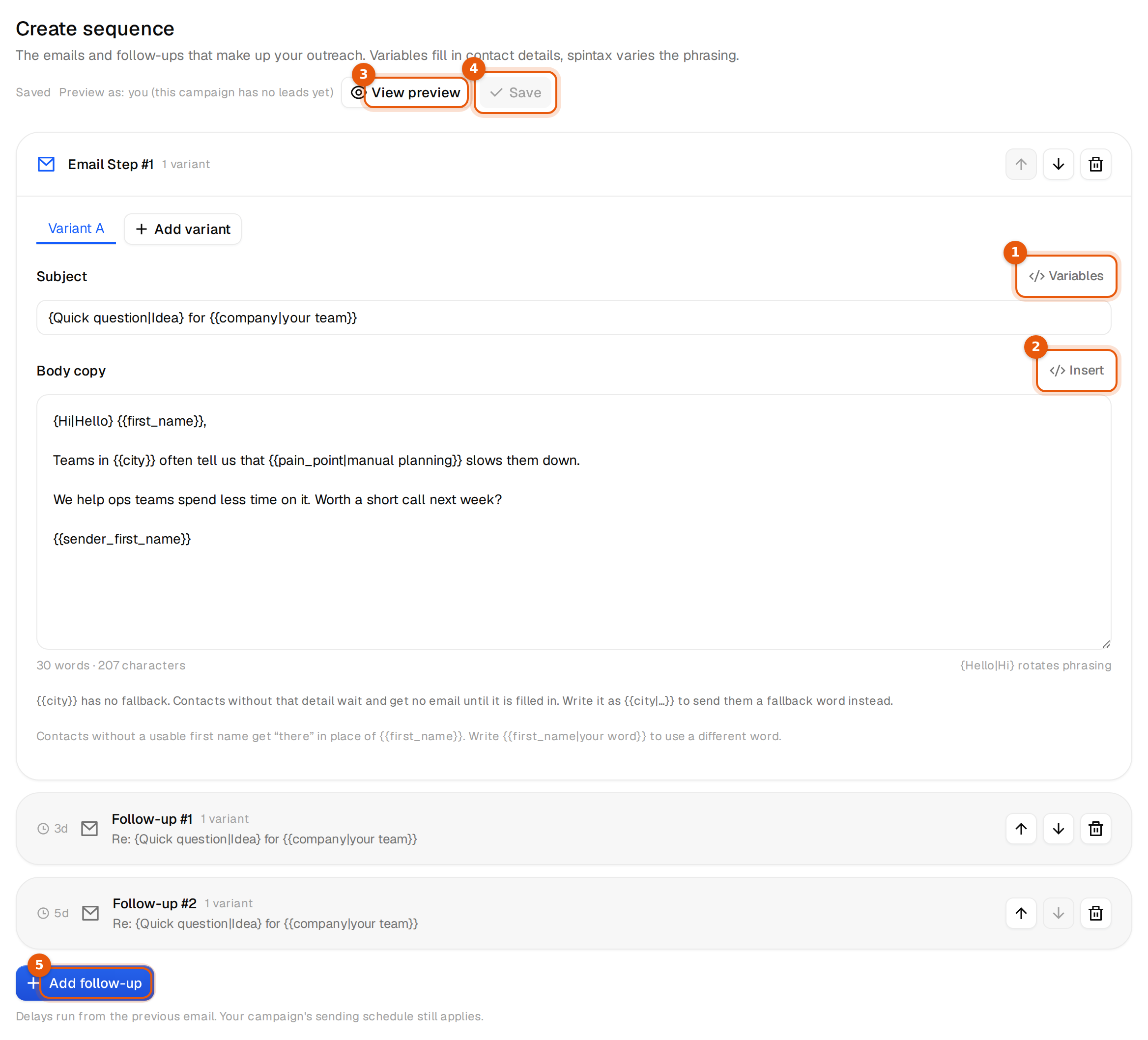
- Click the Email Step #1 card if it is not open.
- Write a short Subject. Three to six words, lower key than a newsletter.
{Quick question|Idea} for {{company|your team}}is a good pattern. - Click Variables next to the subject to drop a contact detail in at the cursor, such as
{{first_name}}or{{company}}. - Write the Body copy. Plain text, short paragraphs, one clear question, no images and no links in the first email.
- Click Insert next to the body for a ready snippet or a variable.
- Click Save at the top.
Under the body you see a counter such as 30 words · 207 characters. Keep a first email under about 100 words. The hint {Hello|Hi} rotates phrasing on the right reminds you how spintax is written.
The Insert menu
| Item | What it adds |
|---|---|
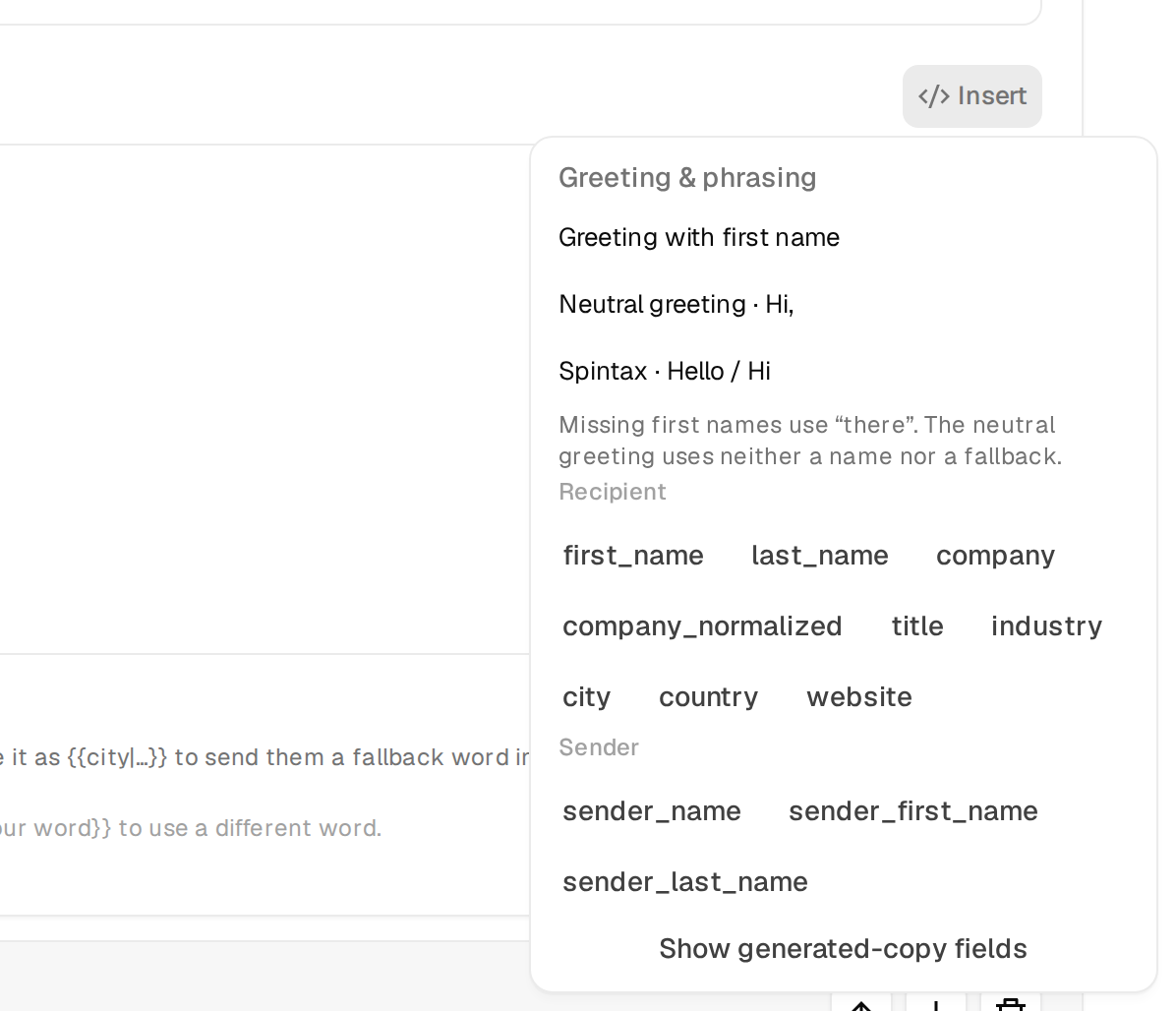
| Greeting with first name | Hi {{first_name}}, and a blank line. Contacts without a usable first name get Hi there,. |
| Neutral greeting · Hi, | Hi, and a blank line. No name and no fallback, the same for everyone. |
| Spintax · Hello / Hi | {Hello|Hi}, so each person gets one of the two words. |
| Recipient | Contact variables: first_name, last_name, company, company_normalized, title, industry, city, country and website. |
| Sender | Variables from the mailbox that sends: sender_name, sender_first_name and sender_last_name, and signature for the mailbox signature (see Use {{signature}} in campaigns and replies). |
Show generated-copy fields at the bottom lists fields that only work when your leads already carry written copy in them. Leave them alone unless you import that copy yourself. Every variable is explained in Personalize with variables.
Add follow-ups
- Click Add follow-up under the last card. A new card called Follow-up #1 opens.
- Set Days after the previous email, from 1 to 60. It starts at 3 and counts from when the previous email actually went out.
- Leave Reply in the same thread on to send it as a reply to the first email. The subject then fills in by itself. See Follow-ups in the same thread.
- Write the body. Two or three lines is enough: a short nudge, a new detail, or an easy way to say no.
- Click Save.
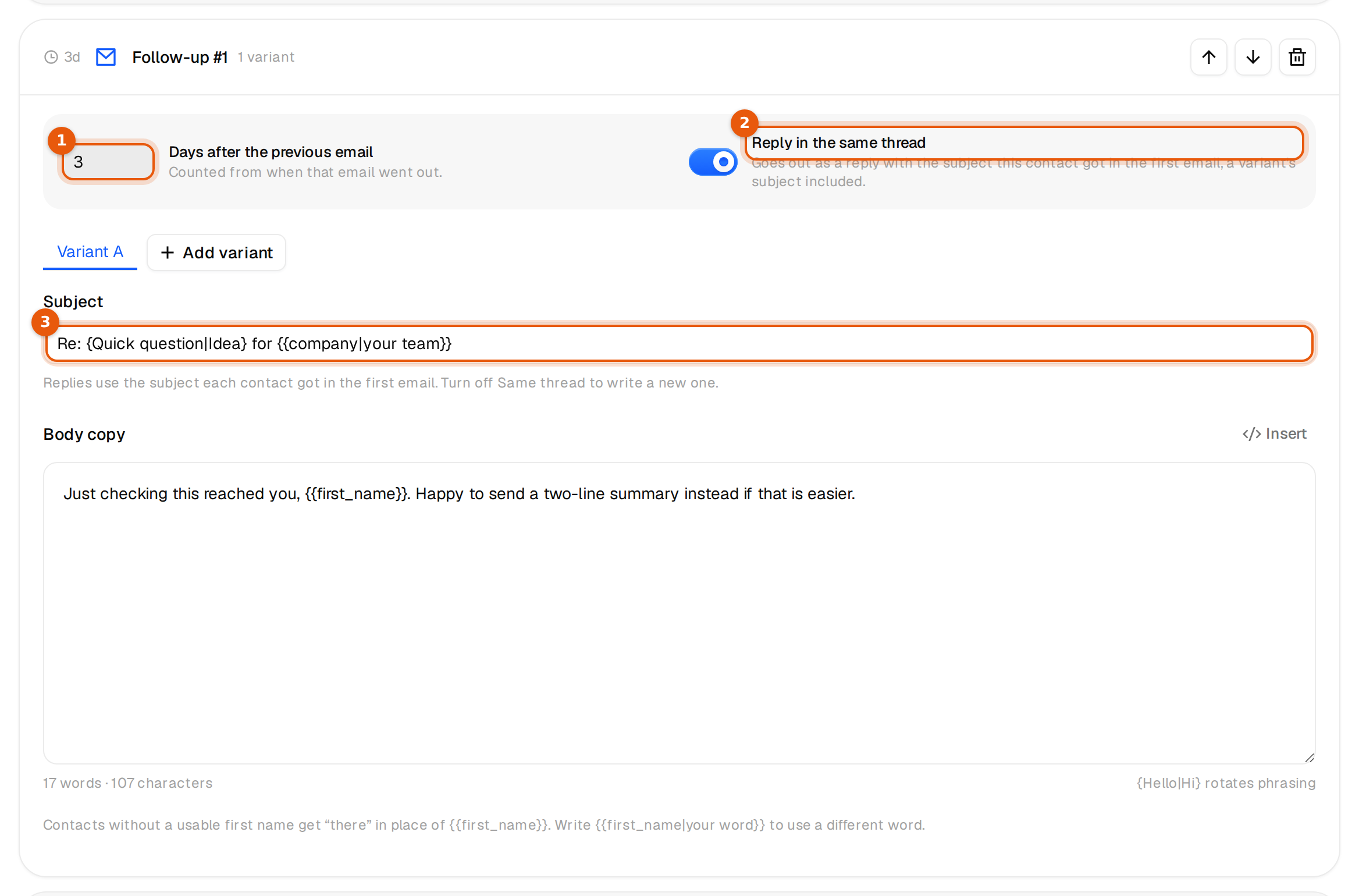
The arrows on each card move an email up or down, and the numbers follow. The bin deletes an email after you confirm Remove this email from the sequence? The first email of a new campaign cannot be deleted while it is the only one.
Waits are whole days. Your sending hours and the weekend setting still apply, so a follow-up that falls on a Saturday waits for the next weekday when weekends are skipped.
Saving
Next to Save you always see where you stand.
| Status | Meaning |
|---|---|
| Unsaved changes | You typed something that is not stored yet. |
| Saved | Everything on screen is stored. |
| Saved. Applies to emails not sent yet | The campaign is running. People who already got an email keep what they got. Later emails use the new text. |
| Not saved | The save failed. Your text is still on screen. Click Save again. |
If you try to leave while a save is still going out, the browser asks first.
Notes under the body
While you write, the editor checks your variables and adds a note under the body when something needs a decision.
{{city}} has no fallback. Contacts without that detail wait and get no email until it is filled in. Write it as {{city|...}} to send them a fallback word instead.
Read Fallbacks: what happens when a value is missing to decide what fits.
Text that would go out as written
After you save, the campaign page checks the copy for leftovers that should never reach a prospect: placeholders in brackets such as [link] or [Company], angle brackets such as <name>, TBD, TODO, XXX, lorem ipsum, a single word in braces, and variables written the wrong way. When it finds one, a box above the tabs reads, for example:
One thing in your emails would be sent exactly as written
It lists the email and the text. Click Fix in Emails to correct it. If the text is on purpose, for example a real [bracket] in your copy, Launch anyway sends it after you confirm. On a campaign that is already sending, Save asks the same question before the change goes out.
Tips that get more replies
- Write to one person, not a list. Use
{{first_name}}once, not in every line. - One question per email, at the end.
- Keep follow-ups shorter than the first email and in the same thread.
- Check every version in View preview before you launch, and send yourself a test.