
The campaign wizard takes you through five steps: Audience, Emails, Senders, Schedule and Launch. As soon as step 1 is saved, the campaign exists as a draft and every later step saves when you click Next. You can leave at any point with Save and close. Nothing is sent until you click Launch campaign.
Before you start
- At least one connected mailbox. Without one you can save a draft, but not launch. See Mailboxes: how sending accounts work.
- The people you want to write to, as a saved list in Lists, a .csv file with an email column, or a tool that will push leads over the API.
- A rough idea of your first email. Two to five short paragraphs is plenty.
Step 1. Name and audience
- Open Campaigns and click New campaign.
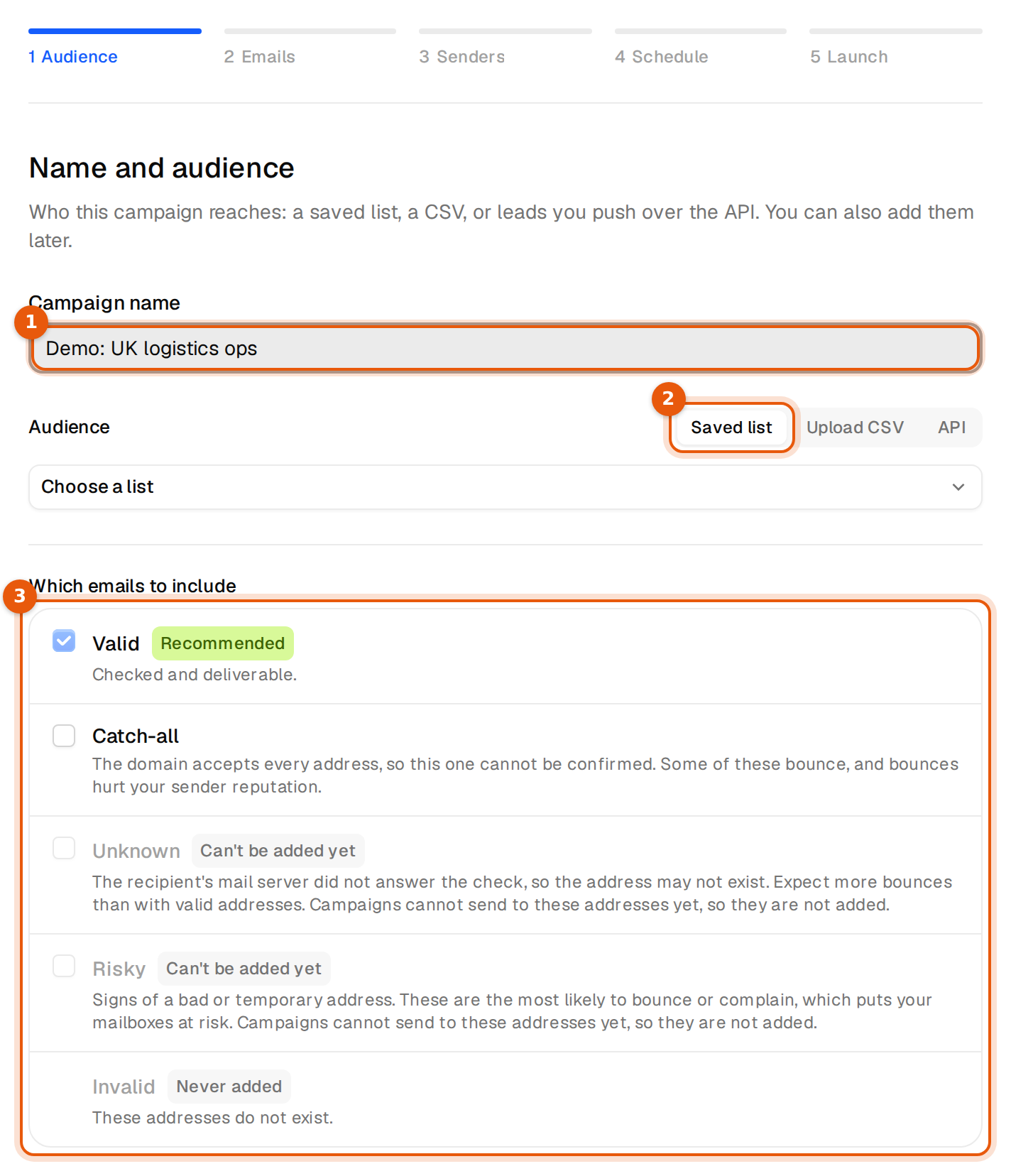
- Type a Campaign name, for example Demo: UK logistics ops. Only you and your team see it. Recipients never do.
- Under Audience, pick Saved list, Upload CSV or API. The table below explains each.
- Under Which emails to include, keep Valid ticked.
- Click Save and continue. This creates the draft and adds the people.
| Audience | What you do | Good to know |
|---|---|---|
| Saved list | Pick a list under Choose a list. Each option shows how many people it holds. | No lists yet? The step offers Open Search and Upload CSV. |
| Upload CSV | Drop a file or click Choose file, then check the column mapping that appears. | Comma or semicolon separated, UTF-8, with an email column. Your own rows use no credits. See Use your own CSV columns as variables. |
| API | Nothing to add now. Save and continue creates the campaign and shows its ID with Copy ID. | Leads you push later join the sequence by themselves. The campaign's API tab has an example request. |
Which emails to include decides which addresses may join. Every address is checked before it is added.
| Type | What it means | Our advice |
|---|---|---|
| Valid | Checked and deliverable. | Always on. It is marked Recommended. |
| Catch-all | The domain accepts every address, so this one cannot be confirmed. Some of these bounce. | Tick it only for a small, important audience, and watch the bounce rate. |
| Unknown, Risky | The check got no clear answer, or the address looks bad or temporary. | Shown for information. Campaigns cannot send to them yet, so they are not added. |
| Invalid | The address does not exist. | Never added. |
If nobody from your audience could be added, the step says so:
No one was added to this campaign
Below it you see why. Include more email types and click Save and continue again, click Pick another list, or click Continue without leads and add people later from the Leads tab.
Step 2. Emails
Write the first email and any follow-ups. Each follow-up waits 3 days by default. View preview shows the email the way one person would get it. The full guide is Write the emails in your sequence.
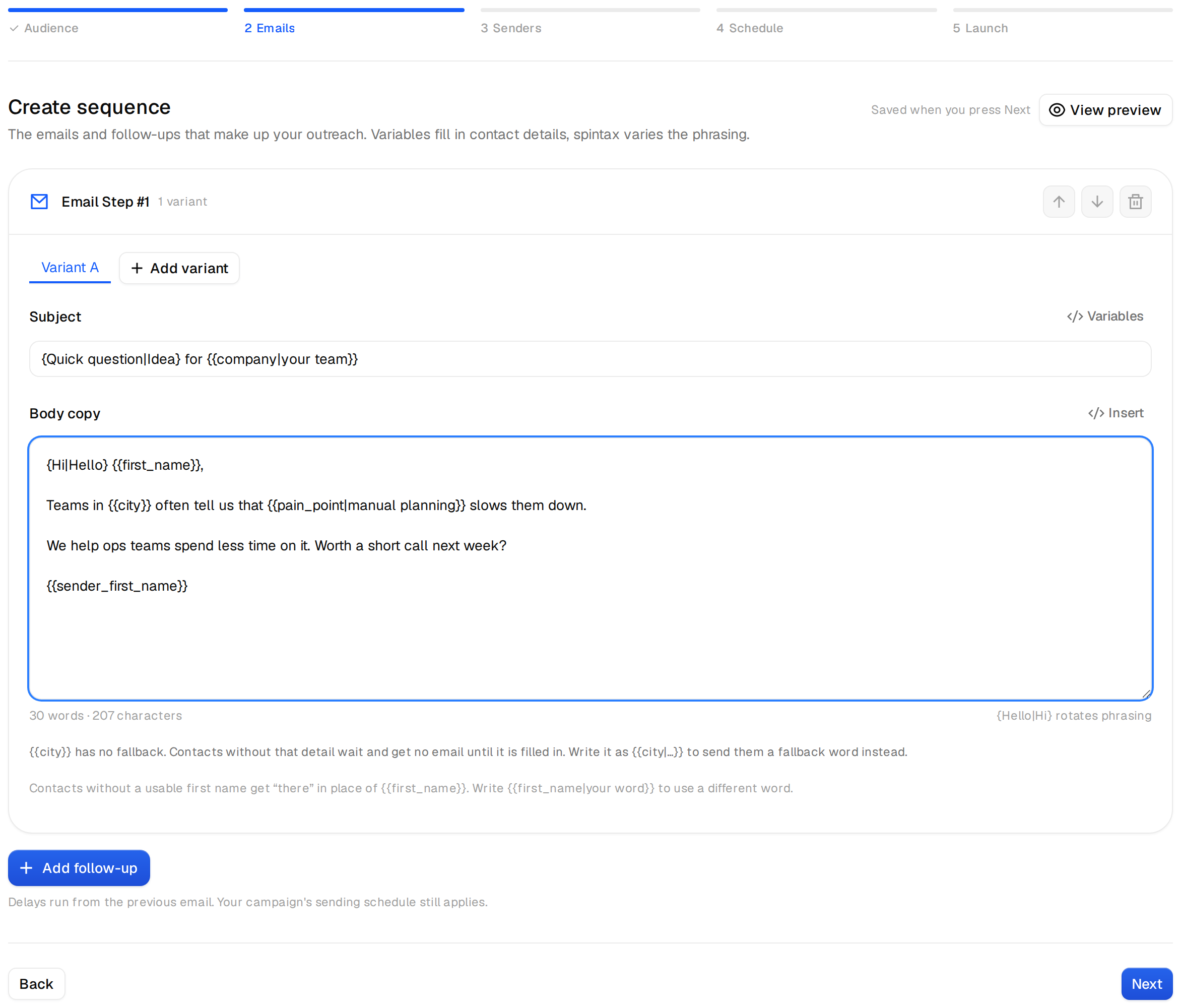
Next stays grey until every email is complete. The editor tells you what is missing: Add a subject., Write the message body. or Wait between 1 and 60 days before a follow-up.
Step 3. Senders
Every connected mailbox starts ticked. Untick the ones this campaign should not use, or click Use all or None. With more than 8 mailboxes a filter field appears, so you can find them by address or name. Sends rotate across the selected mailboxes, and each mailbox keeps its own daily limit.
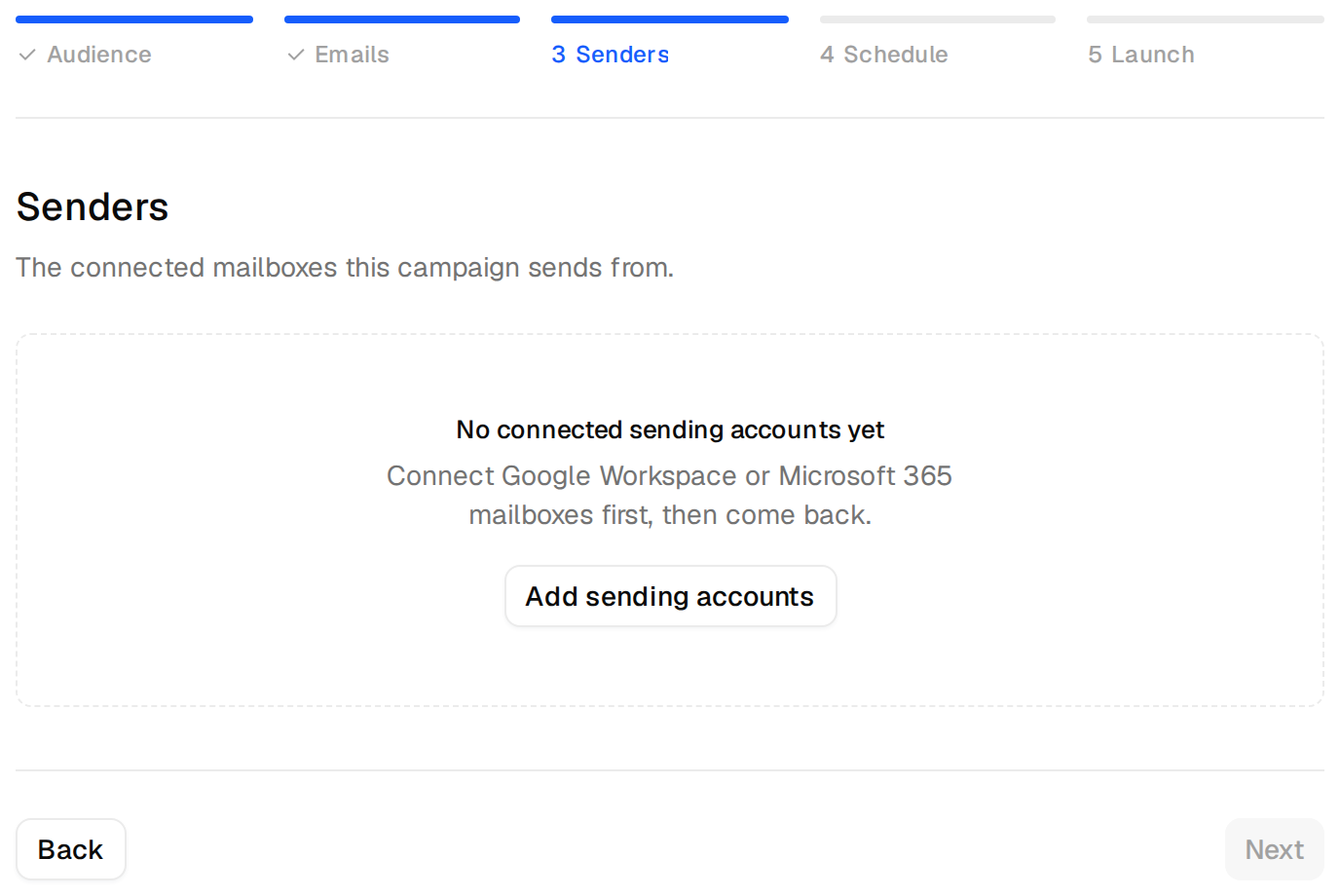
Without a connected mailbox you see No connected sending accounts yet and Next stays grey. Your draft is already saved. Click Save and close, connect a mailbox in Inboxes, then open the draft from the Drafts filter and add it on the Senders tab.
Step 4. Schedule
| Field | Choices | Default |
|---|---|---|
| Start | When I press Launch, or On a date with a date and a time. | When I press Launch |
| Timezone | The timezone your sending hours follow: US, Canada, UK, Ireland, Central Europe, France, Spain, Netherlands, Sweden, Sydney or Singapore. | US Eastern (ET) |
| Daily send limit | The most emails the whole campaign sends per day. Each mailbox still keeps its own limit. | 100 |
| Gap between sends per mailbox | A random wait before the same mailbox sends again: 1 to 3, 5 to 15, 15 to 30, 30 to 60 or 60 to 120 minutes. | 60 to 120 minutes |
| Send as plain text | Sends without formatting, which lands in the inbox more often. | On |
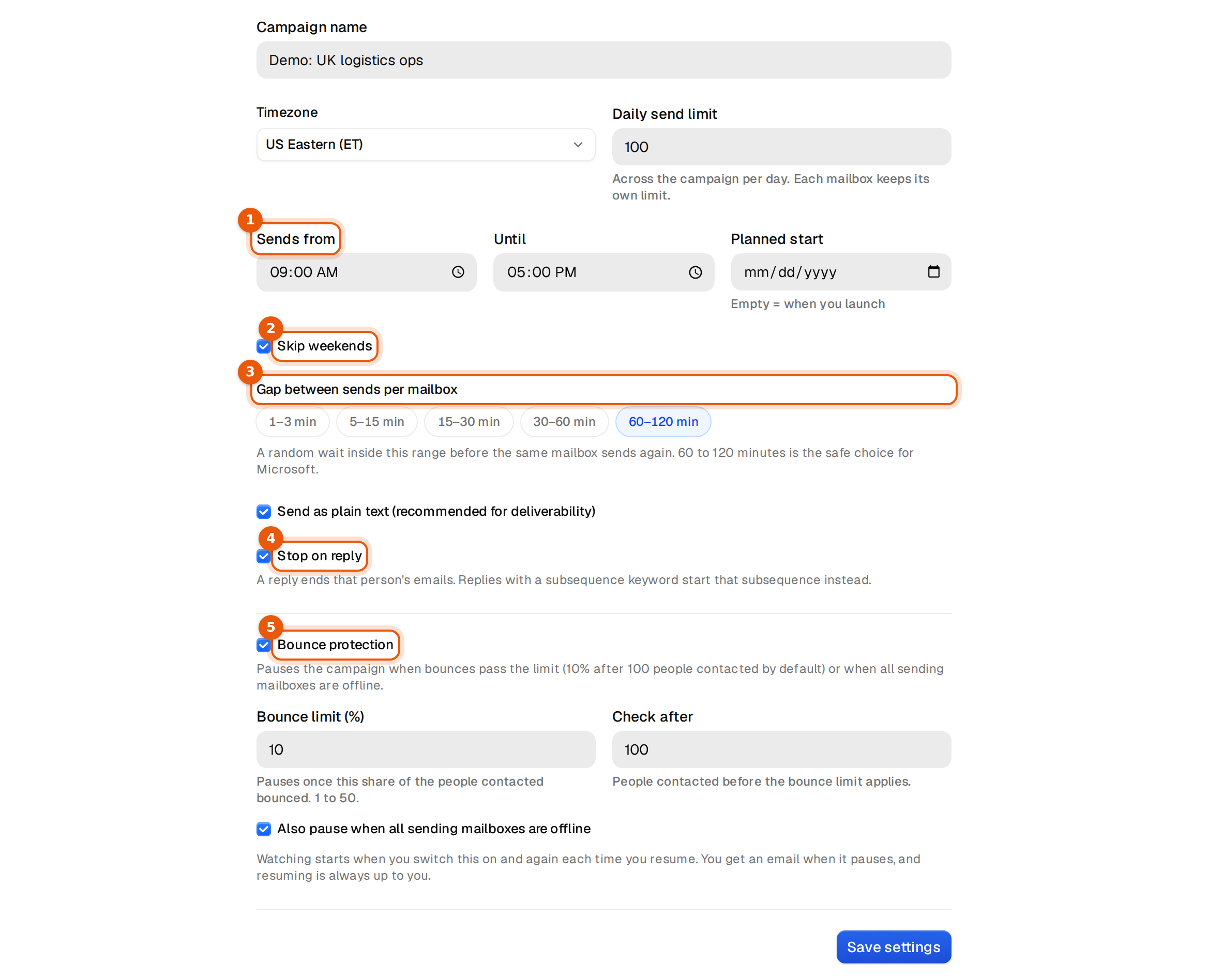
60 to 120 minutes is the safe gap for Microsoft 365 mailboxes. Google tolerates shorter gaps. Sending hours, weekends, Stop on reply and Bounce protection are on the campaign's Settings tab after you save.
Step 5. Review and launch
The last step lists the name, the audience, every email with its wait, the senders, the start and the pace. Read it once like a checklist. Then click one of two buttons.
| Button | What happens |
|---|---|
| Keep as draft | Nothing is sent. The draft opens on its campaign page, where you can keep editing. |
| Launch campaign | The audience is checked and added, the emails are saved, the mailboxes are attached, and sending starts in the next sending window, or on your start date. |
Launch campaign stays grey without a sender, and without leads unless the audience is the API. In that case the step says:
Add leads before launching: keep it as a draft and add them from the campaign's Leads tab, or push them over the API.
After you launch
You see Campaign launched with View campaign and Go to dashboard. The first emails go out in the next sending window, spread out by the gap and capped by the daily limit, so a new campaign starts slowly on purpose. You can pause it at any time. See Launch, pause and stop.
If something goes wrong
| What you see | What to do |
|---|---|
| Save and continue is grey on step 1 | Add a campaign name. With a CSV, fix the mapping message, for example Pick the column that holds the email address. |
| A red message such as Couldn't import your recipients | Your draft is saved. Click the button again. It continues from that step. |
| The last change was not confirmed | Click Open campaign and check the campaign before you try again, so nothing is added twice. |
| You closed the tab half way | Open Campaigns, filter by Drafts and open the campaign. Every saved step is still there. |